Photoshop Online Free: The Best Browser Editor
Photopea is a free, browser-based editor with a Photoshop-style interface: layers, masks, and PSD support, no install or subscription needed.

Contents
- What are the best free online photo editors right now?
- What’s the best free alternative to Photoshop?
- How do free online photo editors compare to Adobe Photoshop’s core features?
- Which free online photo editor excels at background removal and advanced cropping?
- What features should you prioritize in a free online photo editor?
- Is it truly possible to replace Photoshop with a free online editor?
- FAQ
- Can I edit RAW files with free online photo editors?
- Are my images secure when I upload them to an online editor?
- Do free online editors support layers and masks like Photoshop?
- What’s the best format to save images for the web in 2026?
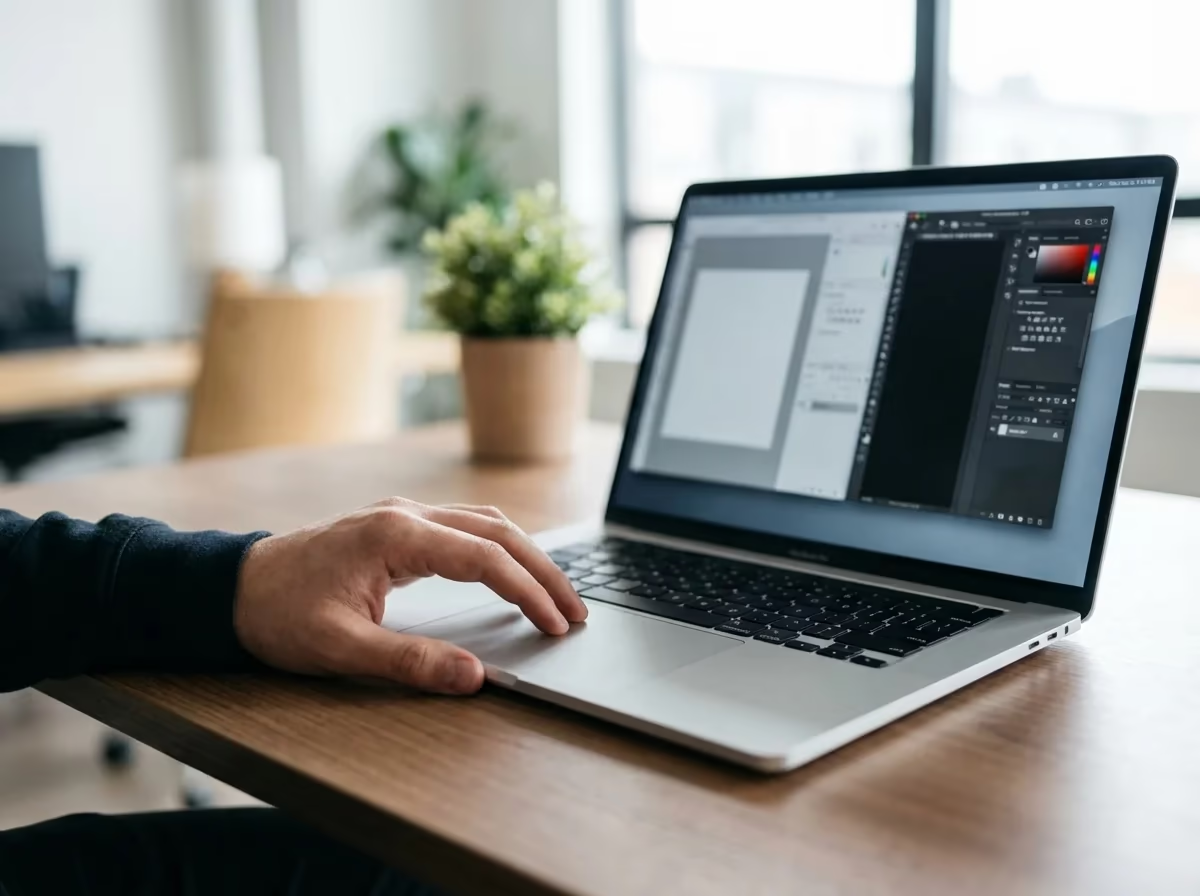
Photopea is the free, browser-based editor built to feel like Photoshop: layers, masks, adjustment layers, and it opens PSD files directly, all without an install or a subscription. It won’t replace Photoshop for RAW photography or CMYK print work, but for web graphics, product photos, and social media edits, it covers most of what the paid app does.
Everyone’s hit this wall: a project needs a quick fix (a background gone, a logo resized, colors nudged) and Photoshop wants a subscription first. I spent a long time assuming professional results required paying for it. Testing the free alternatives changed that: most day-to-day edits don’t need Photoshop at all.
What are the best free online photo editors right now?
Photopea leads the pack: browser-based, no install, and close enough to Photoshop’s interface that switching over doesn’t mean relearning your workflow. Krita is the other name worth knowing, built more for digital painting but capable enough for photo editing too. These platforms extend the history of image editing to anyone with a browser, no installation required.
For big projects, a full-featured editor like Photopea is my go-to. It opens PSD files and supports layer styles, masks, and smart objects, so the move from Photoshop doesn’t feel like starting over. For a simpler, one-off task, though, a dedicated single-purpose tool gets there faster. You only load what that job actually needs.
What’s the best free alternative to Photoshop?
Photopea is the closest free alternative to Photoshop you’ll find online. It matches the interface, opens native PSD files, and covers layers, masks, and adjustment layers, the tools most people actually use day to day. What it doesn’t do: CMYK color for print and native RAW file support, both of which stay Photoshop’s territory.
If all you need is one task, like pulling out a background, skip the full editor. RoundCut’s browser-based background remover handles that single job without opening a Photoshop-style interface at all.
How do free online photo editors compare to Adobe Photoshop’s core features?
Free online photo editors replicate many of Photoshop’s core features surprisingly well, especially for day-to-day web and graphic design. The essentials are all there: layers, blending modes, adjustment layers, selection tools, and filters, all present in the top-tier free alternatives. They lack some of Photoshop’s advanced AI-driven neural filters and extensive 3D capabilities, but they cover the essentials solidly. You can build complex compositions with multiple layers, apply non-destructive color corrections, and use masks to isolate parts of an image.
From my experience, the main difference isn’t capability but small workflow nuances. Photoshop has decades of refinement, so certain actions feel more polished. Yet for about 80% of common tasks (social media graphics, retouching product photos, designing web banners) a free alternative like Photopea is not just a substitute. It’s often faster, since it isn’t bogged down by features you’ll never use. The main limitations are a lack of CMYK color mode for print and limited support for RAW camera files, a real consideration for professional photographers. More on that in photography software reviews and news.
| Feature | Adobe Photoshop | Top Free Alternatives |
|---|---|---|
| Layers & Masks | Yes (Advanced) | Yes (Most core functions) |
| Adjustment Layers | Yes | Yes |
| Advanced Selection Tools | Yes (AI-powered) | Varies (Good, but less refined) |
| RAW File Support | Yes | No (Requires conversion) |
| CMYK Color Mode | Yes | No |
| Export Formats | Extensive | Web-focused (PNG, JPG, WebP) |
Which free online photo editor excels at background removal and advanced cropping?
When it comes to background removal and advanced cropping, the best solution is often a specialized online tool, not a full-fledged editor. Comprehensive editors like Photopea have selection tools (Magic Wand, Lasso), but they still require manual work. A dedicated free background remover can isolate a subject from its background in seconds with a single click, producing a clean PNG with a transparent background ready for any design.
Ten minutes spent manually tracing a complex object is wasted when an AI does it in five seconds, and that gap matters most in e-commerce. A small online store I consulted with was spending over 15 hours a week manually cutting out product photos in Photoshop. After switching to an automated online tool, they cut that to under two hours with more consistency across their thousands of product images, directly improving their product list user experience.
Cropping follows the same logic. Any editor can do a basic rectangular crop, but specific needs are better served by specialized tools. Building a professional-looking LinkedIn profile picture calls for a perfect circle, not a rough guess. A dedicated circle crop tool skips the elliptical-marquee struggle and centers the image automatically, a key step in a perfect LinkedIn profile photo.
What features should you prioritize in a free online photo editor?
Priorities depend on the workflow. Social media managers want templates, a solid text tool, and quick access to stock assets: speed and consistency matter more than pixel-perfect retouching. E-commerce sellers need accurate color correction and batch processing for hundreds of photos at once. Export options built for the web matter too. A format like WebP that shrinks page load times is a real advantage, and understanding the difference between WebP and modern JPEG helps here.
Designers and photographers want something closer to Photoshop itself: layers, layer masks, and non-destructive adjustments that allow experimenting without touching the original file, plus enough horsepower to handle high-resolution images without crashing. That’s when a comprehensive, Photoshop-like tool earns its steeper learning curve.
Is it truly possible to replace Photoshop with a free online editor?
For most users, yes: a free online editor replaces Photoshop without a noticeable hit to daily work. Web graphics, social posts, and basic composition are well within reach of the tools already covered here.
I’ll be honest: there are still edge cases where Photoshop wins outright. High-end photographers running complex RAW workflows, print designers who need precise CMYK management, and anyone leaning on third-party plugins will still get more from an Adobe subscription. Those are genuinely specialized needs, not the daily grind most people deal with.
The one mistake I see constantly: paying for a full suite while using maybe 10% of its features. Before renewing an expensive subscription, spend a week listing every task you actually do in Photoshop, then try replicating that list in a resource like Photopea. Most items on it have a free, faster equivalent.
FAQ
Can I edit RAW files with free online photo editors?
For the most part, no. Free online editors are built for web formats like JPEG, PNG, and WebP. You’ll usually need to convert your RAW files into one of those formats first before you can start editing online.
Are my images secure when I upload them to an online editor?
Yes, with reputable services. They process images on their servers without claiming ownership and typically delete the files after a short time. Still, it’s always smart to check the privacy policy of any service before uploading sensitive photos.
Do free online editors support layers and masks like Photoshop?
Yes, the more advanced free online editors, such as Photopea, offer robust support for layers, layer masks, adjustment layers, and blending modes. This allows for a non-destructive workflow very similar to what you would find in Adobe Photoshop.
What’s the best format to save images for the web in 2026?
For most web use cases, WebP offers the best combination of high quality and small file size. PNG is the ideal choice for images that require a transparent background, while JPEG remains a solid option for photographs without transparency.
Remove image backgrounds for free


