Loading your files…

Increase your image resolution with AI

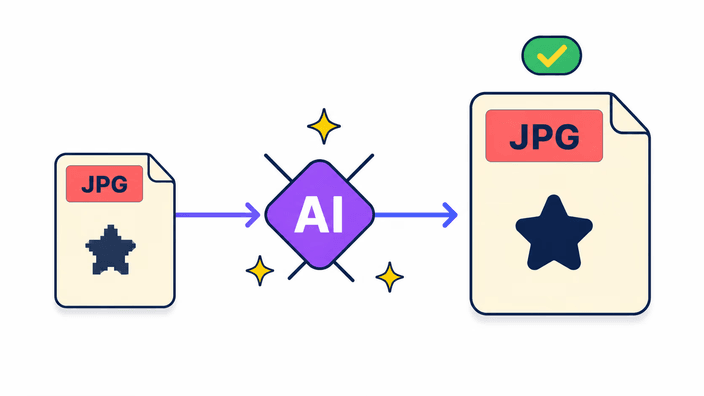
Make your photo sharper and bigger in seconds. The AI does the work in the cloud and hands back a result that is ready to download.

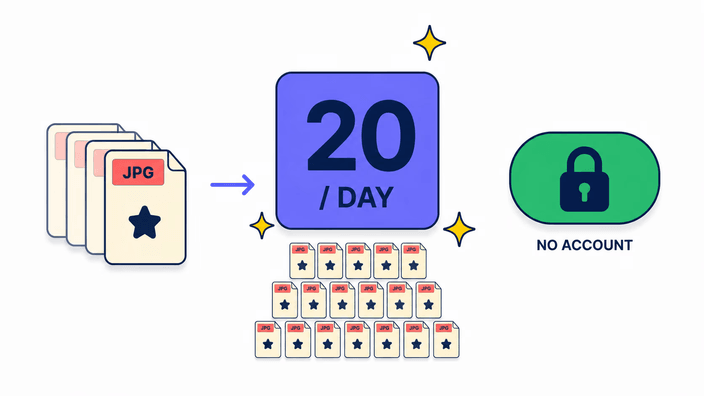
or drop a JPG, PNG, or WebP, up to 20 MB and 16 megapixels

Upscale an image
How the AI upscaler works

How the AI upscaler works

Your photo runs through an AI model trained on millions of images. It looks at the edges, textures, and colors of your image and generates new detail that blends with what was already there. The result comes back sharper and at a higher resolution, ready for you to download. Drop a photo onto the upload area, check it in the grid, and click upscale. Within a few seconds the result appears. If you like, you can rotate each photo before upscaling, or pull images straight from your Drive or your Dropbox.
Output size: what to expect

Output size: what to expect

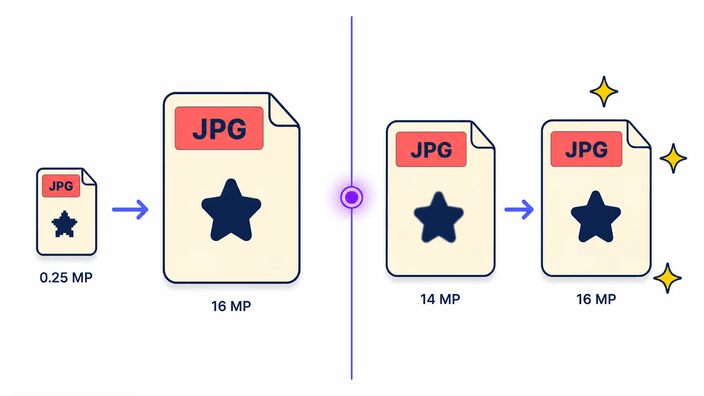
There is no fixed multiplier here. The AI always aims for a high final size, so how much your photo grows depends on where it starts. A small photo comes back much bigger. A photo that is already large comes back close to the same size, only with much firmer edges. Both cases land near the same resolution ceiling. That is why the tool never asks you to pick a scale factor by hand. It tunes the enlargement on its own to deliver the best possible quality for each image you send.

Accepted formats and limits

Accepted formats and limits

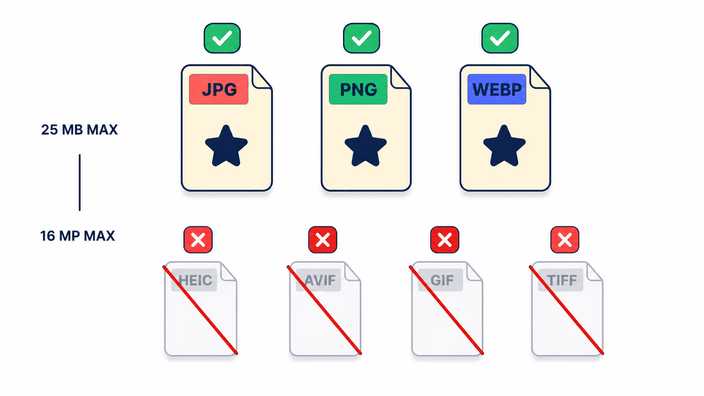
The tool accepts images in JPG, PNG, or WebP. You can upscale one photo on its own or up to five at once in the same grid. Each file has a ceiling on size and on input resolution, and photos above that are turned away before they upload, with nothing wasted. Phone-camera formats like HEIC, along with AVIF, GIF, and TIFF, are not accepted. If your photo is HEIC, you can convert the image to a common format first and then upscale the result here.

Your daily limit and what happens to your file

Your daily limit and what happens to your file

The tool is open to use, with a daily cap on upscales per device to keep it standing for everyone. That cap is generous for everyday work, so you rarely bump into it during a normal photo session. If you do reach it, the screen tells you right away and asks you to come back the next day, without losing anything you already did. The counter runs per device, so a shared office network can add up faster than you would expect. And nothing you upscaled disappears when the day rolls over.

Need a different result?

Need a different result?

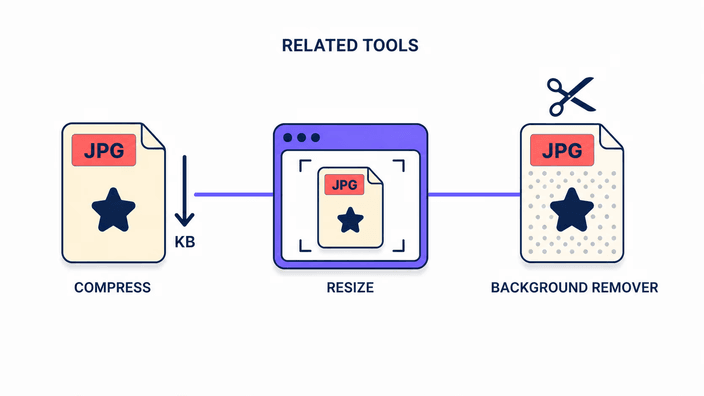
Upscaling is for making a photo bigger and sharper. If what you need is something else, there is a right tool for each case. To change the width and height to an exact value, use resize an image. To make the file lighter without touching the dimensions, run it through compress an image after upscaling. Each one does a single job well, with nothing to install. The idea is always the same: one click does it, with no tangled menus or hidden steps along the way.

Best photos to upscale

Best photos to upscale

Not every photo gains the same amount. The ones that gain most are the small, old, or low-resolution ones, like a cramped product shot, a portrait saved too tightly years ago, or a screenshot that came out blurry. In those cases the jump in sharpness is obvious. An image that is already large and well defined changes little, because there is almost nothing to improve. Before you upscale, it helps to start from the largest file you have of that photo, rather than a version that was already shrunk, so the AI has more to work with.

How it works

  1. Drop in your photo

    Drag an image onto the page or tap the upload area to pick from your device, your Drive, or your Dropbox. You can add up to five at once.

  2. Check the grid

    See your photos as thumbnails, remove any you do not want, and rotate any that came in crooked before upscaling.

  3. Click upscale

    The AI sends your image to the cloud and starts raising the resolution. A bar shows the progress of each photo.

  4. Wait a few seconds

    The result appears as soon as the model finishes. Images upscaled before come back almost instantly.

  5. Download the result

    Save the upscaled photo to your device. With several photos, they come bundled in a zip, and you can clear the working copy from the same screen.

Get your image ready in one place

Before or after upscaling, fit the photo for where it is going: trim it to the right shape or take out the background.

Frequently asked questions

What is an AI image upscaler?

It is a tool that makes a photo bigger and sharper using a trained AI model rather than plain stretching. You give it an image and it generates new detail that fits the photo, returning a version at a higher resolution. It runs in the browser interface and does the actual work in the cloud, so it takes only a few seconds even on a phone. You drop the image in and the result comes back ready.

Can I upscale an image without losing quality?

No upscaler enlarges an image with nothing changing, and this one is honest about that. The AI does not bring back the original detail that was missing, it generates new detail that matches your photo, making edges firmer and textures cleaner. The result looks bigger and sharper to the eye, even though it is not an exact copy of what the camera first captured.

Is AI image upscaling really free?

Yes, the tool is open to use and you pay nothing to upscale. There is a daily cap of photos per device, which keeps the tool standing for everyone. In everyday use you are unlikely to reach it. When you do, you simply come back the next day and keep upscaling whatever you still need to enlarge.

What image formats can be upscaled?

The everyday image formats of the web work directly. The usual trouble is an iPhone photo, which comes as HEIC and does not run here, along with a few less common types. The way around it is to convert your image to a common type before upscaling. Once that is done, it goes in like any other and the result comes out the same.

How long does AI upscaling take?

For a new photo, count a few seconds from the click to the result. If the same image has been through here before, it comes back almost instantly, because the service already has the finished result on hand. Bigger or more detailed photos ask for a touch more time, but the wait is short overall and you watch it on a progress bar.

Is my image safe when I upload it to an upscaler?

Not in the way you might fear. Once the upscale finishes, the result comes down to your browser and your file stops being tied to you or to any login. For a short while a cache version stays on the service, only so that re-sending the same photo does not have to run everything again. You can clear that result from the screen whenever you want.

What is the difference between upscaling and resizing?

Resizing changes an image's dimensions to a value you choose, and usually makes the photo smaller, inventing nothing. Upscaling with AI goes the other way: it enlarges the image and creates new detail so it can carry the larger size without going soft. If you just want an exact size, resize handles it. To gain real resolution, upscale instead.

Does AI upscaling work on old or blurry photos?

It works best on photos that are small, soft, or low in resolution, which is exactly where old and lightly blurry shots fall. The AI firms up the edges and rebuilds some of the texture the blur ate away, so the image comes back more defined. If a photo is completely out of focus, though, there is not enough to work from and the gain stays small.

The details

Notes from the team on craft, formats, and the small decisions behind a good result.

Why upscaling with AI is not the same as stretching an image
Stretching a photo in a plain editor just repeats the dots that are already there, and the result turns blocky and soft. Upscaling with AI is different. The model was trained on millions of pairs of small and large images, so it learned how a sharp edge or a patch of skin texture tends to look when it has more resolution. Instead of repeating dots, it invents new, plausible detail that fits what the photo already showed. That is why the result looks natural rather than blurred. Keep in mind that this detail is the model's educated guess, not an exact copy of what was in the scene. The image ends up bigger and cleaner to the eye, but it is not a perfect recovery of the original.
When more resolution actually makes a difference
Resolution becomes a problem the moment you print or upload to a place that demands a large image. A photo that looks great on a phone can come out jagged when you send it to print at a much bigger size, because there is not enough detail to fill the space. The same happens on marketplaces and catalogs that ask for product photos above a certain size. Upscaling before you send solves that squeeze without making you reshoot. On screen, the difference shows up when you crop a small piece out of a photo and still want that crop to look presentable. In all of these cases, what counts is not a scale number, but whether the final image can carry the size you need it at.
Why the heavy lifting happens in the cloud
An AI model that can redraw a whole photo is too heavy to run well on just any device. That is why your image goes up to a cloud service, which does the math on powerful hardware and returns the result in seconds, even if you are on a modest phone and without downloading anything large. That path comes at a cost: the photo has to leave your device to be upscaled, unlike a tool that only crops or resizes. In return, you get a result that would be slow or impossible to make in the palm of your hand. When it finishes, you can download the photo and clear the working copy from the same screen.