Compress images online

Drop one image or a whole batch, click Compress once, and download smaller files that keep their format. A JPG stays a JPG, a PNG stays a PNG.

or drop the image here

Compress an image
Make any image smaller in one click

Make any image smaller in one click

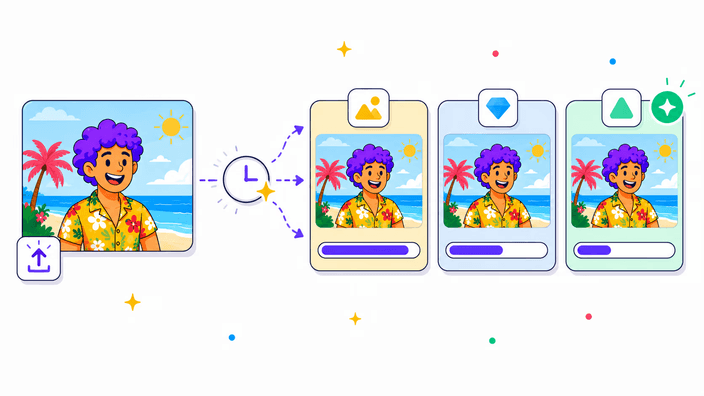
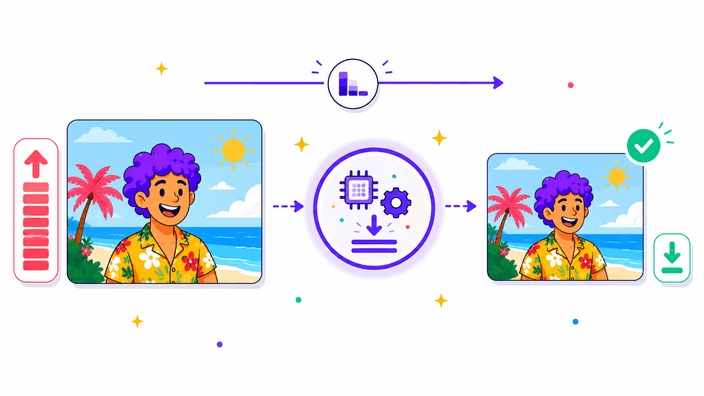
This tool takes the images you already have and hands back smaller copies. Drop a JPG, PNG, WebP, or AVIF onto the page, click Compress, and download. There is one button and no settings to fiddle with. You are not stuck choosing a quality number or guessing what it means. Each file is recompressed at a tuned setting that keeps your picture looking right while cutting the size, and the done screen tells you how much smaller it ended up. When you need to change the width and height instead of the file size, run it through resize an image first, then compress the result.

Keep my format
Every file keeps its own format

Every file keeps its own format

Compressing does not change what kind of file you have. A photo you put in comes back as the same type, just lighter, and a graphic keeps its own type too. That matters because the place you are sending your picture often expects one specific type, an email attachment, a shop listing, a website upload field. You get a smaller file you can drop straight back in without anything breaking. If you actually want a different type, that is a separate job, convert an image changes one type into another, and you can compress the result afterward.

Compress a batch
Compress a whole batch at once

Compress a whole batch at once

You are not limited to one picture. Drop a stack of images onto the grid, up to thirty at a time, and the single Compress button handles all of them in one go. Each file is shrunk in its own format and handed back together as a zip, so there is no opening and saving one image after another. It is built for the moment you have a folder of photos for a listing, a gallery, or a set of email attachments. Drop a single image and you download that file on its own. When a picture also needs trimming, crop an image first and then send the batch through.

Shrink the file
Smaller files, same dimensions

Smaller files, same dimensions

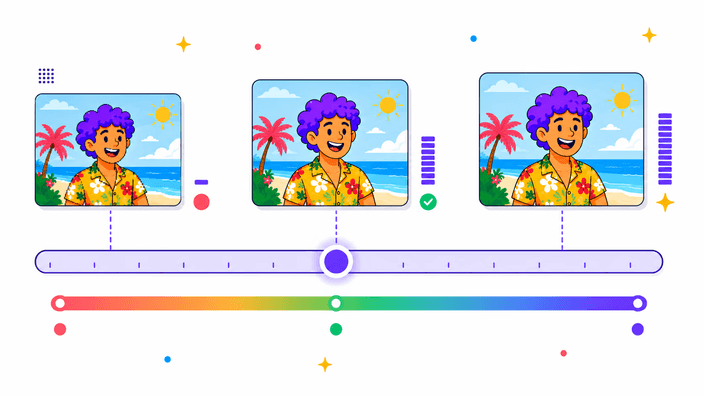
Compressing lowers your file size without touching the width and height. A photo that is wide stays just as wide, it simply weighs less on disk and loads faster online. That keeps your picture sharp at the size it was meant for, which is what you want for a website, a document, or a print. When the dimensions are the real problem, a screenshot far bigger than it needs to be, the size drops much further if you shrink the dimensions before compressing. The two steps stack neatly. Fewer dimensions first, then a lighter file.

Check the savings
See exactly how much you saved

See exactly how much you saved

When the run finishes, the done screen shows one clear number, how much smaller your file became. There is no math to do and no estimate, it is the real size of the file you are about to download. How big the drop is depends on the picture. A photo straight from a phone or camera usually shrinks a lot, while a file that was already squeezed once before has less room left and saves less. Now and then a heavily compressed source can come back about the same size, the picture was already near its floor. Either way you see the result before you save it.

Start compressing
What it does and does not do

What it does and does not do

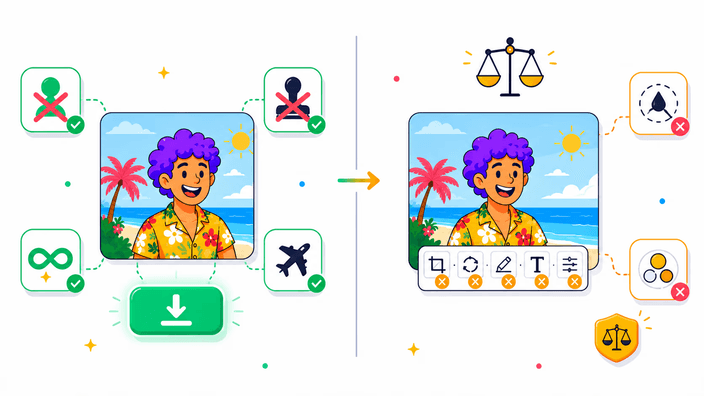
It makes a smaller copy of your image while keeping the format and the dimensions, one picture or a batch, in a single click. The rest it leaves to other tools. It does not resize, so change the width or height with enlarge an image or a downsize step when you need that. It does not change the format, that is a conversion. It does not edit your picture, so take out a background with remove a background when that is the job. Camera details such as location and date are dropped when your file is rebuilt, which is usually welcome but worth knowing if you rely on them.

How it works

  1. Add your images

    Drag one image or a whole batch onto the page, or tap the upload area to pick them from your device.

  2. Click Compress

    Press the single Compress button. There is nothing to set up, every file is handled at one tuned setting.

  3. Watch the progress

    A real progress bar fills as your images are worked through, so you always know how far along the run is.

  4. See how much you saved

    The done screen shows exactly how much smaller your file became, measured from the real result.

  5. Download the result

    Save a single smaller file on its own, or grab the whole batch as one zip, each file in its original format.

Get your image ready in one place

Before or after compressing, fit the picture to where it is going, trim it to the right shape or change its dimensions.

Frequently asked questions

Is the image compressor free?

Yes. You can compress as many of your images as you like, one at a time or a batch at once. Drop your files, click the Compress button, and download the result, there is no trial to start and nothing to install. The smaller file you get is yours to use however you need, on a site, in an email, or anywhere else you are sending it.

Will compressing change my file format?

No. Every file keeps the format you started with, the type you put in is the type you get back, just lighter. If you want a different type instead, that is a conversion, and you can swap the format with the convert tool and then compress whatever comes out of it. Compressing alone never touches the format itself.

Can I compress more than one image at a time?

Yes. Drop a stack onto the grid, up to thirty at once, and the single button shrinks all of them together in one pass. They come back zipped, each one in its own type. A lone picture downloads by itself rather than zipped, so it stays just as quick whether you bring one or a dozen along.

Which formats can I compress?

The four common photo and web types are all handled, and each one comes back smaller in the same format you put in, so the output always matches the input. Animated GIFs are not handled here, the convert tools cover those instead. A picture with transparency keeps its see-through areas after compressing, so a logo or a cutout still drops cleanly onto any background you place it on.

Does compressing make the image blurry?

Not in any way you would notice on a normal photo. The setting is tuned to cut the file size while keeping the picture looking the way it should at the size it is used. Where it can show is if you push the same file through again and again, each pass softens tiny details a little more. So compress once, starting from your original whenever you can, and you keep a clean picture at a much lighter size.

How much smaller will my file be?

A typical photo from a phone or camera often drops well past half its weight, and a graphic with flat colour can fall even further. The exact amount comes down to how much detail is packed in and whether anyone has trimmed it before. You will see the real figure for each picture you run, so there is never any need to estimate it up front.

Does compressing change the image dimensions?

No. The width and height of your image stay exactly the same, only the file size on disk goes down. When the dimensions are what you really need to change, a screenshot far bigger than it needs to be, resize the image first and then compress the smaller version. The two steps work together, smaller dimensions and then a lighter file, for the biggest drop of all.

What happens to my files after I compress them?

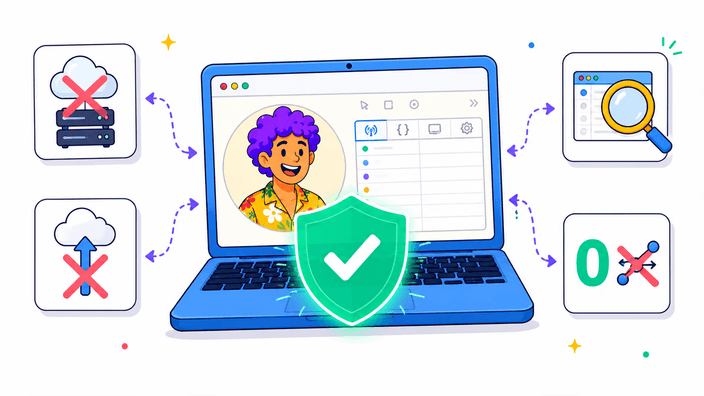
Your download is yours to keep, and the working copy used to build it is cleared shortly after the run, with a delete-now option if you want it gone the moment you finish. The compressed result keeps the picture itself but drops the camera details such as location and date, which is usually a good thing when you share a photo with anyone.
The details

Notes from the team on craft, formats, and the small decisions behind a good round crop.

Why a smaller file matters
A heavy image is the quiet reason a page crawls, an email bounces back, or a chat refuses to send. Photos are by far the biggest thing most pages load, so a lighter file means a site that opens faster and a visitor who waits less, which search engines reward and people notice. Attachments have hard ceilings too, and a compressed photo slips under the limit a raw one blows past. The picture looks the same to the eye, it simply weighs a fraction of what it did, which is exactly what you want for the web, for mail, and for sharing.
When a file barely shrinks
Once in a while a file comes back close to the size you started with, and that is normal. It means the picture was already compressed hard before it reached you, a meme saved and re-saved, a screenshot a chat app squeezed, a download that was optimized on the way out. There is only so much room to remove, and a picture near that floor cannot give much more without the quality slipping. When that happens, the honest move is to keep the original, the gain is not worth a softer image. Start from the largest version you have for the best result.
Built for one photo or a folder
Some days you have a single picture to send, other days a whole shoot to get ready, and the same tool covers both. Drop one image and you get that file back on its own. Drop a folder and the one Compress button shrinks the lot in a single pass and hands them over as a zip, no saving one, then the next, then the next. It is the rhythm of real work, a product set for a listing, a gallery for a post, a run of attachments for an email. One click serves a single image and thirty alike.