Loading your files…

Convert any image format free

PNG, JPG, WebP, AVIF — pick a format pair below. A single image converts right in your browser.

How does the image converter work?

How does the image converter work?

Pick a format pair from the grid, then drop a file onto the tool page. The conversion starts the moment the file lands — no Convert button to click. A single image is decoded in your browser's memory, rewritten to the new format, and handed back as a download link. The original dimensions are preserved and camera metadata is stripped in the process. Converting several files at once sends them to our server, which processes the batch and shows real progress as each file finishes.

Which formats can I convert?

Which formats can I convert?

RoundCut works with the four formats the web runs on. PNG keeps every detail without discarding anything and holds transparency, making it the right choice for logos and graphics with sharp edges. JPG compresses photos well and works everywhere, but has no transparency. WebP is the modern format that shrinks the file while keeping visual quality and preserving transparency. AVIF compresses further still at the same quality and has full support in current browsers. GIF works as an input, but only the first frame is used. The grid above shows every pair available today, and new pairs appear as they ship.

Does converting affect image quality?

Does converting affect image quality?

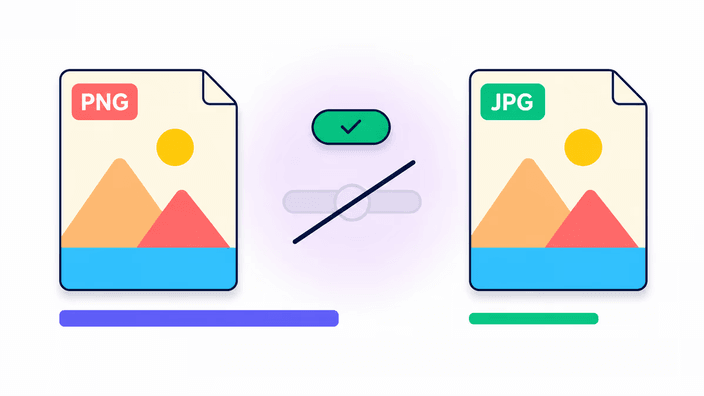
It depends on the target format. PNG re-encodes without discarding anything, so every detail of the original is preserved. JPG, WebP, and AVIF compress when they save, and at the default quality setting the difference in a typical photo is hard to notice. Converting an already-compressed source back to an exact format like PNG does not recover what was discarded earlier — it just produces a larger file. If the source has a transparent background and the target is JPG, those areas become solid white because JPG has no transparency channel.

Is it safe? Does my image get uploaded?

Is it safe? Does my image get uploaded?

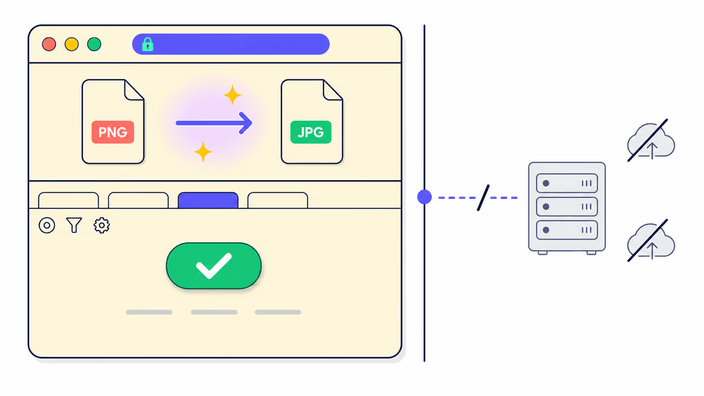
A single image converts entirely on your device, inside the browser. The file never reaches a server. Open the browser Network tab while you convert and no outbound image request appears — nothing to upload, log, or erase later. Converting several images at once sends them to our server over an encrypted connection, processes the batch, and makes the result available to download for about two hours before the link is automatically removed. For full details on how files are handled, see the privacy policy.

When should I change my image format?

When should I change my image format?

Switch format when something specific calls for it. Use WebP or AVIF when you want a smaller file for a website without sacrificing visual quality. Choose PNG when transparency must stay intact, as for logos and icons where every edge needs to be sharp. Pick JPG when broad compatibility matters more than modern compression, especially for older systems or content platforms that do not yet accept WebP. Avoid running the same image through several compressed formats in sequence, since each pass discards a little more and the result degrades. Convert once, to the format the destination actually expects.

AVIF compresses the most, but takes longer to process

AVIF compresses the most, but takes longer to process

AVIF produces the smallest files of the four formats: a typical photo can come out half the size of an equivalent JPG at the same visual quality. The trade-off is processing time. A small image finishes in a fraction of a second, but a large photo can take several seconds on a desktop and longer on a phone. For a single file, the converter handles AVIF directly in the browser on most devices. Larger files or batches are sent to the server, where AVIF is generated significantly faster.

How it works

  1. Choose a format pair

    In the converter grid, tap the card that represents the conversion you want. The tool page opens with that format pair already selected.

  2. Add your image

    Drop the file onto the upload area or tap to choose from your device. PNG, JPG, WebP, AVIF, and GIF are accepted. For an animated GIF, only the first frame is used.

  3. Wait for the conversion

    A single image converts in the browser immediately, with no upload. A batch of two or more is sent to the server, which shows real progress as each file finishes.

  4. Check the result

    The done screen shows the converted image. If the target format was JPG and the original had transparency, those areas appear white — this is the expected behavior for a format that has no transparency channel.

  5. Download the converted file

    Tap download to save the file to your device. For a batch of several files, the download arrives as a ZIP. The download link for server-processed batches is removed after about two hours.

Other tools to finish the job

Converting the format is one step. Reduce file size without changing the format, trim the image to what matters, or read how your files are handled.

Frequently asked questions

Does converting reduce image quality?

PNG output keeps every detail exactly as it was — no information is discarded. JPG, WebP, and AVIF compress when they save, and at the default quality setting the difference in a normal photo is hard to spot. Converting a compressed source such as JPG into PNG does not recover lost quality; it just produces a larger file.

Is it safe to convert images online?

A single image converts inside the browser, on your device — the file never reaches a server. Watch the Network tab while you convert one image and no outbound requests appear. Converting several at once sends them to our server, which processes the batch and removes the download link after about two hours.

Can I convert multiple images at once?

Yes. Each format pair page accepts a single image or a batch, and the results come back together as a ZIP file. A single image converts in your browser. A batch of two or more is processed on our server and the download link is removed after about two hours.

What is the best image format for websites?

WebP and AVIF are the modern web formats, generally smaller than JPG at the same visual quality and supported in all current browsers. Use JPG for the widest compatibility across older systems and platforms. Use PNG when transparency needs to be preserved exactly, and AVIF when you want the smallest possible file for a modern audience.

What image formats can I convert?

RoundCut converts between PNG, JPG, WebP, and AVIF, the four main web formats. GIF works as an input using its first frame only, but is not available as an output yet. HEIC, TIFF, BMP, SVG, and RAW are not supported yet. New format pairs appear in the grid as they ship.

What happens to transparent areas when I convert to JPG?

JPG has no transparency channel. When you convert an image that has a transparent background to JPG, those transparent areas become solid white in the output. If you need to keep transparency, choose PNG, WebP, or AVIF as the output format, since all three support it.

Does converting remove camera metadata from the photo?

Yes. The conversion passes the image through a new encoding step, and camera metadata such as GPS location, device model, and exposure settings is stripped in the process. This happens whether the conversion runs in the browser or on the server. The color profile may be kept or removed depending on the browser and the output format chosen.

Why did my file get larger after converting?

PNG stores every detail without discarding anything. If the source was already compressed, such as a JPG or WebP, converting it to PNG re-encodes the result of that compression exactly, which produces a larger file. The larger size does not mean the output has more quality than the source had, only that the new format is more precise about what it received.
The details

Notes from the team on craft, formats, and the small decisions behind a good result.

How exact and compressed formats differ in practice
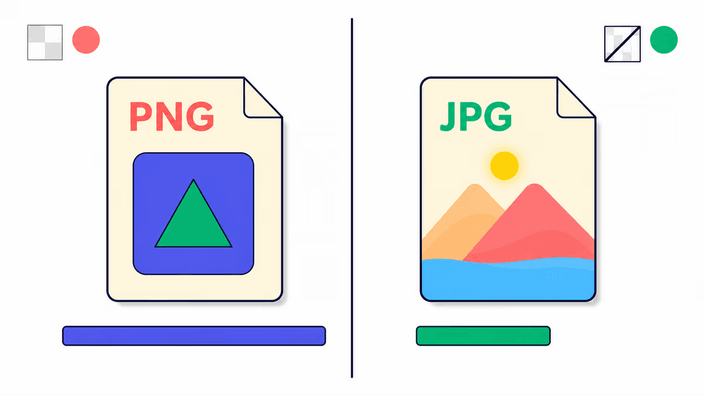
PNG represents every point in the image with mathematical precision. When saved again, the output is bit-for-bit identical to the input. That is useful for logos, text screenshots, and anything that will be edited again, where each re-save must stay faithful. JPG, WebP, and AVIF work differently: when saving, they discard information the eye rarely notices, particularly in smooth gradients and uniform color areas. The file size reduction is real, but the discard is permanent. Re-wrapping a compressed file in an exact format recovers nothing and just packages the result in a larger file. This is why converting between compressed formats more than once accumulates visible degradation. The right approach is to save in an exact format while the image is still being worked on, and switch to a compressed format only at the end.
Why WebP and AVIF are smaller without visible quality loss
JPG was designed in the early 1990s for hard drives measured in megabytes. WebP and AVIF were developed decades later with more modern compression methods that better exploit how the eye perceives color and contrast. In practice, a WebP file at equivalent quality to a JPG is typically twenty-five to thirty-five percent smaller. AVIF goes further and for common photos can reach half the size of a JPG at visually indistinguishable quality. Both are supported in all current browsers, so choosing JPG today is mainly justified by compatibility with older systems or platforms that do not yet accept the newer formats, not by size or quality.
Choose the format for the destination, not for the smallest size
Reducing file size is a consequence, not a goal in itself. For an image going onto a website, WebP or AVIF are the natural choice because modern browsers understand them and pages load faster. For a file going to a designer or being edited further, PNG ensures nothing was discarded along the way. For print or for systems that only accept JPG, that format resolves the compatibility question with the widest reach. GIF as an input is useful when the only available source is an animated GIF and you need to work with the first frame. Converting with a clear intention — knowing where the image is going — avoids a second conversion that accumulates more discard and degrades the result.