Circle Crop Image Online

A circle cropper for your profile picture, avatar, and round logo. Drop your image, frame the circle, and download with a transparent background.

or drop the image here

Circle crop an image
How to circle crop an image

How to circle crop an image

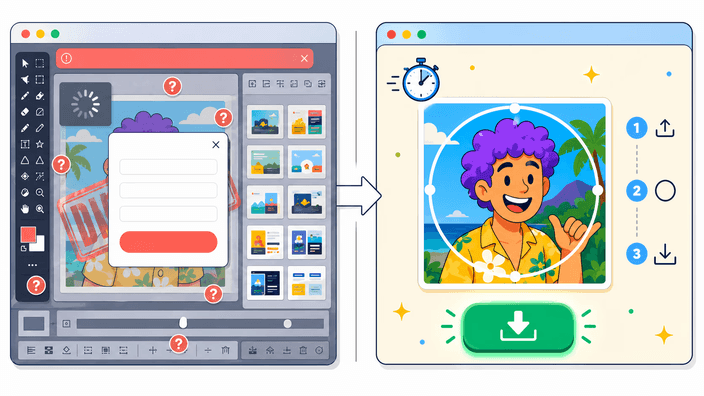
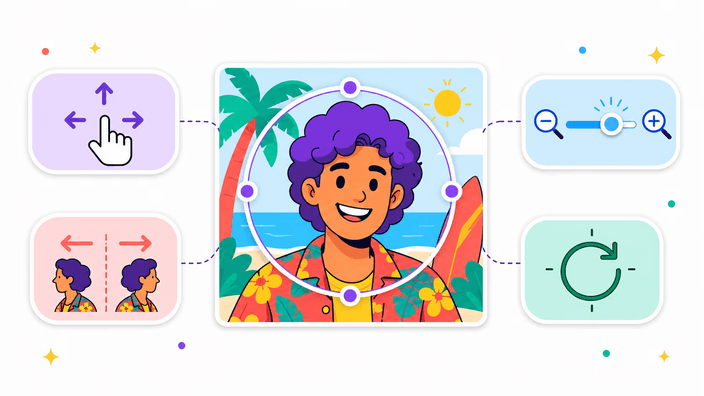
Drop your photo and the round selection opens right in the middle. The area outside is dimmed, so you can see what stays and what goes. Drag the circle until the face, product, or logo is framed the way you want. Adjust it from the corners, or pinch with two fingers on your phone. Check the preview and tap Save to download your image already round. The same steps let you circle crop image files from a square photo or a wider shot. You stay in control of the framing the whole time. There is nothing to install and nothing to learn. Just open the page and crop your photo on the spot.

Pick the output format
Choose the format for your round photo

Choose the format for your round photo

Want your round photo with a transparent background, so it sits on any color behind it? Pick PNG, WebP, or AVIF. PNG is the safe choice and works everywhere. WebP gives you a lighter file that looks the same. AVIF goes even smaller when you want to save space. And if the place you are using your image does not accept transparency, choose JPEG. Your round photo then sits on a solid color you pick yourself. When in doubt, stay with PNG, which covers the vast majority of cases. That way your round photo lands right, from a chat avatar to a logo on your site.

Make a round profile picture
A round profile picture for every social network

A round profile picture for every social network

Almost every social network shows your avatar inside a circle. Doing the circle crop yourself makes sure your face sits right, instead of letting the platform cut it any way it likes and clip your head. The trick is to leave a little room above the head and lift the eyes slightly above center. Then your profile picture looks balanced, from the big profile view down to the tiny feed thumbnail. The same trick works for your round logo, team photo, and server icon. If the background gets in the way of your photo, you can remove the background before you come back and crop.

Get the avatar size right
The right size for your avatar

The right size for your avatar

When you circle crop image files for an avatar, you do not need to memorize any size. Each network shows your round photo at a different size: large on the profile and much smaller next to a comment. They all shrink the image for you to fit the screen. So the secret is simple: start from a sharp photo and leave the right gap around the face. If you only have a small version, you can upscale the resolution before you crop. And when a specific case asks for an exact size, resize your image first so your avatar always looks sharp and never blurry, even at the smallest size.

Crop a circle in your image
A circle cropper that fits any image

A circle cropper that fits any image

The circle cropper handles the everyday images you throw at it, from a phone snapshot to a high-resolution headshot or a wide group photo. To crop a circle in your image, drag the file onto the page, place the round selection over the part that matters, and download. You choose PNG, WebP, or AVIF for a transparent edge, or JPEG with a background color you pick. The round selection moves and scales on its own, so you frame the exact region you want, the same way on desktop and mobile. Export stays at high resolution, so your circle crop looks sharp from a tiny feed thumbnail up to a large profile view.

See the tool's limits
What this tool does not do

What this tool does not do

A few honest notes, so you do not waste your time. iPhone photos in the HEIC format open straight in Safari, and in other browsers the tool kindly asks you to convert to JPG before you crop. An animated GIF becomes a round photo from the first frame only, so the animation does not carry over. And the crop is done by you, by hand, with nothing automatic deciding where to cut. The circle of your round photo sits exactly where you want it. Apart from those few cases, the circle cropper works with any everyday photo you have, from a portrait to a logo, and the control is all yours. Drop a photo, frame the circle, and your round crop is ready, with no surprise waiting at the Save step.

How it works

  1. Choose your image

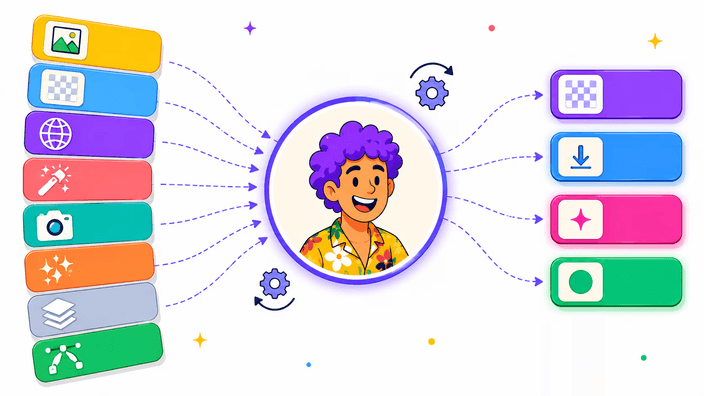
    Tap the upload area or drag a JPG, PNG, WebP, AVIF, GIF, BMP or SVG file onto the page.

  2. Adjust the circle

    Move and resize the circular selection until the face, subject or logo is framed the way you want.

  3. Pick a size and format

    Choose Original, 512 px or 256 px, then select a transparent format or JPEG with a background color.

  4. Save the round image

    Check the preview and download the circle-cropped image in your chosen format.

Need a different crop shape?

Explore every crop option or select a rectangular area with flexible proportions.

Frequently asked questions

How do I crop a photo into a circle?

Drop your photo onto the page and the round selection opens centered on it. Drag the circle to frame the face, product, or logo, adjust it from the corners or with a pinch on your phone, and tap Save. By default you get a round photo with a transparent background, ready to use. The whole circle crop takes just a few seconds on any everyday photo, and you can fine-tune the framing as much as you like before you download.

How do I crop a circle image from a square one?

Drag your square image onto the page and the circle opens taking up almost the whole photo. Reposition and adjust the circle to frame what matters, then click Save. To crop circle image files from a square, PNG, WebP, and AVIF keep the four corners transparent, so only the round part stays visible. If you would rather have your round photo on a solid color, just choose JPEG and set the color that fills the corners before you download.

What file formats are supported?

You can upload the everyday image types like JPG, PNG, WebP, and a few more. iPhone photos in the HEIC format open in Safari, and in Chrome, Firefox, or Edge the tool kindly asks you to convert to JPG first. The tool reads the real file type, so even a renamed file is recognized correctly. In the end, you download your round photo as PNG, WebP, or AVIF with a clear see-through edge, or as JPEG with a background color.

Will my cropped image have a transparent background?

Yes, when you choose PNG, WebP, or AVIF the area outside the circle comes out transparent. So your round photo drops onto any background color with no white square around it. When you open the file in a design app or upload it to a social network, that outside area shows as a checkerboard, which is just how transparency is displayed. If you prefer a solid background, pick JPEG and set the color that fills the corners.

Can I use this tool on my mobile device?

Yes, the circle cropper works in any modern browser on iPhone, iPad, and Android, with nothing to install. The handles respond to touch, and you use a two-finger pinch to move and size the circle right around the face. For a quick round photo on your phone, go with PNG or WebP, which are ready almost instantly even on simpler devices. The result is the same as on desktop, with your photo always staying with you.

Why crop an image into a circle?

Most social networks show your avatar inside a circular frame, so a square photo gets clipped at the edges in ways you do not control. Cropping the circle yourself decides exactly what stays inside the ring, which keeps the face centered and balanced. Beyond avatars, a round crop suits logos, team badges, sticker art, and any design where a circular shape reads cleaner than a square one. It is a small step that makes a profile picture look intentional rather than auto-cut.

How do I make a circle profile picture for Discord or LinkedIn?

Upload your photo, then drag and size the circle so the face sits in the middle with a little room above the head. For Discord and LinkedIn, start from a sharp, fairly large photo and let the platform shrink it to the avatar size. Leave a bit of breathing space around the face so it stays clear at the small sizes used next to messages and in the feed. Save as a transparent PNG and the round avatar drops cleanly onto the platform's background.

How are my files handled?

How your images are processed and whether anything is stored is described on the privacy page, which is the single place that stays current as the site evolves. The tool itself focuses on one job: opening your photo, letting you frame the circle, and exporting the round result in the format you choose. For the full, up-to-date detail on file handling, read the privacy page before you rely on any specific behavior.
The details

Notes from the team on craft, formats, and the small decisions behind a good round crop.

Why your round photo sits on any background
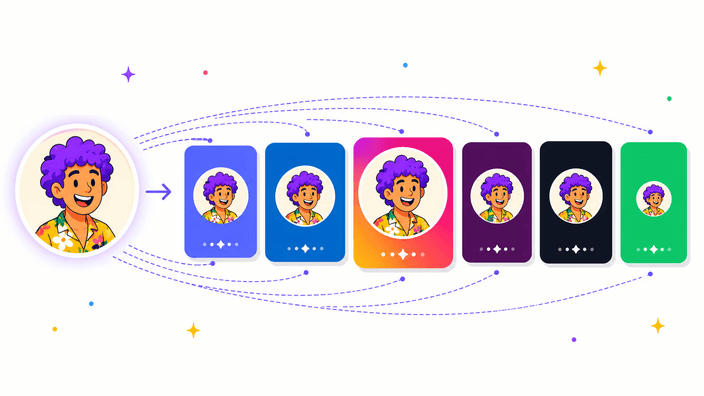
The real magic of a circle crop saved as PNG, WebP, or AVIF is that everything outside the circle truly disappears. In practice, your image lands clean on any background color, with none of that white square around it that gives away a cropped photo. That is why it looks right in the round frame on LinkedIn, Discord, or Instagram, and also when you place your round photo over other images in a design. When the spot needs a solid color behind it instead of transparency, just save as JPEG and pick the color. Everything else stays exactly as simple, and your round photo is ready to share wherever you need it. In short, that clean transparent edge is what makes a profile picture look professional on any network, with no leftover white box, just the circle and you inside it.
Circle crop or rectangular crop: which to use
A circle crop is the right call when the result lands in a round frame, like an avatar, a community icon, or a badge, where the corners would be hidden anyway. It keeps the subject centered in the ring and drops onto any background once you export with a transparent edge. A rectangular crop makes more sense when you want to keep straight edges, trim to a banner, or set a specific width and height for a thumbnail or header. Many people do both: a rectangular trim first to remove clutter, then the round cut for the avatar. If you are unsure, start round for anything that becomes a profile picture and rectangular for anything that fills a box.
Tips for a great round profile picture
A few framing habits make a round photo read well at any size. Keep the eyes slightly above the center of the circle, since that is where attention lands first, and leave a little space above the head so the crop does not feel tight. Fill the ring with the subject rather than a lot of empty scenery, because the photo shrinks to a tiny size in feeds and chat lists. Strong, even light on the face helps it stay clear when the avatar is small. And before you settle, nudge the circle a touch in each direction to see which framing keeps the subject most balanced inside the round shape.