Loading your files…

Resize an image to any size

Set an exact width and height or use a quick percentage, keep the proportions if you want, and download in the format you pick.

or drop the image here

The preview stays on your device. Nothing is recorded until you capture.

Resize an image
Resizing a photo on your device, step by step

Resizing a photo on your device, step by step

Pick an image or drop it on the page, and it is ready to resize at once. Type the width and height you need, or tap a percentage to scale it down or up in one move. The new size is drawn right away so you can see the result before you save. The whole thing runs on your own device, so the photo is not sent to a server and there is no wait. When the size looks right, download it. You can resize one picture after another without the page reaching out to the network again after it loads.

Hit the exact size a platform or avatar asks for

Hit the exact size a platform or avatar asks for

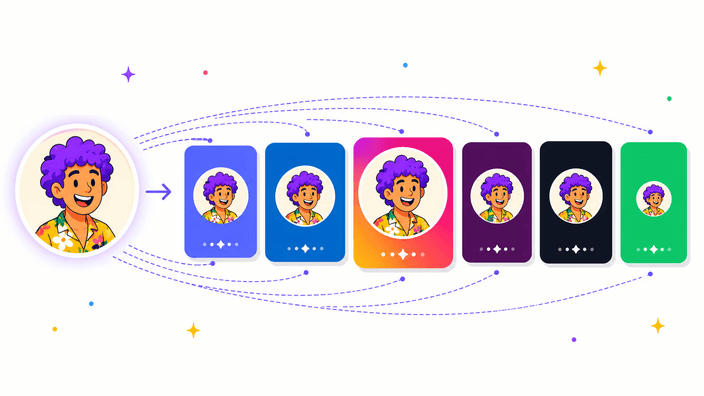
Most resizing is about meeting a number someone else set. A profile photo wants a square of a certain size, a banner wants a specific width, an upload form rejects anything too large. Type the exact width and height and the image is redrawn to match, with the aspect ratio lock keeping it from stretching. When you only know one side, set that one and let the other follow on its own. The quick percentages are there for the common cases, so halving a photo for email or doubling a small graphic takes a single tap rather than mental arithmetic.

PNG, JPG, WebP, or AVIF: which output to pick

PNG, JPG, WebP, or AVIF: which output to pick

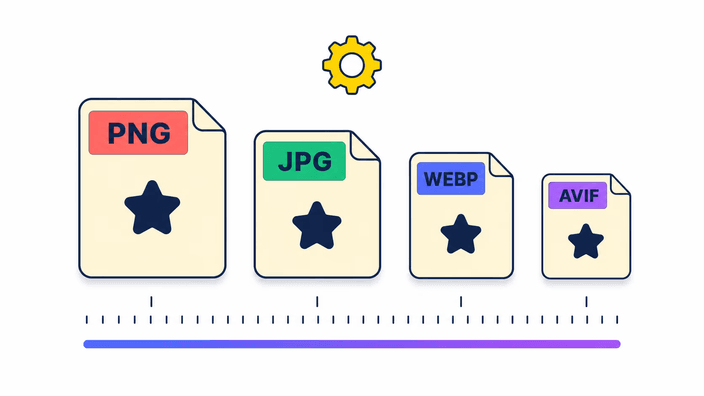
The format you save in decides the trade between size and fidelity. PNG keeps every detail and any transparency, which suits graphics and logos. JPG makes the smallest file for an ordinary photo, at the cost of transparency. WebP sits between the two, smaller than PNG while still holding clear areas. AVIF squeezes the file the most for the same look, though it takes a moment longer to write. You set the output on the way out, so you can resize once and save in whichever format the destination prefers, without starting over.

Where resizing and compressing part ways

Where resizing and compressing part ways

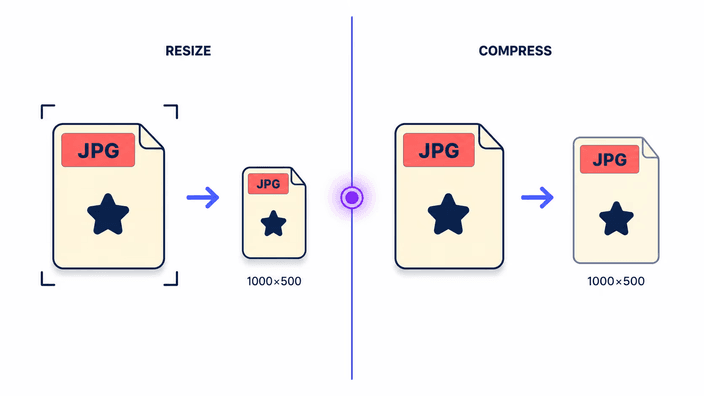
Resizing and compressing both shrink a file, but they pull different levers. Resizing changes the dimensions: fewer pixels across and down, so the picture is physically smaller and lighter as a result. Compressing keeps the dimensions and trims the data instead, so the photo stays the same size on screen but weighs less. If a form wants a smaller width, resize. If the dimensions are fine but the file is too heavy to attach, compress an image instead. Often the cleanest path is to resize first and then compress the smaller copy.

What enlarging actually does to a picture

What enlarging actually does to a picture

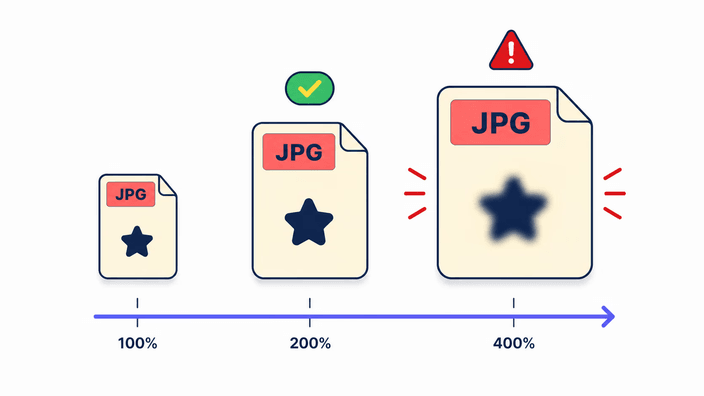
Making an image larger is not the same as making it more detailed. When you scale up, the tool spreads the existing detail across more pixels and fills the gaps by blending neighbors, so the result stays smooth but no new detail appears. Past roughly double the size that blending starts to show as softness. The don't enlarge if smaller switch exists for exactly this reason, so a small source is left alone rather than stretched. When you genuinely need a small photo to fill a much larger space, an AI upscaler is built for that job, since it invents plausible detail rather than just spreading what is there.

Accepted formats and how your file is handled

Accepted formats and how your file is handled

You can resize a JPG, PNG, WebP, or AVIF directly. Other types, like a HEIC photo from an iPhone, are not read here, so convert one of those to a common format first and then resize the result. Whatever you put in, the resize runs on your own device and the picture is not sent to a server. The result downloads straight back to you, and the camera metadata is left out of the saved file. If you would rather change the shape than the size, crop an image is the tool for that. For the full detail on files, read the privacy page.

How it works

  1. Open your image

    Drag a photo onto the page or tap to pick one from your device. It is ready to resize at once, with nothing uploaded.

  2. Set the size

    Type an exact width and height, or tap a percentage to scale down or up. Keep the aspect ratio locked so nothing stretches.

  3. Guard small photos

    Switch on don't enlarge if smaller when you want a small source left at its real size instead of stretched.

  4. Pick a format

    Choose PNG, JPG, WebP, or AVIF for the output. PNG, WebP, and AVIF keep transparency, JPG fills it with white.

  5. Download the result

    Save the resized image to your device. The file holds only the picture, with the camera metadata removed.

Finish the image in one place

Resizing is often one step. Change the shape, trim the weight, or enlarge with detail when a small photo needs to go big.

Frequently asked questions

How do I resize an image without losing quality?

Making a photo smaller keeps it looking sharp, because the detail is packed into fewer pixels. To protect quality, leave the aspect ratio locked so nothing stretches, and save as PNG, or as WebP at a high setting, when you want every detail kept. Quality only drops noticeably when you enlarge a small photo well past its original size, which spreads the detail too thin.

Can I resize an image to exact dimensions?

Yes. Type the width and height you need and the picture is redrawn to match. With the aspect ratio locked, setting one side fills in the other on its own so the photo never stretches. Turn the lock off when a destination demands a precise shape that differs from the original, and the image is fit to those exact numbers.

What is the difference between resizing and compressing?

They sound alike but do different jobs. Resizing changes the dimensions in pixels, making the picture physically smaller. Compressing leaves the dimensions and trims the file weight instead. Pick resize when a form asks for a smaller width or height, and reach for compress when the size is right but the file is too heavy to attach.

Which image formats can I resize?

You can resize JPG, PNG, WebP, and AVIF directly, and choose which of those four to save as on the way out. A HEIC photo from an iPhone is not read here, so convert it to a common format first and then resize the result. A transparent PNG keeps its clear areas when you save back to PNG, WebP, or AVIF.

How long does resizing take?

It is quick, because the work runs on your own device rather than on a server. For most photos the new size is drawn almost as fast as you set it. A very large source or an AVIF export takes a moment longer to write, but there is no upload to wait on and no queue, so the result is ready right after you choose the size.

Are my images uploaded to a server?

No. The resize runs entirely on your own device, and the photo is not sent anywhere. You pick a file, set the size, and the result downloads straight back to you, with no round trip in between. After the page loads it does not reach the network again, so a resize works even if the connection drops. The privacy page explains how files are handled.

Can I make an image larger?

You can, but enlarging spreads the existing detail across more pixels rather than adding any, so a much bigger copy looks softer. Past about double the size that softness shows. For a modest increase it is fine. When you need a small photo to fill a large space, an AI upscaler is the better tool, since it builds plausible new detail.

Does resizing remove image metadata?

Yes. When the resized image is saved, the camera metadata, such as the location, device model, and timestamps, is left out, so the file you download carries only the picture. That is handy when you share a photo and do not want the embedded details going with it. If you need that metadata kept, work from a copy that still has it.

The details

Notes from the team on craft, formats, and the small decisions behind a good result.

Why downscaling looks sharp but upscaling goes soft
Resizing down and resizing up are not mirror images of each other. When you shrink a photo, the tool has more detail than the new size needs, so it can average groups of pixels into clean ones and the result looks crisp. When you enlarge, the opposite is true: there are more pixels to fill than the source has detail for, so the tool blends neighboring values to bridge the gaps. That blending is smooth, but it cannot invent texture that was never captured, which is why an enlarged photo looks softer the further you push it. Knowing this, the rule of thumb is simple. Resize down freely, enlarge only a little, and reach for a different kind of tool when a small image truly has to fill a large frame.
Aspect ratio, and why locking it matters
Every photo has a ratio between its width and its height, and that ratio is what keeps faces and objects looking natural. When the aspect ratio is locked, changing one side updates the other to match, so the picture scales evenly and nothing is squashed or stretched. Unlock it only when a destination demands an exact shape that differs from the source, and be ready for the image to distort to fit. The safer habit for almost everything, from profile photos to product shots, is to leave the lock on and set just the side you care about. The don't enlarge if smaller option works alongside it, holding a small source at its real size instead of stretching it to reach a larger target.
Resizing on the device, and what that buys you
A resize is light work for a browser, so there is no reason to send the photo away to do it. Running on your own device means the picture never travels over the network: no upload wait, no queue, and nothing left on a server afterward. It also keeps working when the connection is patchy, because once the page has loaded the resize needs nothing more from the network. The trade is essentially none for this kind of edit, since a server would only add a round trip and a copy of your file elsewhere without changing the result. That is why the whole flow stays in the page, from the moment you drop the photo to the moment the new size downloads.