Free Image Tools That Process Locally Guide 2026
Find which free image tools process locally, which upload files, and how to verify a no-upload claim before using private photos.

Contents
- The short answer: local, upload, or mixed
- The native check before trusting any tool
- Local image compression tools
- RoundCut’s honest split
- Upload-based tools that still have useful limits
- Background removal is usually not local
- Format and transparency traps
- How to verify a no-upload claim yourself
- The practical pick
Free image tools that process locally are still rare. Squoosh and Photopea are the cleanest no-upload picks I found, while many popular compressors and background removers still send files to a server. RoundCut sits in the middle: single-file conversion is local, but compression may use a short-lived server lane.
The short answer: local, upload, or mixed
Use a local tool when the image is private, unreleased, or client-owned. Use an upload tool when the file is low-risk and the limits fit the job. The mistake is treating “browser-based” as “local.” Those are not the same thing, and the difference matters when the file is a headshot, a product prototype, or a document scan.
Here is the practical split I would use today:
| Tool | Best no-upload claim | Main limit to know |
|---|---|---|
| Squoosh | Local compression in the browser | Strong for one image, not a batch workflow |
| Photopea | Local full editor in the browser | More editor than quick compressor |
| RoundCut Convert | Single-file conversion runs locally | Batch conversion can use the server lane |
| RoundCut Compress | Fast compressor with fallback local encoding | Current default prefers server processing |
| TinyPNG | Simple upload compressor | Free web cap: 20 images, 5 MB each |
| iLoveIMG | Broad upload-based image toolkit | Free compress cap: 30 tasks, 200 MB files |
| remove.bg | Cloud background-removal API | Upload or URL input; PNG output capped at 10 MP |
For a sensitive single file, start with Squoosh, Photopea, or a one-file RoundCut conversion. If you are trying to convert one image locally, RoundCut’s convert path is the cleaner fit than its compressor. For bulk compression, the privacy trade-off gets less tidy.
The native check before trusting any tool
Start with your own browser, not a brand promise. A local web app can read a file from your device through the File API, draw it into a canvas, and export a new file with canvas export. That can happen without sending the image anywhere.
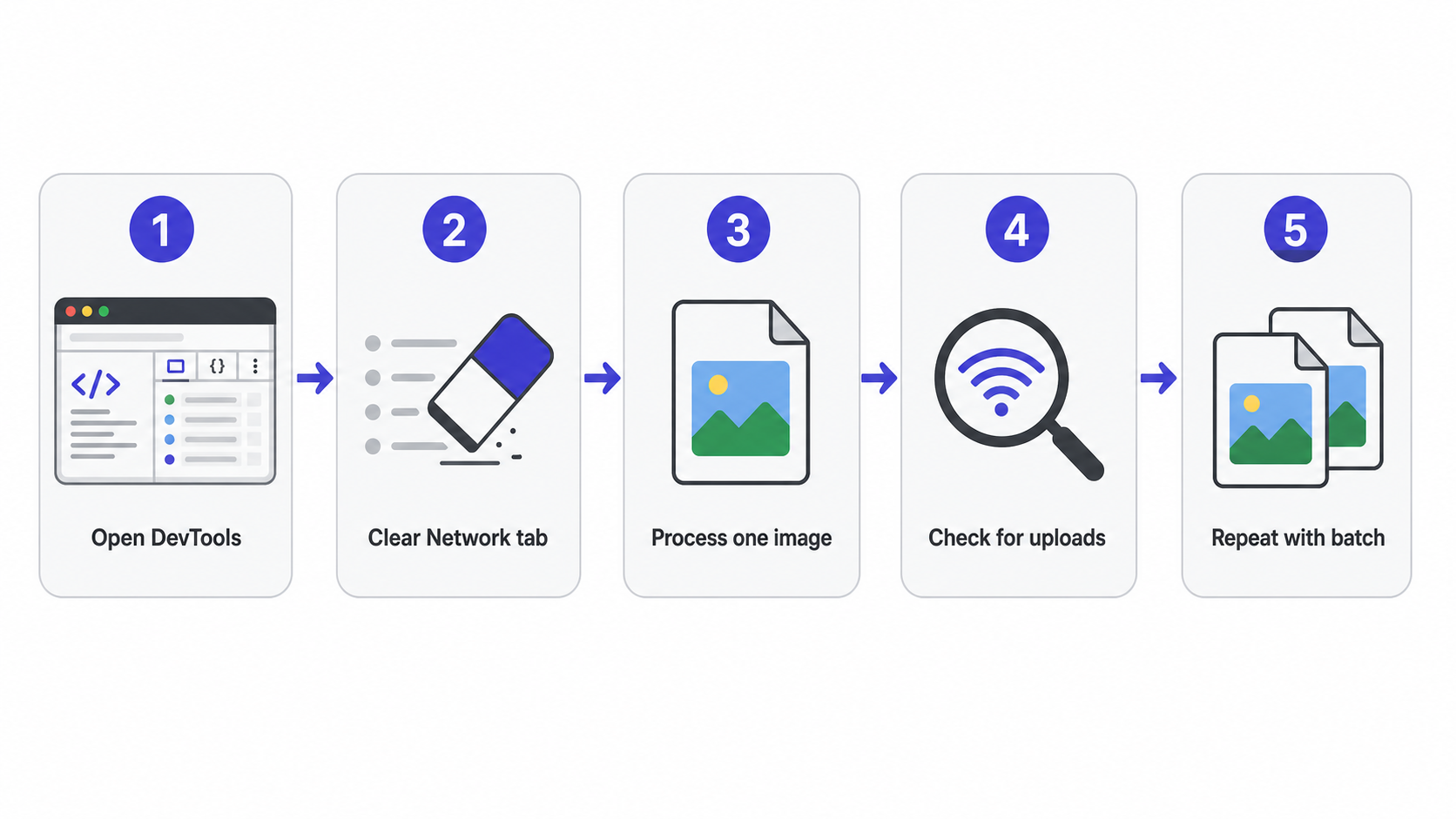
The quick test is boring and useful:
- Open the page.
- Open DevTools.
- Clear the Network tab.
- Choose one test image.
- Process it.
- Look for requests that include the image file, a blob upload, or a batch API call.
This doesn’t prove a company’s whole privacy posture. It proves what happened in that one run, on that file count, in that browser. That’s enough to catch the common mismatch: a tool that says “in your browser” because the interface runs there, while the actual pixels go elsewhere.
Local image compression tools
Squoosh is the obvious local compressor. Its own app says images never leave the device, and its GitHub README repeats that compression happens locally. The trade-off is workflow. Squoosh is excellent when I want to inspect one image, compare codecs, and adjust quality by hand; it is not what I would pick for a folder of 80 store photos.
That makes it a good fit for a private headshot, a pitch-deck visual, or a pre-launch product image. It also makes it less convenient than one-click upload tools. If the job is just “make this lighter and move on,” Squoosh can feel like opening a microscope to crop a thumbnail.
Photopea is also credible on the no-upload side. Its site says files run on your device and never leave it. The catch is shape, not privacy: Photopea is a full editor. If you already need layers, masks, PSD handling, or a careful export pass, great. If you only need to this email guide, the interface is heavier than the task.
My rule: use Squoosh for controlled single-image compression, Photopea when editing is part of the job, and a simpler compressor when the file isn’t sensitive. Privacy is not free if it makes you spend five extra minutes on every image.
RoundCut’s honest split
RoundCut is not local-always. That is the important sentence. The current code path I checked on July 7, 2026, shows a mixed model: conversion of one file can run in the browser, while compression currently prefers a server lane even for one file and falls back to client-side compression only when that server path is unavailable.
The concrete caps are useful. RoundCut Compress accepts up to 10 images per batch and blocks the batch at 75 MB before upload. The convert tool allows 30 files for JPG, PNG, WebP, and GIF targets, but caps AVIF output at 10 because AVIF encoding is slower. The shared input ceiling is 40 megapixels.
That mixed design has a reason. Server compression saves mobile RAM and gives a predictable ZIP download, while local encoding keeps a path open when the server is unavailable. Still, if your requirement is strict no-upload, don’t use the compressor for that promise today. Use single-file conversion, or choose a tool that states and demonstrates local compression for the exact task.
For format work, RoundCut is stronger. You can move a one-off PNG, JPG, WebP, or AVIF through the converter without the upload step, and the full conversion matrix has 12 pairs. That is the path I would use for a private logo, a client comp, or a screenshot that needs a quick format change before publishing.
If you’re also working from phone photos, read RoundCut’s iPhone walkthrough first. HEIC can add a decoding wrinkle before privacy even enters the room.
Upload-based tools that still have useful limits
TinyPNG is upload-based, and it says so in the way the product works. The free web flow accepts up to 20 images at 5 MB each, and its privacy FAQ says uploaded images are retained for a maximum of 48 hours before deletion. That isn’t a scandal. It’s a policy, and a pretty clear one.
For public blog images, old product thumbnails, and social graphics that already shipped, TinyPNG is still convenient. I would not use it for a confidential prototype or a client headshot before approval. Different risk. Different tool.
iLoveIMG is similar in spirit but broader. Its pricing page lists 30 compress tasks on the free plan and 200 MB for compress files. It also lists 6 MB file limits for upscale and remove-background tasks. Those numbers are generous for casual compression, but the model is still an online tool that processes uploaded work.
This is where many comparison posts get lazy. They rank by the biggest free limit and skip the data path. A 200 MB cap is helpful if your photos are harmless. It is irrelevant if the actual requirement is “do not upload this file.”
For target-size work, a privacy-first setup and a target-size setup are often different choices. If the exact number matters more than the path, start with this 2 MB guide, then decide whether the file is safe to upload.
Background removal is usually not local
Background removal is the category where “local” gets hardest. Compression and conversion can run with browser APIs and codecs. A good cutout model needs heavier inference, more memory, and a failure mode that’s obvious around hair, jewelry, and glass.
RoundCut’s background remover is cloud-based. That is the honest trade-off (which is the whole privacy test): better AI cutouts, not a no-upload guarantee. remove.bg’s API documentation also describes source images as direct uploads or URL references, with output up to 50 megapixels and PNG output up to 10 megapixels.
For a public product photo, cloud background removal can be the right call. For a private ID scan or an unreleased hardware shot, it usually is not. Use the simplest safe method first, then move to AI only when the edge quality matters more than the upload.
If the cutout itself is the job, use a proof loop instead of a privacy slogan. The proof checklist is the better next read because the failure is visual: hair edges, shadow handling, transparent PNG output, and whether the mask survives at 200% zoom.
Format and transparency traps
Local processing does not protect you from picking the wrong format. A transparent PNG can stay private and still become useless if you flatten it to JPG without choosing a background color. A tiny WebP can be technically correct and still fail in an upload form that only accepts JPG or PNG.
For screenshots, I usually keep a PNG master until the text looks safe, then export a lighter copy. That avoids the fuzzy-label problem covered in the screenshot compression workflow. For logos and cutouts, preserve alpha until the final delivery target forces a flat background.
The privacy angle does not replace the format decision. It just narrows the tools you are willing to use. If transparency is the fragile part, this PNG guide is more useful than another generic compressor list.
How to verify a no-upload claim yourself
Run the test twice: once with one file, then again with two files. This catches tools that are local for a single image but switch to a batch endpoint when you add more. RoundCut Convert behaves that way by design, and the UI benefit is real: one ZIP, one progress ring, fewer mobile-memory problems.
In Chrome or Edge, open DevTools, go to Network, tick “Preserve log,” then clear the panel. Process a small throwaway image. If the only activity is scripts, fonts, analytics, and page assets, the pixels probably stayed local. If you see a POST to an upload, batch, optimize, remove-background, or API endpoint after selecting the file, the tool is not local for that action.
Repeat after changing formats, enabling batch mode, or choosing an AI feature. Those toggles often change the lane. I care less about the marketing word and more about the observed path (single file, batch, AI, export).
The practical pick
For strict no-upload compression, use Squoosh for one image and Photopea when editing is part of the same job. For local format conversion, use RoundCut Convert one file at a time. For quick compression where a short-lived server lane is acceptable, RoundCut Compress is fast and capped clearly enough to plan around.
For upload tools, TinyPNG and iLoveIMG are fine when the files are already public or low-risk. Their limits are the deal: 20 files at 5 MB each for TinyPNG’s free web flow, and 30 free compress tasks with 200 MB files on iLoveIMG. Once the image is private, unreleased, or client-owned, the bigger free quota stops mattering.
Pick by file sensitivity first, then by convenience. A clean local workflow that takes 90 seconds is still cheaper than explaining why an unreleased image went through the wrong server.


