YouTube Channel Picture Guide 2026: 800x800 Safe Crop
Use the right YouTube channel picture size, crop for the circle, and proof your logo or face at 98 x 98 before upload.

Contents
- YouTube channel picture size
- Native square crop first
- The 98 px proof
- Safe-zone rules for faces and logos
- RoundCut workflow for a circle preview
- Format and file-size choices
- Upload checklist
- FAQ
- What size should a YouTube channel picture be in 2026?
- Should a YouTube channel picture be JPG or PNG?
- Why does my YouTube avatar look blurry?
- How long does a YouTube avatar update take?
The safest YouTube channel picture is an 800 x 800 square, cropped for a circle and proofed at 98 x 98 before upload. Use JPG or PNG, keep it under YouTube’s 15 MB limit, and leave enough edge padding that a logo corner, hairline, or face contour does not vanish inside the circular mask.
YouTube channel picture size
Use an 800 x 800 px square as the working size, then judge it as a circle. YouTube’s own channel branding guide says the profile picture renders at 98 x 98 px, while its official artist avatar page names 1:1 and 800 x 800 px as the avatar target.
That sounds simple until you upload a detailed mark. The big channel page version might look fine, then the same image shrinks into comments, subscriptions, search results, and video pages where the grid is brutal. A monogram with thin strokes can turn into a red-and-white smudge.
Use this as the practical spec:
| Use | Size or limit | Why it matters |
|---|---|---|
| Working canvas | 800 x 800 px | Matches YouTube’s 1:1 avatar guidance for artist channels. |
| Tiny proof | 98 x 98 px | YouTube says the profile picture renders at this size. |
| Max upload weight | 15 MB | YouTube’s channel branding guide lists this cap. |
| Accepted formats | JPG, GIF, BMP, PNG | YouTube accepts these, but not animated GIFs. |
I would avoid uploading a camera original here. It may pass the 15 MB cap, but the important question is whether the mark survives the 98 px proof.
Native square crop first
Start with the editor already on your device. On macOS Photos, Apple’s guide says you can crop to a specific aspect ratio such as Square, and it also warns that cropping changes the photo everywhere in Photos unless you duplicate it first.
That native pass is enough for a loose headshot. Duplicate the photo, crop square, keep the eyes high enough that the circle does not shave the hairline, then export a copy. It’s fast. The drawback is that Photos shows you a square, not YouTube’s circular avatar mask, so a logo can still lose its corner weight or counter-forms after upload.
When you need to see the circle before YouTube gets involved, use RoundCut Circle Crop after the native square crop. The trade-off is one extra export, but the preview is closer to what viewers actually see.
The 98 px proof
The 98 px proof is the part most dimension guides skip. Export a copy at 98 x 98, step back from the screen, and ask one question: can I still recognize the channel from the shape alone?
This test is less about file specs and more about visual hierarchy. A face needs eyes, mouth, and silhouette. A logo needs its main stroke, not every tagline, registered symbol, or fine ring around the mark. If the 98 px proof collapses, avoid sharpening it harder. Simplify the crop.
For a face, that usually means backing up a little so the head has breathing room. For a logo, it means removing the lockup text and using the symbol only. The GitHub version is almost identical: a square upload becomes a tiny circular identity mark in real interface chrome.
Safe-zone rules for faces and logos
On an 800 x 800 canvas, the circular mask gives you less usable space than the square suggests. A square logo that must fit entirely inside that circle should be about 566 px wide or smaller, which leaves roughly 117 px of margin on each side. For faces, a looser 640 px circular zone works better because hair and shoulders do not need square corners (which is the whole point of separating logo rules from face rules).
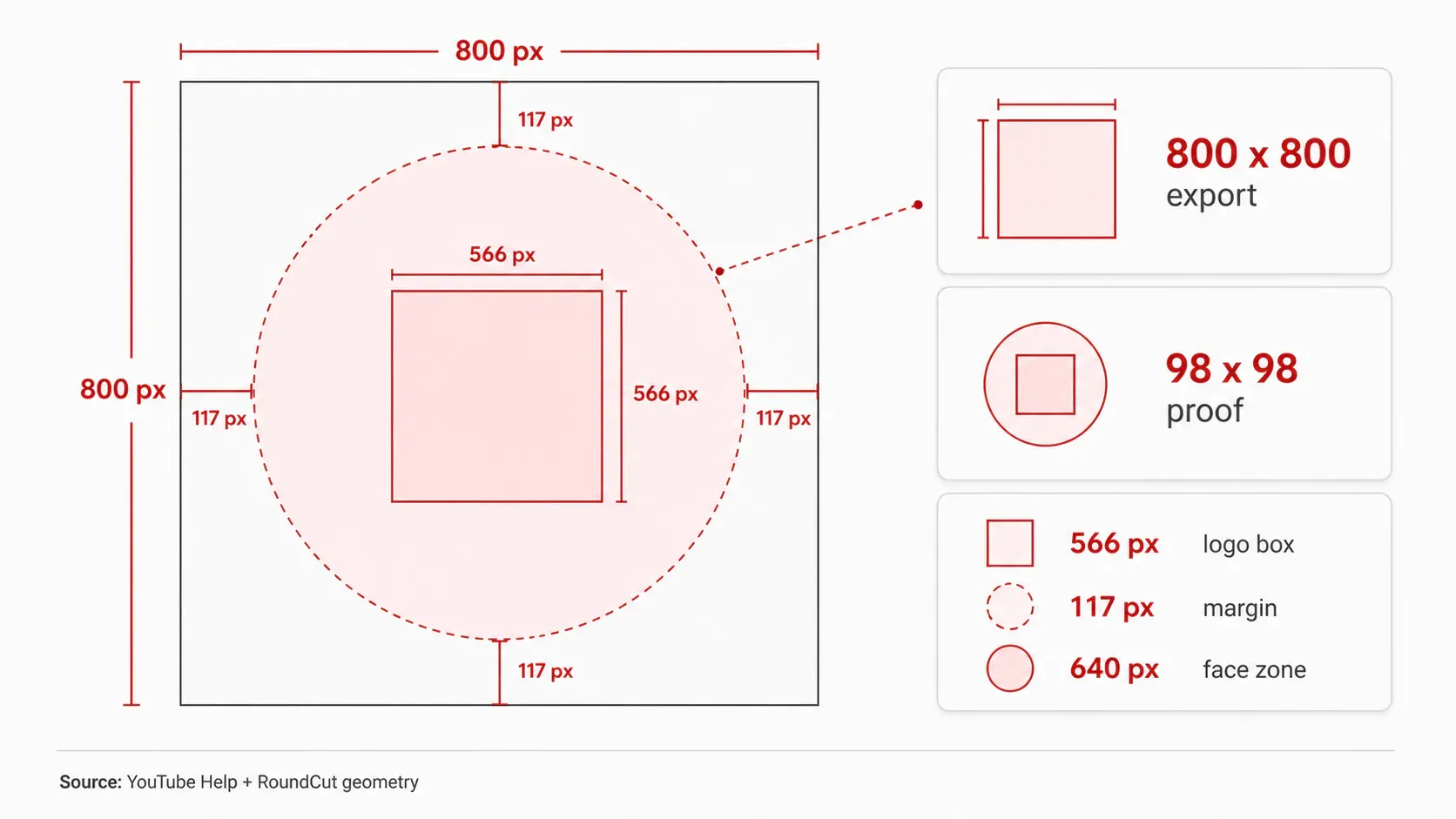
Here’s my working rule: keep must-read logo geometry inside the 566 px box, and keep must-not-cut facial details inside the 640 px face zone. That gives you two different rules for two different objects. A headshot is an organic shape. A square app icon is not.
This is where a lot of otherwise clean channel pictures fail. The uploader lets you drag and zoom, so it feels solved, but the cropper cannot decide which parts of the image are sacred. Your own file has to carry that decision before upload.
If you’re adapting a brand mark, read this logo walkthrough before you crop. Transparent padding can save the circle edge, but too much padding makes the mark look timid at 98 px.
RoundCut workflow for a circle preview
Once the square source is clean, use RoundCut only for the part native editors don’t show well: the circle. Upload the 800 x 800 file, center the face or mark, export a PNG if transparency matters, and keep a JPG copy if the background is solid.
Then run the tiny proof. If the avatar still reads at 98 x 98, you’re done. If it doesn’t, go back to the source crop instead of repeatedly nudging YouTube’s upload preview. That preview is useful, but it comes too late in the process.
For headshots, compare your crop against this LinkedIn guide because the safe-zone logic transfers well: eyes and chin need priority, not the whole torso. For compact logos, the Discord avatar guide is the better sibling because it deals with small circular marks under pressure.
If your file isn’t exactly square after editing, RoundCut Resize can bring the export back to 800 x 800 before upload. Don’t stretch a rectangle into a square. Crop first, resize second.
Format and file-size choices
YouTube accepts JPG, GIF, BMP, and PNG for the profile picture, but that does not mean all four are equally good. Use PNG for a logo, flat color, or transparent artwork. Use JPG for a photographic headshot. Skip animated GIFs because YouTube’s channel branding guide excludes them for the profile picture.
The 15 MB cap is generous for an avatar. A clean 800 x 800 JPG or PNG should be nowhere near it unless the source is bloated, layered, or exported carelessly. If the file is still heavy after the crop, RoundCut Compress can shrink it before you check the 98 px proof again. Compression can soften small text and thin strokes faster than it softens a face.
One position I take hard: avoid a full wordmark in a YouTube channel picture unless the word is the mark. YouTube already prints your channel name beside the icon in many surfaces. Use the avatar for recognition, not for repeating the label.
Upload checklist
Use this checklist after the design work, not before it:
- Start from an 800 x 800 px square.
- Keep logo corners inside about 566 px if they must survive the circular crop.
- Keep face-critical details inside a roughly 640 px circular zone.
- Export JPG for photos or PNG for logos and transparency.
- Proof a copy at 98 x 98.
- Upload through YouTube’s channel branding guide path in YouTube Studio.
If you also need the wide header, use a separate file instead of reusing the avatar. The banner guide solves a different layout problem: 2560 x 1440 canvas, narrow safe area, and text that has to survive across TV, desktop, and phone.
FAQ
What size should a YouTube channel picture be in 2026?
Use an 800 x 800 px square for the source file. YouTube’s official artist avatar page names 1:1 and 800 x 800 px, and the general channel branding guide says the profile picture renders at 98 x 98 px.
Should a YouTube channel picture be JPG or PNG?
Use JPG for a photo and PNG for a logo, flat artwork, or transparency. YouTube accepts JPG, GIF, BMP, and PNG, but a PNG usually keeps a mark’s edges cleaner. A JPG is usually smaller and fine for headshots.
Why does my YouTube avatar look blurry?
It usually looks blurry because the source was cropped too tight, exported from a low-resolution file, or compressed after small text and thin strokes were already fragile. Check the file at 98 x 98 before upload (which catches the failure before YouTube caches the new icon). If the miniature fails there, YouTube will not rescue it.
How long does a YouTube avatar update take?
Most updates appear quickly, but YouTube’s artist avatar guidance says updates across channels may take longer than 24 hours to process. If the old image sticks around for a while, wait before re-exporting the file.
YouTube’s cropper is fine for a straightforward face. For a logo, do the math before upload: 800 square, 566 logo box, 98 px proof. That boring little test is where the channel icon either holds together or gives up.


