Discord PFP Cropper Guide 2026: Keep the Whole Mark
Crop a Discord PFP that keeps faces, wordmarks, and transparent cutouts readable inside the circle.

Contents
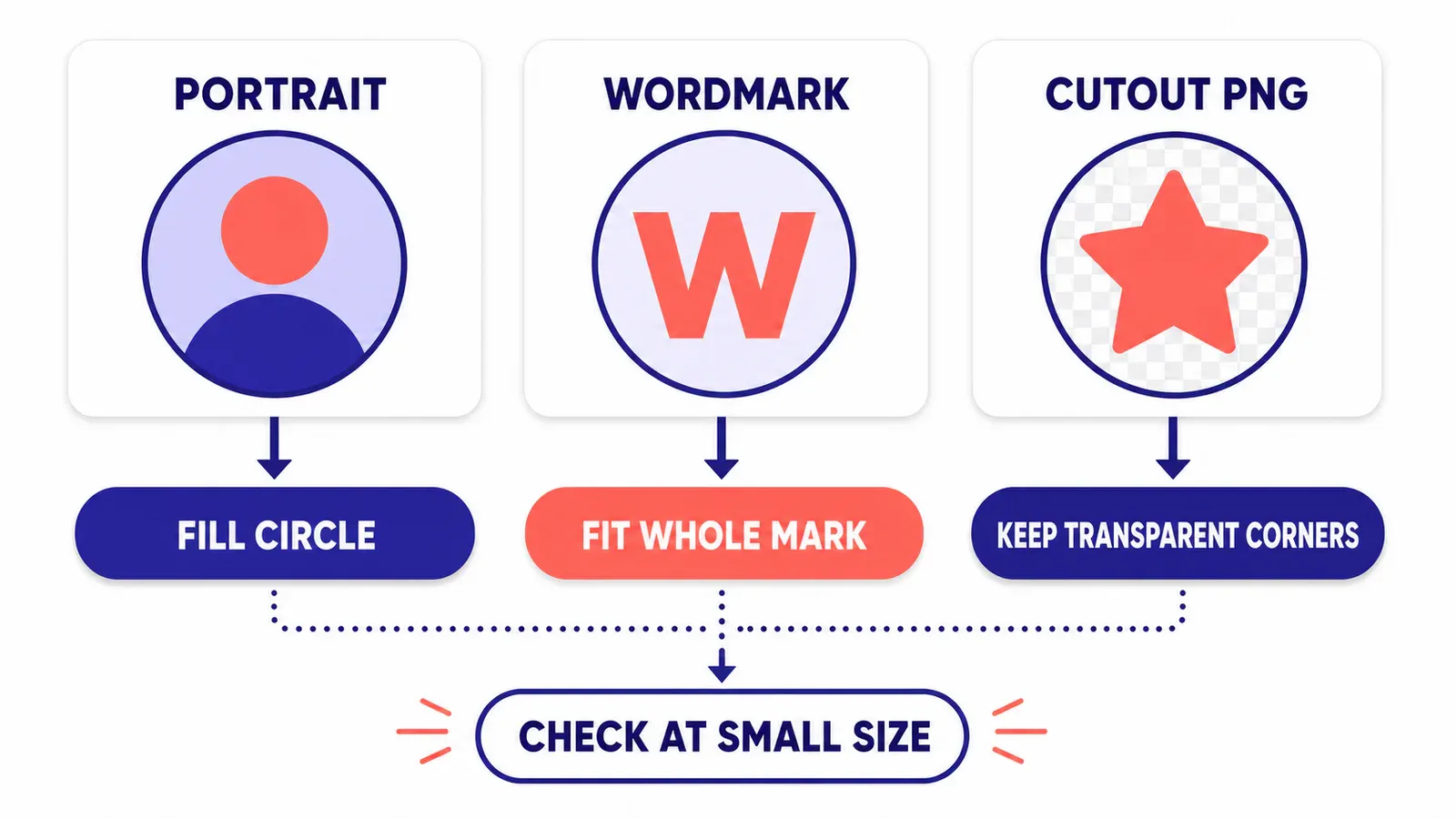
A Discord PFP cropper works best when you choose the framing before you touch the crop: fill the circle for a face, fit the whole mark for a logo, and keep transparent corners for a cutout. Start from a square source, inspect it small, then upload it through Discord’s profile controls. That avoids the familiar forehead crop or half-missing wordmark.
The native square crop
The native route is the sensible first move when a headshot only needs a square. In iPhone Photos, open the photo, tap Edit, tap Crop, then choose the Square preset; Apple’s crop guide documents that exact path. It’s quick, reversible, and already on the phone.
The drawback is obvious once you see the result in a round slot: a square preview doesn’t show what the circle will clip. A glasses arm, a loose curl, or the outside stroke of a logo can sit safely in a square corner and still vanish in Discord. Use the native crop for a straightforward face. Switch methods when the outer edge carries meaning.
The fill-versus-fit decision
Pick fill for a portrait. Let the face occupy the round frame, but leave enough gutter around the hairline that a tiny avatar still reads as a person instead of a floating forehead.
Pick fit for a wordmark, crest, or illustrated character. I’d rather accept a little quiet space around a mark than lose the one letter that makes it recognizable. The trade-off is visual weight: a fitted logo can look smaller in a busy channel, so test it against the dark and light surfaces you actually use.
Pick transparent corners for a cutout that may later sit on different backgrounds. The W3C PNG Recommendation specifies an optional alpha channel, which is the part of a PNG that can retain those transparent pixels. A white square behind a circular-looking logo is usually a file-choice problem, not a crop problem.
The circle-preview workflow
A circle preview is worth using whenever you’re preparing anything other than a plain face photo. Open the PFP cropper after you have a clean square source, then drag and scale until the circle protects the important edge detail.
- Start with the largest clean original you have. RoundCut documents a 40 MP client decode ceiling, so a normal phone photo is comfortably inside the browser workflow; an enormous stitched panorama is the wrong starting file.
- Center the eye line for a portrait, or center the visual mass for a logo. Those are different jobs. A centered letterform can look better than a geometrically centered canvas.
- Zoom out once before exporting. If the subject only works while enlarged, the small avatar will be weak too.
- Export the circle-ready version, then use the circle preview again on a dark background if your original has pale edges.
For a source that needs a smaller square afterward, use RoundCut Resize rather than repeatedly cropping the original. Keep that original around. Re-cropping a crop is how a clean mark turns mushy.
The wider framing logic also applies to a GitHub crop and an iPhone crop. The platform changes. The circle’s missing corners don’t.
The PNG and GIF fork
Use PNG for a still image, especially when transparent corners matter. Use a GIF only when you intentionally want animation and have the Discord plan that supports it. Discord’s current profile help says avatars support PNG and GIF, and that animated GIF avatars are for Nitro subscribers.
Don’t confuse avatar advice with banner advice. Discord lists banner files separately as PNG, JPG, or animated GIF under 10 MB, with a 680×240-pixel minimum. That wide banner specification is not a useful target for a PFP. Different frame, different job.
If you are cleaning up a brand asset instead of a face, the logo guide gives the more logo-specific version of this problem. For an emblem that needs to travel between apps, keep a PNG master as a separate master rather than baking it into a colored square (the export you can reuse).
The Discord upload path
On desktop, open User Settings, go to Profiles, then choose Change Avatar. Apply it and save your changes. On mobile, tap the avatar in the bottom-right corner and choose Edit Profile. Those are Discord’s current published routes, so use the platform’s preview as the last check, not the first crop tool.
Look at the PFP in three places before you call it finished: the profile screen, a compact message list, and the channel member rail. A logo that nails the large profile view can lose its counter-form in the smallest circle. If that happens, fit the mark more generously and accept the spare whitespace. The cleaner edge wins.


