Does Cropping a Photo Delete It? I Tested What Survives
A crop removes pixels only when your editor writes a new file. I measured four cases, from alpha masks to leftover bytes, and what clears each one.

Contents
Cropping removes pixels only when your editor writes a brand-new file. Three other operations get called cropping: a library edit that keeps the original, a document crop that hides the trimmed area, and a mask that turns the corners transparent while their color stays in the file. I opened the resulting files byte by byte, and two of them handed the discarded area straight back.
Three operations, one word
None of those three removes anything. A photo-library crop saves an instruction over an untouched original, a slide crop hides the trimmed strip inside the document, and a masked PNG paints the corners transparent with their color still sitting underneath. Same verb, three very different files.
Apple’s editing guide for Photos says it without hedging: Photos keeps the original so you can always undo your changes and revert to the original look. Revert to Original sits in the editing toolbar, Reset undoes a crop inside the Crop tab, and the crop-and-straighten page tells you to duplicate the photo first when you want an untouched copy. That behavior is a gift when you cut too tight. It also means the crop you made on Tuesday deleted nothing at all.
Windows takes the other path. Its screenshot editor writes a new cropped file instead of an instruction, so the pixels really do go and the crop you saved is the crop you have. That’s the safer model, right up to the moment the writing goes wrong, which is what happened to two Microsoft snipping apps and to Google’s photo markup editor.
| Where you crop | What stays in the file | How to clear it |
|---|---|---|
| Photo library edit | the whole original, by design | export a copy, or duplicate before editing |
| Slide or text document | the trimmed area, hidden from view | Compress Pictures with delete cropped areas ticked |
| Editor overwriting the same path | the tail of the old image when the write doesn’t truncate | save under a new name, then delete the old file |
| Alpha-masked PNG | the color under every transparent pixel | flatten onto a background, or re-encode |
| Browser canvas export | nothing recoverable outside the shape | already clear |
What a document keeps after the crop
Microsoft is blunt in its own help page: “Cropped parts of the picture are not removed from the file, and can potentially be seen by others.” Drag the crop handles over a headshot in a deck and the trimmed strip rides along inside the file, invisible in the layout and one click from view.
The fix hides inside a compression dialog (which is the last place anyone looks for a privacy setting). Select the picture, open Picture Format, and in the Adjust group choose Compress Pictures, then make sure the “Delete cropped areas of pictures” box is ticked, which Microsoft documents as a privacy step and not only a weight-loss trick. On Windows the deletion can be undone until you save. On Mac it can’t be undone at all.
The corner test: 56,356 pixels that came back
A circular crop is the cleanest way to see the difference, because the discarded area is enormous. Masking a 512 x 512 avatar into a circle pushes 56,356 pixels outside the shape, 21.5% of the frame. Those pixels don’t vanish. They get an alpha value of zero, and what happens to their color depends entirely on the pipeline that wrote the file.
I ran the same 512 x 512 crop two ways. The alpha-mask version, the one a desktop editor produces when it applies a mask over untouched RGB (which is the default in most layer-based apps), came out at 483,015 bytes. The version that zeroes the pixels under the mask came out at 380,673 bytes. Then I dropped the alpha channel on both and compared the corners against the original square. The mask version returned 56,356 of 56,356 pixels with a mean channel error of 0.0, a byte-perfect un-crop. The zeroed version returned nothing, at a mean error of 153.5. So the heavier file was heavier for a reason, and the reason was a hidden copy of everything you cropped away.
That gap of 102,342 bytes, about 27% on top of the smaller export, is the cheapest tell you have. Two saves of the same circular avatar have no business differing by a quarter of their weight. PNG encodes those corners like any other content, because to the encoder they’re ordinary pixels that happen to carry an alpha value of zero.
Chrome told a different story. Running a canvas circle crop on a 512 x 512 fill of rgb(220,60,60), the corner pixel read [0, 0, 0, 0] on the live canvas and [0, 0, 0, 0] again after a full PNG round-trip, while the center held [220, 60, 60, 255]. The exported PNG weighed 18,495 bytes. Browser compositing throws the color away as it writes the transparency, which is why an in-browser crop leaves nothing to recover. The same holds when you crop an image to a rectangle in the browser rather than a circle.
That’s a real trade-off, not a free win. You lose the ability to fix a bad crop from the export, so keep the square master somewhere safe before you round anything. Hold that master at 1024 x 1024 and treat the circle as a publish step, the same order of operations behind a clean logo crop.
When the old file is still under the new one
Overwriting a photo in place is where cropping turns into a genuine leak. I saved a 1200 x 1200 PNG at 1,694,640 bytes, cropped it to 512 x 512 (which encodes to 394,024 bytes), then wrote that crop over the original path without truncating the file. Every viewer opens it and reports a 512 x 512 image. The file still weighs 1,694,640 bytes, and 1,300,616 of them, 76.7% of the original, sit past the end of the new image, holding 20 intact IDAT chunks of the picture I thought I had replaced.
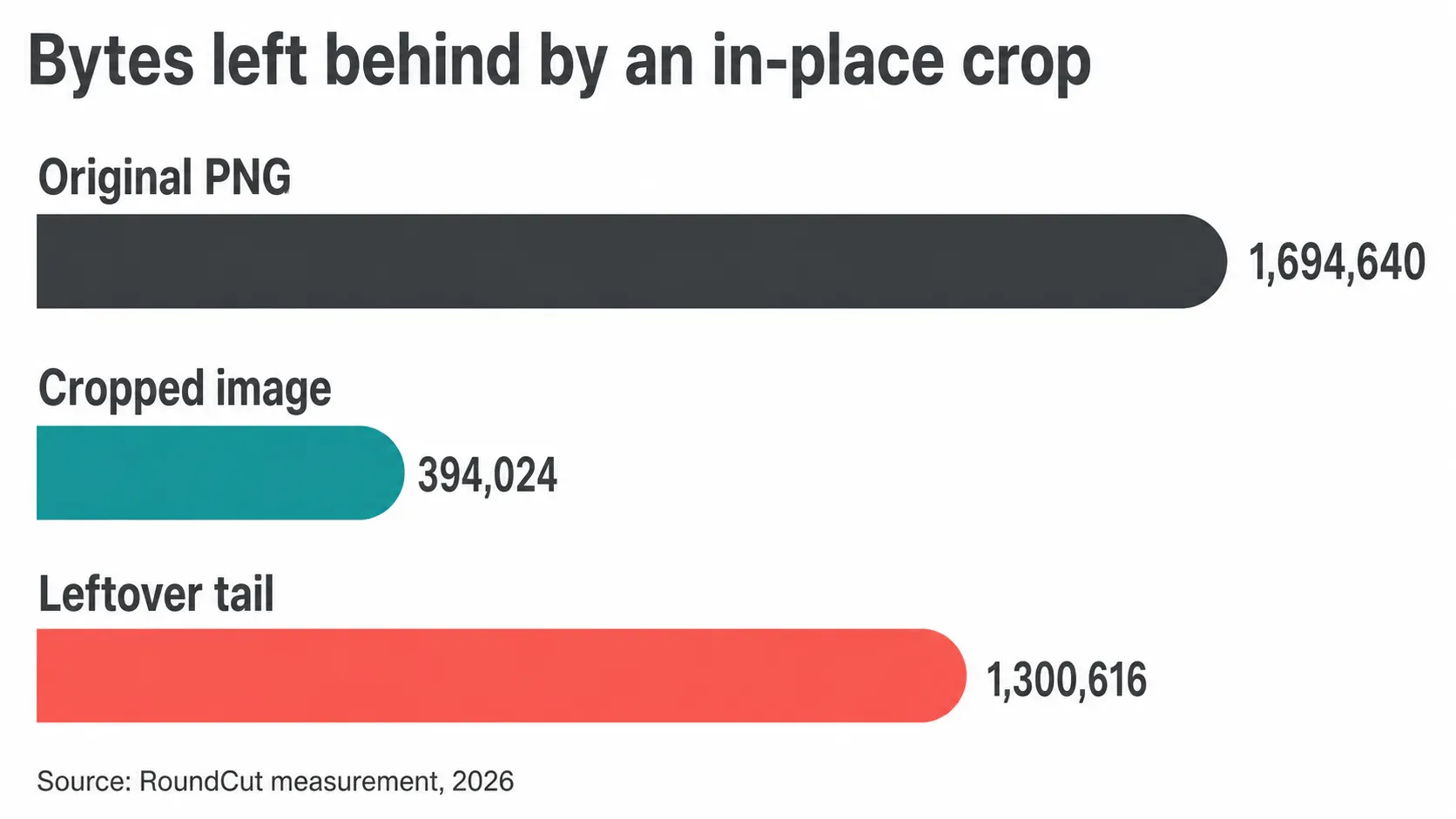
This is not a hypothetical. NIST’s record for CVE-2023-21036 describes it in one line: “In BitmapExport.java, there is a possible failure to truncate images due to a logic error in the code.” Scored 5.5 and published 24 March 2023, it covers the Markup editor on Pixel phones, which Google’s own March 2023 bulletin rates High at patch level 2023-03-01. Simon Aarons found the bug and David Buchanan built the proof-of-concept recovery tool, and their analysis pinned the cause on a file opened without the truncate flag, the missing “t” in a “wt” write mode that Android has required since version 10. Every Pixel since the 3 series, running Android 10 or later, had been writing screenshots that way.
Windows shipped the same class of bug. CVE-2023-28303, published 13 June 2023, is filed as a Snipping Tool information disclosure at 3.3, covering Snipping Tool 11.0.0 through 11.2302.20.0 and Snip & Sketch 9.0 through 10.2008.3001.0. Two vendors, two editors, one failure: writing a shorter file over a longer one and trusting the length to follow.
The thumbnail that outlived the crop
Camera JPEGs carry a small preview inside their metadata, and it survives edits that copy the metadata across. I took a 2298 x 1942 photo, cropped it hard to a 971 x 971 corner, and saved the result with its EXIF intact. The embedded thumbnail came out at 160 x 135 and 11,719 bytes, byte-identical to the one in the source, still showing the whole original frame inside a 158,363-byte file that shows only a corner.
Nobody sees that preview in a normal viewer. Plenty of software reads it anyway, which is why a cropped photo sometimes shows up in a gallery grid with its old framing, then snaps to the new one when you open it. The grid was reading the stale thumbnail.
Re-encoding without carrying the metadata across fixed it in one pass: the same crop came back at 145,299 bytes with no embedded preview at all, 13,064 bytes lighter than the version that kept its EXIF block. That’s the whole repair, and it costs you the capture date and the lens data along with the stale preview, so copy those out first if you need them for a photo credit.
What actually clears it
Flattening is what removes hidden color, and only some exports flatten. From the masked PNG I sampled 3,523 corner pixels and pushed the file through three routes. Dropping the alpha channel returned 100% of them. Compositing onto white and saving JPEG at quality 88 returned 0%, in 52,184 bytes. Lossy WebP at quality 80, keeping the alpha channel, returned 0.1%, in 24,774 bytes.
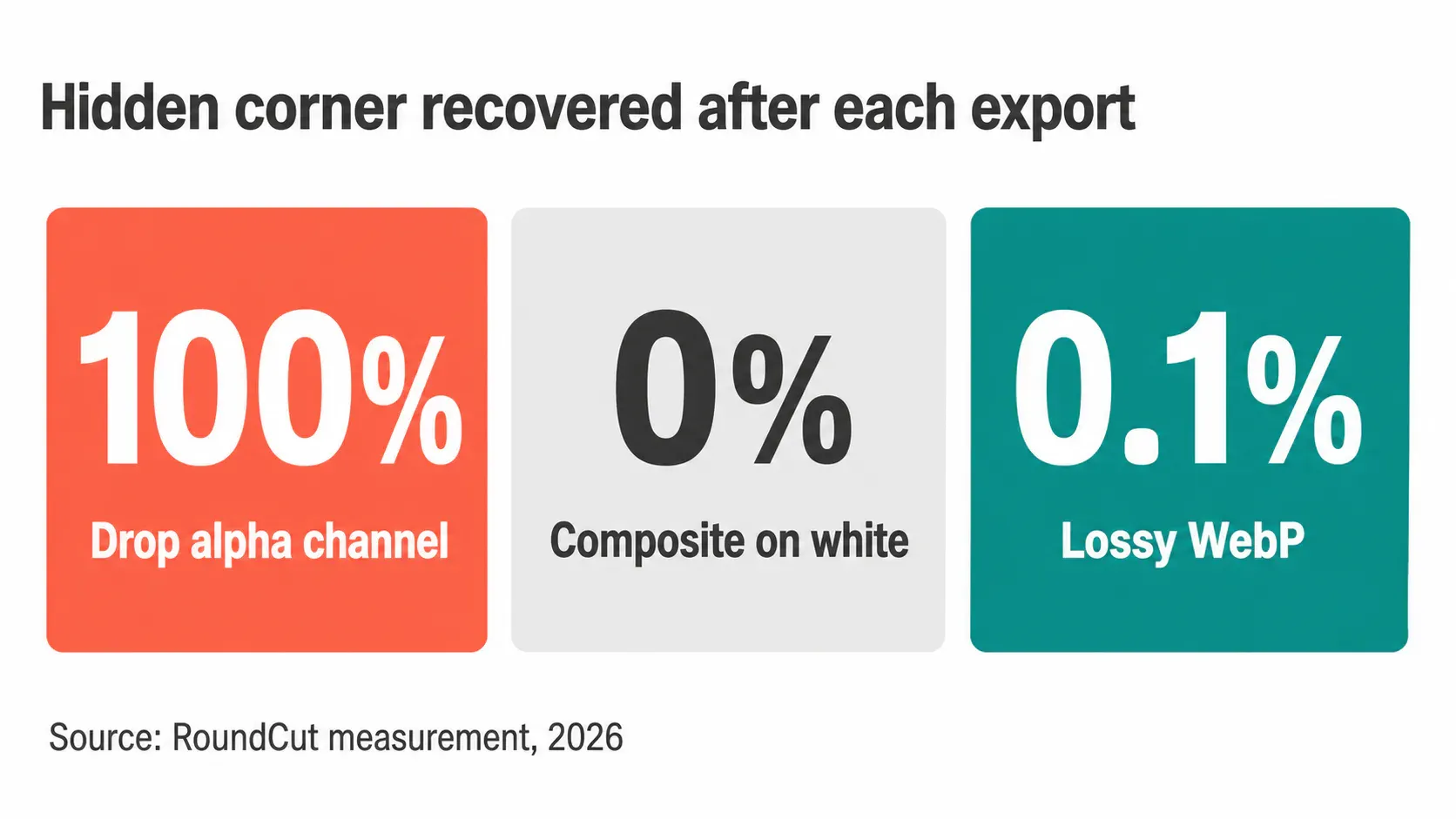
Read those three numbers as a workflow, not trivia. If the picture needs no transparency, flattening to JPG removes the question entirely, and the PNG to JPG converter does it against a fill color you pick. If it does need transparency, a lossy re-encode gets you to 0.1% recoverable and roughly half the bytes, which is the same move that lets you shrink a transparent PNG without a white box appearing behind the mark. Running the file through RoundCut Compress has the same effect, since a re-encode composites before it writes.
Where the file gets processed matters as much as how. Anything you upload to a server to be cropped arrives with its corners intact, which is the part the no-upload test measured across free tools. TinyPNG and Photoshop both handle masks competently. Neither can promise the intermediate file never left your machine, and a browser tool can.
A one-minute check on your own file
- Compare bytes to pixels. A 512 x 512 export that weighs like a 12-megapixel original is carrying something you didn’t ask for.
- Re-export before you share. One pass through a flatten or a lossy re-encode composites the transparency away, and the corner data goes with it.
- In decks and documents, run Compress Pictures with delete cropped areas ticked, then watch the file size drop. If it doesn’t move, the crop never happened at the byte level.
- Never overwrite the original path when you edit a screenshot. Save under a new name, confirm it opens, then delete the old file.
Phone crops deserve the same suspicion, and the circle crop on iPhone workflow starts with a square export precisely because the preview lies about what shipped. The wider habit of checking whether your editor trims the canvas or the image is the same instinct behind crop defaults.
None of this reaches a file you already sent. Once a masked PNG lands in someone’s inbox the corners travel with it, and a later export only cleans your copy. So I flatten before sharing and keep the square master on my own disk, where an un-crop is a feature instead of an accident. One extra export, one fewer thing you have to trust.


