Google Meet Photo Guide 2026: Fix the Shared Account Crop
Fix a Google Meet photo with a circle-safe crop that stays sharp and updates through your shared Google Account.

Contents
Your Google Meet profile picture comes from your Google Account, so prepare one square source that works in a small circle before you upload it. Start with a 1:1 crop, keep the important part inside an 80% center zone, and use Google’s crop tool to set the account photo. A round preview catches the edge cuts that the square editor hides.
Why the Meet picture needs a wider plan
Google Meet doesn’t need a separate image upload. Google’s account help sends you to Personal info and Profile picture, where you upload, rotate, and crop the photo; Gmail’s help also says that its profile picture is the same Google Account picture and can appear in other Google services. That shared role is why a close square crop can look fine in one place and feel cramped in a tiny meeting tile. Google’s Account instructions are the source of truth here.
The useful move is to make one durable source file, not five almost-identical copies. Keep a full-resolution original, then make a square working copy for the avatar. If the photo includes a face, both eyes, the full chin line, and the top of the hair should sit comfortably inside the middle. For a logo, protect the whole mark, including its counter-forms and any thin outer ring.
Native square crop on Android
On Android, Google Photos is the fast native route: open the photo, tap Edit, choose Crop, and use Aspect ratio to make a square. Google documents that exact path, including dragging the handles and saving when you’re done. The route is quick, free, and already on the phone. Google Photos’ crop guide lays out the controls.
The limitation is the preview. A square crop tells you what fits inside the canvas, while the little round avatar discards the corners. If the original is a tall portrait, start wider than feels natural. The extra shoulder and background are useful throwaway area once the circle takes over. For an iPhone workflow, this circle-crop method uses the same square-first principle.
A circle-safe framing rule
Use a square source, then imagine a circle placed inside it. Keep the face or logo inside an 80% safe zone, which leaves roughly 10% of the square’s width at each edge for pixels the circle can lose. That is a framing rule, not a Google-published specification, but it gives you a repeatable decision instead of eyeballing every upload (the corner pixels are sacrificial).
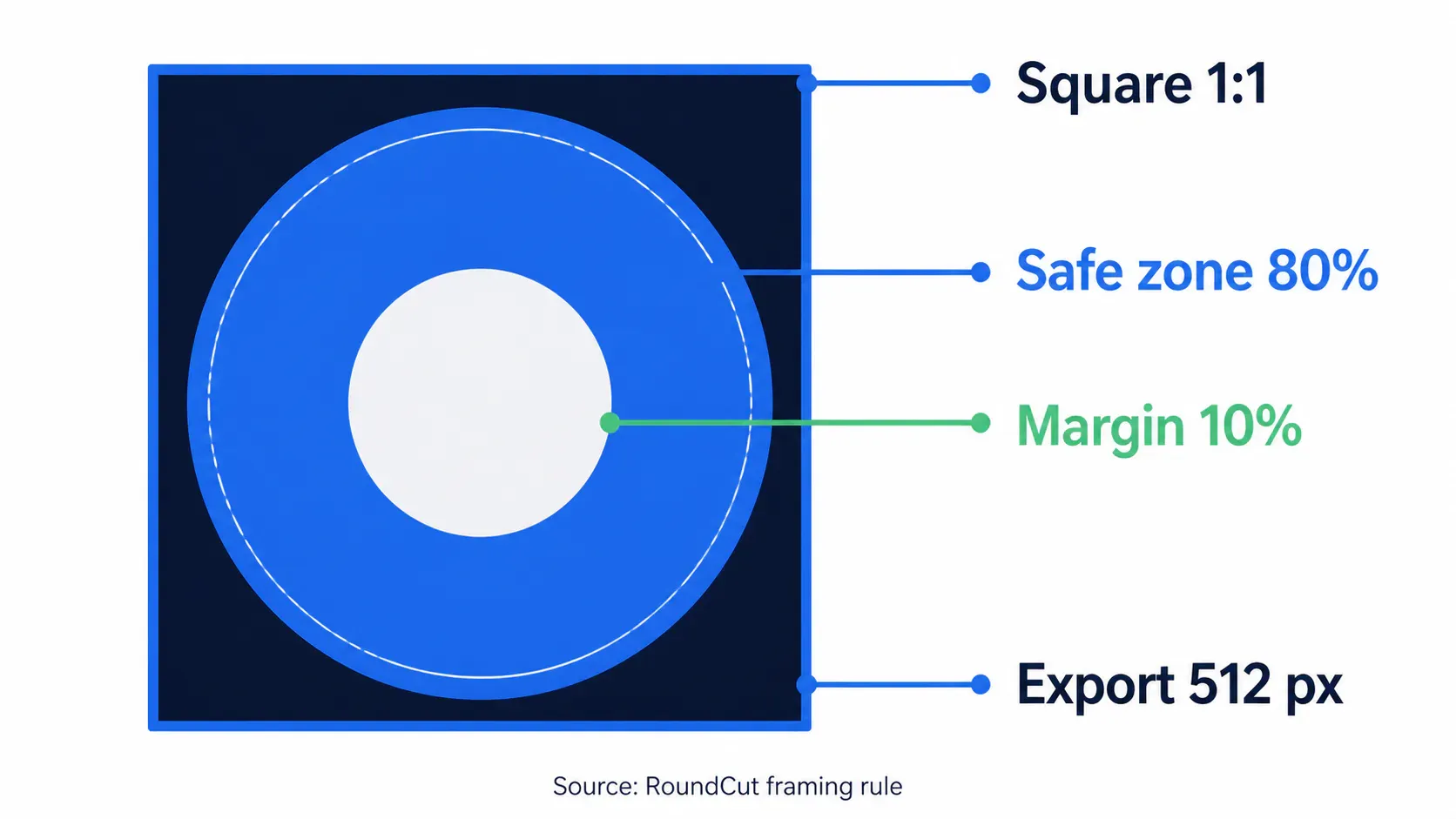
Here’s the practical version. Put the eyes a touch above center, leave a visible gap above the hair, and don’t let a logo’s outer stroke touch the circle. A face can be slightly smaller than a LinkedIn headshot and still read well in Meet; a logo that fills the ring usually chokes once it becomes a small participant icon. This LinkedIn framing guide shows the same geometry on another circular surface.
I’d use 512 px for the working export. It gives the image enough pixels for a crisp source without turning this into a fictional platform requirement (it is a working size, not a Google quota). If you need that copy from a larger camera original, make a 512 px version before you upload.
Round preview before upload
The native crop is enough for a straightforward headshot. Use a round preview when the crop is tight, the background has strong visual weight, or the file is a logo. That’s the case where the circle crop earns its place: move the circular selection until the chin, hairline, or full mark survives, then compare it with the square source.
RoundCut offers Original, 512 px, and 256 px exports. Pick 512 px for this workflow, then keep the square original in case the Google crop shifts your framing later. PNG is useful for a logo with transparent corners; for a standard portrait, JPG is usually the simpler file. A round-logo export guide covers the transparent-edge case without pretending every avatar needs one.
Set the photo in Google Account
Once the framing is right, go to your Google Account, open Personal info, select Profile picture, choose the prepared image, and save it. Google’s instructions include a crop step, so use that last screen as a sanity check instead of trying to repair the source there.
- Upload the 512 px square file.
- Check the face or mark against the crop square.
- Save the profile picture.
- Open a Meet later and inspect the camera-off tile at its small size.
That fourth step matters because a photo can look polished at 512 px and still go muddy when the interface shrinks it. If the source is already small, don’t keep resaving it. Compare it with these blurry-avatar fixes before you make another compressed copy.
If the new photo does not appear yet
Give it time. Google says a changed profile picture can take some time, and its account help says updates across Google products sometimes take a few days. That delay is propagation, not evidence that your crop failed. Gmail’s profile-photo help makes the same shared-account point.
If the edit option is missing, keep the original and the 512 px source while you check the account settings that apply to you. For another video-call crop with the same circle constraint, see the Zoom avatar crop.
Don’t overwork the export. A square source with an 80% protected center gives Google’s crop room to behave, and it keeps the same image usable in Gmail, Meet, and the next small avatar that lands on your screen.


