How to Upscale a Pixelated Profile Picture
Two pixelated profile pictures, one free AI upscaler, real numbers: 280 px came back at 1120 px. Where the rescue works, and where it invents a new face.

Contents
A profile picture pixelates when the file you upload is smaller than the slot the platform renders it into, and today those slots run from 400 to 1024 pixels per side. The fix has an order: find the largest original you own, crop it square, run it through an AI upscaler, and upload that. My 280-pixel test file came back at 1120 × 1120, which clears every major avatar floor.
Why your profile picture looks pixelated
The story is usually the same: the photo you actually like exists only as a crop. You pulled your face out of a wedding group shot, or saved your own avatar back off an old account, and the square that survived is a couple hundred pixels wide. Platforms then stretch that square to fill whatever circle they render, and stretching is where the mush appears.
Before touching any tool, check what you actually have. On an iPhone, open the photo in Photos and tap the info button; the pixel dimensions sit right under the filename. On Windows, right-click the file, open Properties, then Details. That check costs nothing. It also fixes nothing on its own, and it regularly delivers bad news you can’t setting-toggle away.
If the full-resolution original still exists somewhere, stop reading and go get it. A fresh crop from the camera file beats any reconstruction, every time. The upscaler below is for the honest situation where the small crop is all that’s left.
One pass through the upscaler, measured
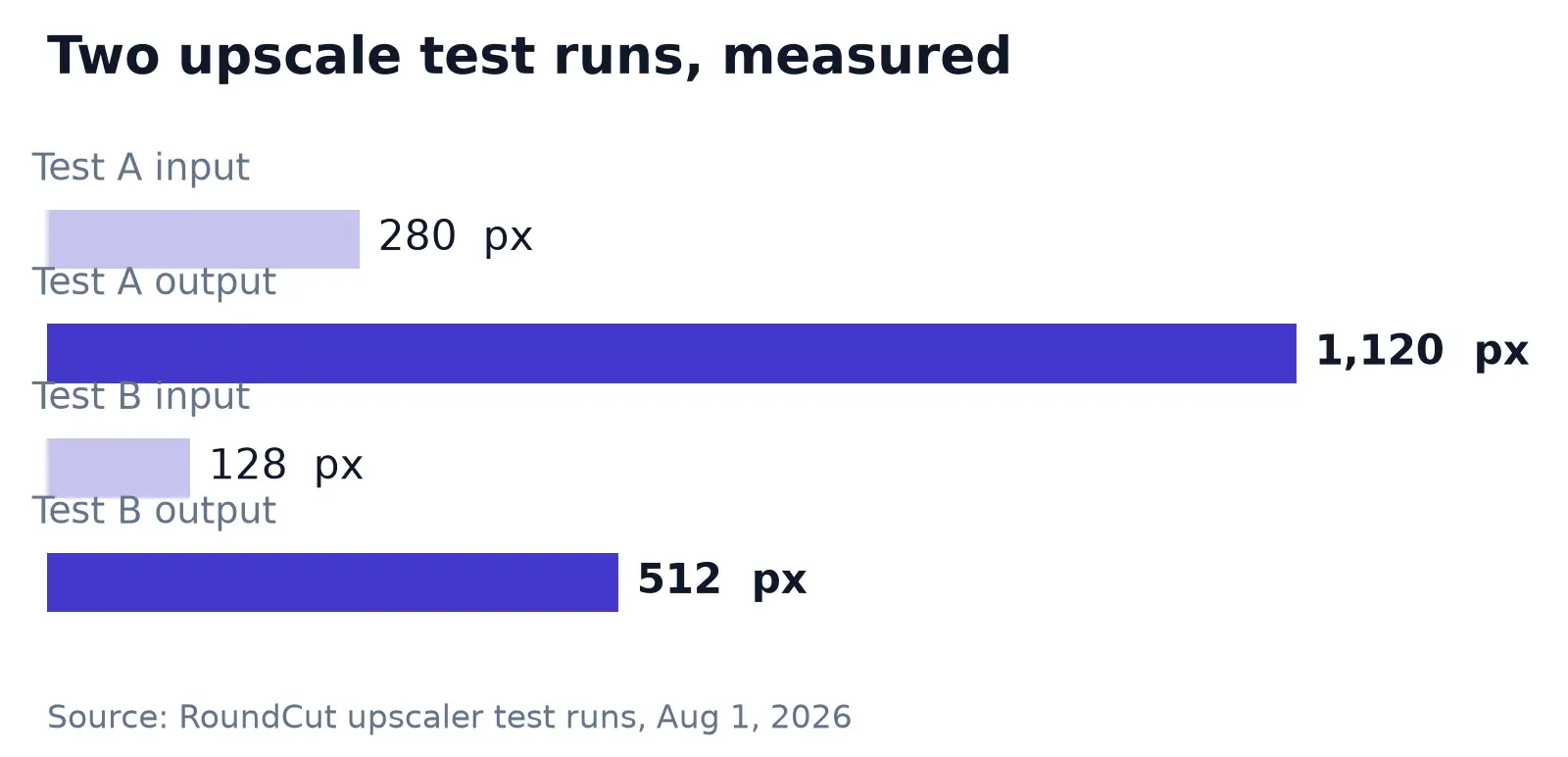
I tested this with a deliberately butchered file: a 1024-pixel test portrait (a synthetic face from our test library, not a real person) scaled down to 280 × 280 and saved as an 11 KB JPEG, roughly what a face cut out of a group photo weighs on disk. I dropped it into RoundCut’s image upscaler, clicked once, and got back a 1120 × 1120 JPEG at 104 KB in about half a minute.
Four times the side length, not two. The button says 2×, but the tool picks the factor on its own, and its page is upfront about there being no fixed multiplier: small files grow a lot, large files mostly get cleaned up. My second test, a 128-pixel thumbnail, came back at 512 × 512 in about 15 seconds, also exactly 4×. Either output clears LinkedIn’s 400-pixel floor and the Slack avatar target without further math.
The practical constraints: it takes JPG, PNG, or WebP up to 20 MB and 16 megapixels, one photo per pass, with a daily cap per device. iPhone HEIC files get rejected at the door, so export to JPEG first. One honesty note matters more here than usual: this particular tool does its work in the cloud rather than in your browser, so the file does leave your device. The results screen has a Delete from server now button. I used it.
The sizes each platform actually wants
Avatar specs are documented, just scattered across help centers. LinkedIn’s upload requirements set the minimum at 400 × 400 pixels with an 8 MB cap, PNG or JPG only. Slack’s profile help asks for at least 512 × 512 and nothing over 1024 × 1024. GitHub’s profile reference wants files under 1 MB, under 3000 × 3000 pixels, and about 500 × 500 for the best rendering. Discord’s developer documentation lists avatar renditions at every power of two from 16 through 4096 pixels, which tells you the same upload gets shown tiny in a chat line and huge on a profile popout.
| Platform | What the official docs say |
|---|---|
| 400 × 400 minimum, 7680 × 4320 maximum, 8 MB, PNG or JPG | |
| Slack | 512 × 512 minimum, 1024 × 1024 maximum |
| GitHub | under 1 MB and 3000 × 3000; about 500 × 500 renders best |
| Discord | renditions served at powers of two, 16 through 4096 px |
My working rule from that table: aim the final export at 1024 × 1024 (which is also exactly where Slack draws its ceiling). It satisfies every floor, stays under every other limit, and hands the platform enough detail to survive its own downscaling. The 1120-pixel file from my test needed nothing else. If LinkedIn is the destination, the export walkthrough for LinkedIn photos covers the resize-then-compress step that keeps a 400-pixel square from turning to soup.
Crop square before you upscale
Order beats tool choice here. The upscaler aims at a size ceiling, so a small file grows a lot while a big one barely moves. Feed it the entire group photo and your face collects a fraction of the enlargement; crop to a 1:1 square around the face first and the whole 4× lands where you need it. Since the tool takes one photo per pass anyway, cropping first also spares you a wasted run.
Leave air around the head when you crop. Round masks eat corners, and a chin or a hairline that touches the square’s edge will get clipped somewhere. After the upscale, preview the actual circle in RoundCut’s circle crop before uploading anywhere, and you’ll catch the clipped-chin surprise while it still costs nothing.
On an iPhone, the square itself needs no extra tool. The circle-crop on iPhone guide walks the native Photos route, square first, then a real circular preview.
GitHub is the odd case worth naming: the same avatar renders as a circle in some views and a square in others, so framing for both shapes matters. The GitHub avatar crop guide handles that split, including the 500-pixel sweet spot from GitHub’s own docs.
Where the AI version falls apart
The 128-pixel test is where my confidence stopped. The output came back 512 × 512 and genuinely sharp: clean edges, no JPEG blocking, a file any platform would accept. It also came back wrong. Side by side with the source, the eyebrows sit differently, the eye shape changed, the makeup reads heavier. The tool’s page says it plainly: the AI “creates new detail that fits your image” instead of recovering what was lost. At 280 pixels, fitting meant my test face with firmer edges. At 128, it meant a face that could pass for a cousin.
Even the successful run has a tell. Zoomed in, the 1120-pixel version trades JPEG grit for skin that reads lightly airbrushed, closer to a retouched headshot than to the raw photo. Rendered small in a sidebar, that never shows. Blown up on a speaker page or a printed badge, it does, and the original file is the only honest fix.
One trap to rule out before blaming your file: an avatar that looks sharp everywhere except one app points at the platform, not the source. Telegram re-encodes profile photos into small square copies on upload, and no amount of upscaling beforehand changes what its servers do afterward.
So the boundary, from one afternoon of measuring: a 280-pixel crop is rescuable, and the result cleared every floor in the table above. A 128-pixel relic produces a sharp portrait of someone adjacent to you. My own line sits near 200 pixels of face, and below it I’d rather post the soft version of the real me than the crisp version of a stranger.


