How to Fit a Full Photo in a WhatsApp Profile Picture
Fit a full photo in a WhatsApp profile picture by square-cropping first, leaving margin, and checking the circle before you save it.

Contents
Fit a full photo in a WhatsApp profile picture by making the source square first, then leaving real space around the face or logo before you open WhatsApp’s picker. The app’s circular preview is the part that bites: a square can look balanced in your gallery and still shave off hair, shoulders, or a wordmark at the edge.
The circle-mask problem
WhatsApp needs a square source, but people see the result through a circle. That difference is why a close portrait, a wide group photo, or a horizontal logo can look fine until the final preview clips its outer corners. Start by deciding what must survive inside the circle, not by trying to fill every pixel of the square.
The native crop is still the right first move. It’s fast, it keeps you in the photo app you already use, and it makes the composition easier to judge. Its limit is blunt: a crop can remove pixels, but it cannot invent the extra whitespace a full photo sometimes needs.
Square crop on iPhone
On an iPhone, open the photo in Photos, tap Edit, then tap Crop. Apple’s crop controls include a Square preset, so use that before you send anything to WhatsApp. Apple also notes that dragging a crop corner keeps the existing aspect ratio until you unlock it; that is the small control that can make a stubborn rectangular crop feel broken. Apple’s Photos instructions show both controls.
Frame the face or logo a little lower than your instinct says. A head that fills the square has nowhere to go once the circle takes its corners. For a logo, protect the outermost letters and any thin counter-forms first; a centered mark with a little gutter reads more deliberate than a mark pressed against the rim.
The iPhone crop goes deeper on checking that boundary when the photo is already close-cropped.
If you want a stricter preview before WhatsApp gets involved, use RoundCut Circle Crop after the native square crop. It lets you judge the round boundary before you save. The trade-off is an extra step, so I’d skip it for a straightforward headshot that already has room around the shoulders.
Square crop on Android
Google Photos follows the same useful sequence: open the image, tap Edit, choose Crop, then use Aspect ratio to make it square. Google documents both the direct crop handles and the square option in its Android editing guide. Do not zoom until the face becomes the whole frame. That is the familiar profile-photo mistake.
Breathing room before the upload
When the circle still cuts off the full photo, stop making the subject bigger. Make it smaller inside a square canvas. The trick is not a secret WhatsApp dimension; it is visible margin. That margin gives the circular mask somewhere to take pixels without taking the important bit (which keeps the circle from eating the edges).
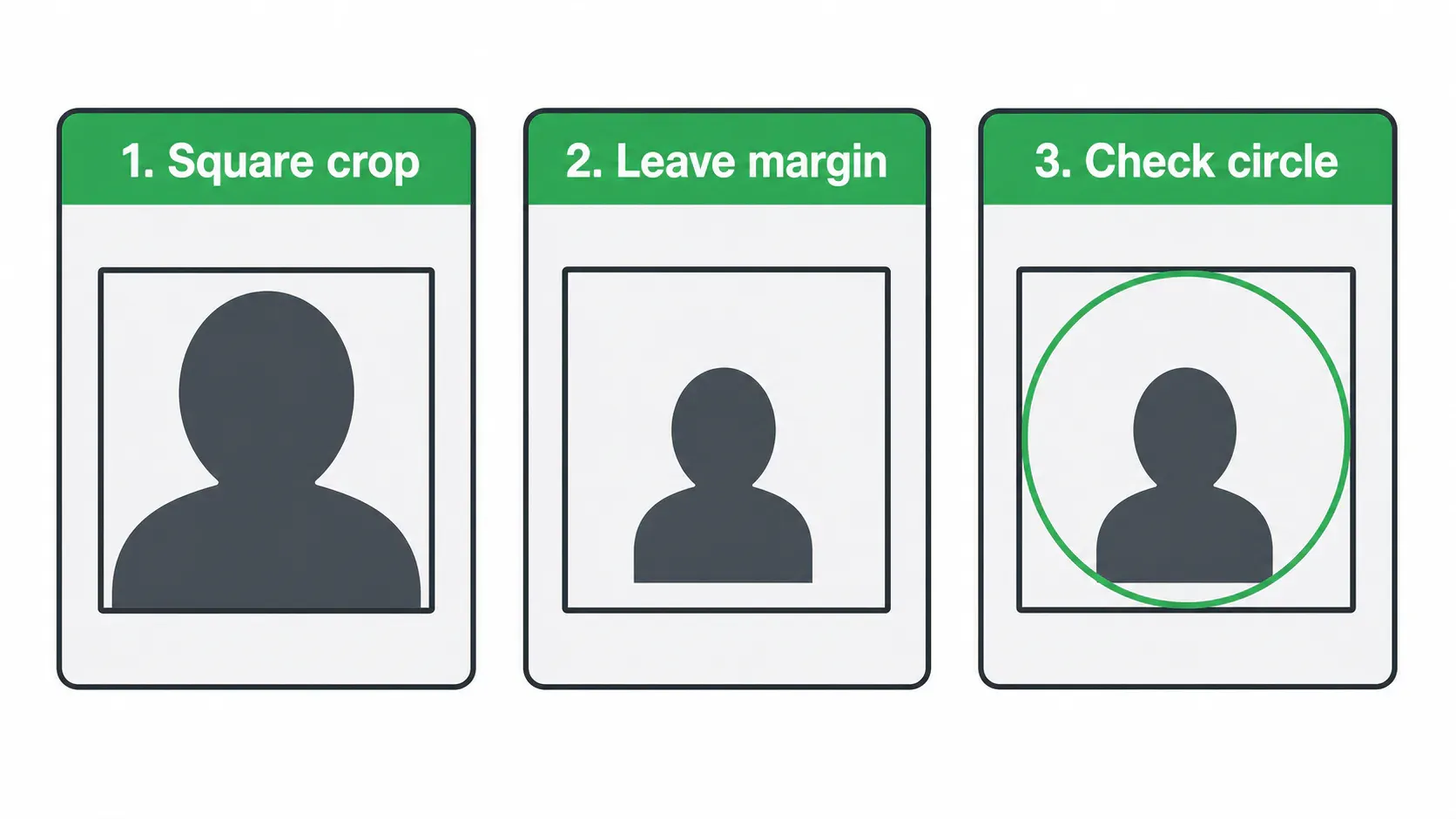
For a person, keep the eyes and the top of the head comfortably inside the imagined circle. For a business logo, protect the mark’s silhouette and its smallest letterforms. I’d rather accept a little more whitespace than let a company initial ride the edge of a round avatar. That’s a composition call, and it’s usually the better one at chat-list size.
Use RoundCut Resize only after the framing works. Resizing can make a file easier to handle, but it will not rescue a crop where the subject is already too large. The order matters: composition first, pixels second.
The final WhatsApp check
On Android, the usual path is WhatsApp Settings, your profile, the photo, then the pencil and Gallery. On iPhone, it is Settings, your profile, the photo, then Edit and Choose Photo. Those labels can shift slightly with an app update, but the useful moment is the same: pause at the in-app preview and look at the circle, not the square thumbnail. Android Authority’s walkthrough documents the current routes.
If the circle crowds the face, go back one step and add more margin. Do not keep nudging the source until you have learned to see the circle safe center. That visual habit travels well to an avatar tutorial and to LinkedIn profile, where a square upload also ends up judged in a much tighter shape.
Which route fits your picture?
| Picture type | Start here | What to protect |
|---|---|---|
| Close headshot | Native square crop | Eyes, hairline, shoulders |
| Wide portrait | Square canvas with margin | Full face and both shoulders |
| Wordmark logo | Circle preview before upload | Outer letters and clear whitespace |
| Business badge | Square crop, then check the mask | The mark’s entire silhouette |
A simple headshot can stay in Photos or Google Photos. If the profile picture carries a wide logo or a full group photo, use the controlled circle preview and keep the source looser than feels natural. For more brand-focused framing, WhatsApp Business is the better next read; it deals with the mark, not just the face.


