JPEG Quality 80 Across Four Encoders: Measured
Quality 80 wrote files within 0.8% of each other in four JPEG encoders. The 2x spread came from the default nobody sets. Measured on four test images.

Contents
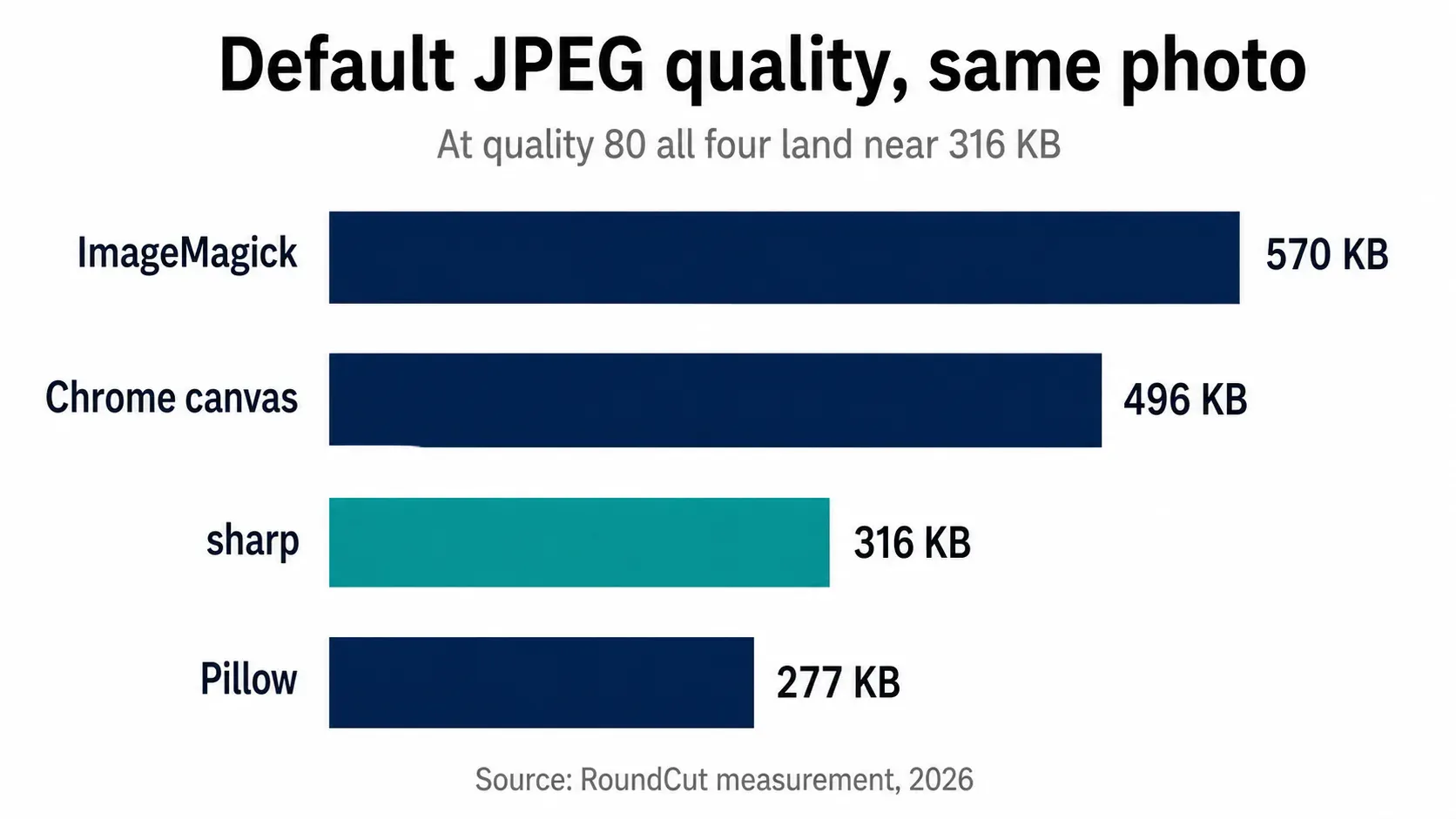
Set the quality to 80 in four different JPEG encoders and the files come out nearly identical. I measured 315.9 KB, 316.0 KB, 316.5 KB and 318.4 KB from the same 1200x900 photo, at matching fidelity. Leave that setting alone and the same picture lands anywhere from 277 KB to 570 KB. The number travels between tools. The default each tool picks on your behalf does not.
The quality slider your computer already has
On a Mac the export path is already installed. Open the photo in Preview, choose File > Export, pick JPEG from the Format menu, and a quality control appears. Apple’s guide says that if you choose JPEG or JPEG-2000 “you can adjust the image’s quality”, and that sentence is the whole specification. There’s no number under the handle. You drag, you save, you check the size in Finder, and when the file is still too heavy you do the entire thing again.
For one photo that’s fine. It collapses when a client needs eight product shots under 200 KB each and you want the same treatment on the next batch in October. A browser-based image compressor hands the number back to you and shows the output weight before you download anything, and the file stays on your machine while it happens (which is the part that matters when the shots are still under embargo).
Four encoders, one number, 0.8% apart
So I built a small bench instead of repeating what the SERP says. One outdoor photo, decoded a single time and written back out as a lossless PNG master at 1200x900. That master went to four encoders at an explicit quality of 80: Python’s Pillow, ImageMagick at the command line, sharp under Node, and the JPEG encoder inside Chrome, driven through a canvas in a headless browser. Identical pixels in, four files out.
| Encoder | File at quality 80 | PSNR vs master | Chroma |
|---|---|---|---|
| ImageMagick | 315.9 KB | 32.12 dB | 4:2:0 |
| sharp | 316.0 KB | 32.15 dB | 4:2:0 |
| Chrome canvas, 0.8 | 316.5 KB | 32.15 dB | 4:2:0 |
| Pillow | 318.4 KB | 32.15 dB | 4:2:0 |
2.5 KB separates the heaviest from the lightest. That’s 0.8%. Three of the four scored an identical 32.15 dB against the master, and all four picked 4:2:0 chroma subsampling without being asked to. The family resemblance has a cause: they inherit the quality routine from the same reference implementation, whose documentation describes the value as a way to construct quantization tables and warns that “the exact mapping from quality values to tables may change in future IJG releases”.
Google’s performance guide warns that quality levels are not directly comparable across image formats, and adds that even inside one format a different compressor “may produce visibly different output”. Both halves are accurate. On an ordinary photograph through mainstream encoders, that second “may” measured under one percent, which is a smaller difference than most people expect after reading the warning.
The 2x spread nobody chose
Then I ran the same masters again and set nothing at all.
| Encoder | Untouched default | PSNR vs master | Chroma |
|---|---|---|---|
| Pillow | 277.4 KB | 30.99 dB | 4:2:0 |
| sharp | 316.0 KB | 32.15 dB | 4:2:0 |
| Chrome canvas | 496.0 KB | 37.40 dB | 4:2:0 |
| ImageMagick | 570.3 KB | 38.70 dB | 4:4:4 |
2.06x between the lightest and the heaviest, on identical pixels, with nobody choosing anything. Pillow documents its default as 75 (which is why a Python script quietly returns the lightest file of the four). Chrome doesn’t write anything down in the page’s own code: MDN spells out that the browser “will use its default quality value if this option is not specified”, so I swept the slider in 0.01 steps until the byte count matched, and it landed on 0.92. Unset gave 496.0 KB; 0.92 gave 496.0 KB.
The pattern held across the other three test images. Chrome’s untouched canvas encoder produced 422.0 KB from the 1200x1200 square photo, 196.6 KB from a 1113x1200 interface screenshot and 170.4 KB from a 720x1080 portrait, each between 49% and 71% heavier than the same image at an explicit 0.8. Whoever built the tool made that decision for you by leaving one argument out of one line of code.
Two tools, the same claimed setting, exports half a megabyte apart. Before blaming the quality math, look at what each tool does when nobody sets the quality at all, because that’s where the variance actually lives. It also explains the odd result where a “compressor” hands back a file heavier than the one you fed it: a re-encode at an unset 0.92 will do that to a photo that arrived at 80. I walked through the compounding version of that problem in 20 rounds of re-saving.
Where the pack splits: quality 90
Push everything to 90 and the agreement breaks: 454.8 KB out of sharp, 461.2 KB out of Pillow, 522.8 KB out of ImageMagick. That extra 61.6 KB comes from chroma rather than from the quality scale: from 90 upward, ImageMagick stores colour at full resolution (4:4:4) while the other three stay on 4:2:0.
Google’s image documentation describes subsampling as storing a chroma layer at lower resolution, which is nearly free on a landscape because human vision tracks luminance detail far more closely than colour detail. Put a saturated red logo on white, or coloured text in a screenshot, and the same switch separates a crisp edge from a smeared one. The encoder that appeared to ignore my number was making a defensible call.
What mozjpeg does with the same 80
One encoder in the test refused to follow the pack, and it refused on purpose. Switch sharp into its mozjpeg mode and quality 80 produces 252.9 KB instead of 318.4 KB, a 20.6% cut, with PSNR falling from 32.15 dB to 30.91 dB and the scan turning progressive. Mozilla’s project page for it describes new quantization table presets alongside trellis quantization, which is what “80 means something different here” looks like once you weigh the files.
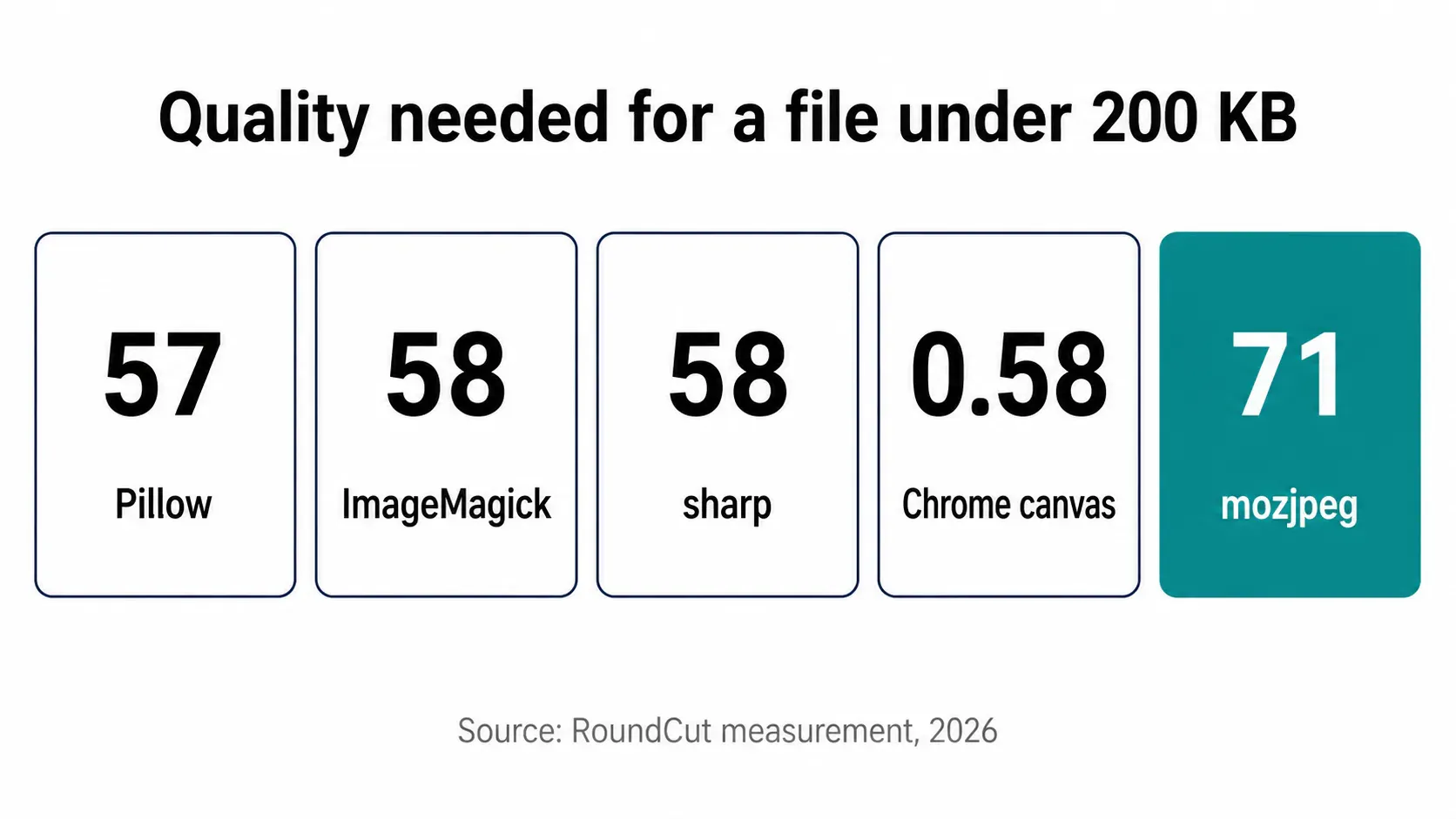
At a fixed target the trade reads better. To land under 200 KB on that photo, the three plain encoders needed 57, 58 and 58; mozjpeg needed 71 and still came out marginally sharper, 29.34 dB against 28.72 dB. Thirteen points of slider, same file size, slightly more detail. That gap is the same one behind the argument in modern JPEG encoders, where a well-tuned JPEG closes most of the distance people assume only WebP can cover.
Browsers don’t ship that mode. The canvas encoder in Chrome gave me plain 4:2:0 baseline output at every quality I asked for, so an in-browser tool trades roughly a fifth of the file size against a server pipeline running mozjpeg. My take: on a profile photo or a product shot under a megabyte, that fifth is worth less than knowing the image never left the laptop, and the tools that stay local are a short list. On a 4,000-image catalogue the server pipeline wins, and it wins by a lot.
Aim at a file size, not at a number
The practical move is to stop treating 80 as a destination. Here is what the same 200 KB ceiling cost in slider terms on the landscape master:
| Encoder | Quality needed | Resulting file |
|---|---|---|
| Pillow | 57 | 198.2 KB |
| ImageMagick | 58 | 198.4 KB |
| sharp | 58 | 198.5 KB |
| Chrome canvas | 0.58 | 199.0 KB |
| sharp with mozjpeg | 71 | 196.2 KB |
Order of operations beats slider archaeology. Cut the pixels you are not publishing, then set the quality, then read the output size and adjust once. A 4,000-pixel-wide photo destined for a 1,200-pixel column carries roughly eleven times the pixels it needs, and no quality value repairs that: RoundCut Resize trims it before the encoder ever sees it.
That order is also what gets a file to hit 100 KB with the detail intact, and it survives contact with any encoder in the table above.
One warning about batch caps while you’re shopping for a tool to do this at volume. The number on the slider is free; the number of images per day usually isn’t, and the free-tier caps vary more between products than their compression does.
The top of the scale is a trap
Same photo, ImageMagick, three settings: 522.8 KB at 90, 703.0 KB at 95, and 1401.3 KB at 100. Going from 90 to 100 multiplies the file by 2.68 for a difference you can’t see on a screen. Pillow won’t even accept a value above 95 as meaningful, and its documentation warns that values above 95 “should be avoided” because 100 “disables portions of the JPEG compression algorithm, and results in large files with hardly any gain in image quality”. Anyone exporting archive masters at 100 is buying storage, not fidelity.
The same 80 in a different format
On the square master, JPEG at 80 wrote 248.4 KB at 36.04 dB. WebP at 80 wrote 194.6 KB at 36.77 dB. That is 21.6% smaller with slightly better fidelity, from a number that reads the same in both dialogs. Cross-format is where the “not comparable” warning earns its keep, and where it pays to convert JPG to WebP rather than chase another five points of JPEG quality. The catch waits at the upload form on the other end: marketplace listings and job-application portals still reject WebP often enough (which is why I keep a JPEG copy of anything I have to submit).
One last number, because it undercuts the whole premise of the question. Pillow at quality 80 gave me 318.4 KB for the 1200x900 landscape and 137.4 KB for a 1113x1200 interface screenshot, which carries 24% more pixels at 2.3 times less weight. Flat panels have almost no high-frequency detail for the encoder to throw away, so the same setting lands somewhere else entirely, and text in those screenshots suffers first: screenshots with text deserve their own settings. Quality 80 is a quantization instruction, not a size promise, and the only honest way to know what it did is to look at the bytes it produced.


