Best Free Image Compressor 2026: Free-Tier Limits, Measured
The best free image compressor depends on the caps, not the star rating: batch size, MB ceilings, daily task meters, and upload vs local, measured.

Contents
The best free image compressor for you is the one whose limits do not stop you halfway through the job. Star ratings hide the caps that actually do: how many images per batch, the megabyte ceiling on one file, the daily task meter, and whether your photo gets uploaded to a server or stays on your device. I pulled those numbers from each tool’s own page this week. Here’s what free actually buys.
Compress on the device you already have
Before any website, check what is already installed. On a Mac, open the photo in Preview, choose File then Export, and drag the Quality slider left while the estimated size updates live. On an iPhone, attaching a photo in Mail pops a “reduce message size” option that re-encodes it smaller on the way out. Android’s Google Photos hides a “Storage saver” pass that shrinks originals in place. None of this asks you to upload anything to a stranger’s server.
The catch is control. None of these lets you type a target like 100 KB and hit it, and none runs a folder of forty product shots at once. Google Photos re-compresses quietly, so a screenshot with crisp text can come back a little soft, and you will not notice until you zoom in. For one photo you are emailing, that native path is genuinely enough, and it is the first thing I try before I do it on iPhone in anything fancier. For a size target or a real batch, you want a dedicated compressor.
What “free” actually caps
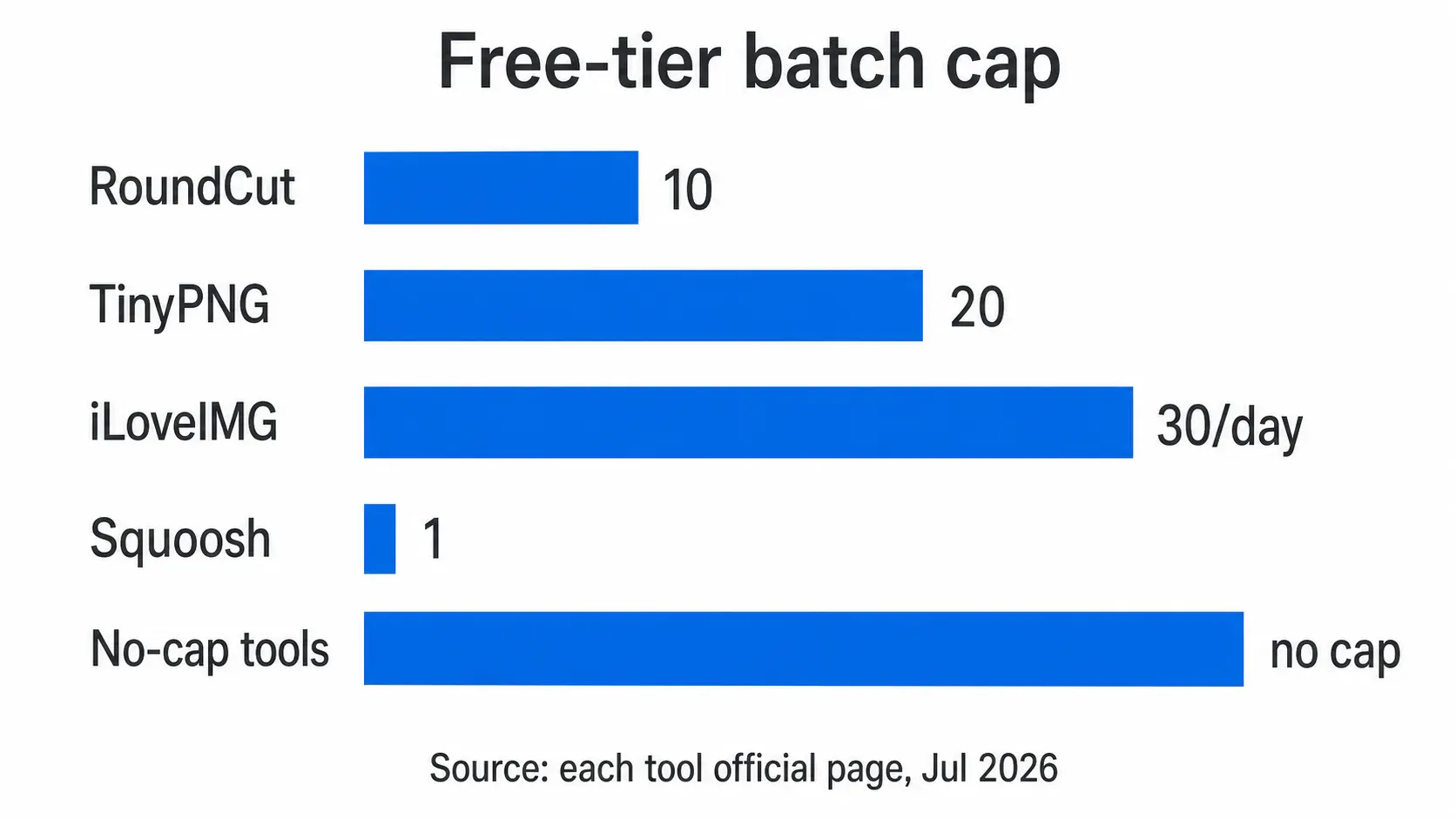
Every compressor calls itself free. The word covers wildly different deals. One gives you twenty images, then asks you to sign in. Another lets you compress all day but meters its AI features down to a single use. A third never uploads your file at all, yet takes one image at a time. I lined the free tiers up side by side, straight from each vendor’s page on July 22, 2026.
| Tool | Batch cap (free) | Per-file cap | Processing | Signup / watermark |
|---|---|---|---|---|
| RoundCut Compress | 10 per batch | 40 MP input | Local for 1 file; server lane for 2+ | None / none |
| TinyPNG | 20 images | 5 MB each | Upload, held ≤48h | None / none |
| iLoveIMG | 30 tasks/day | 200 MB | Upload | Account for more |
| Squoosh | 1 at a time | none stated | Local, never uploaded | None / none |
| imagecompressor.com | no daily limit | none stated | Local (WebAssembly) | None / none |
Read down the “Processing” column first. That’s the split that matters most and the one no listicle ranks on: half these tools send your image to a server, half never do. Everything else is throughput.
TinyPNG: 20 images, 5 MB, and a 48-hour hold
TinyPNG is the name most people reach for, and for a quick handful of PNGs it earns that. The free web tool takes up to 20 images at 5 MB each and does its smart-lossy trick well. Two things bite. Conversion is separate and stingier, capped at 3 free images before it wants an API key. And the file leaves your machine: TinyPNG’s own note says uploads are retained “for a maximum of 48 hours, after which they are permanently deleted.” For a marketing graphic, fine. For a client’s unreleased product shot or a signed contract scan, a 48-hour window on someone else’s server is a call you should make on purpose, not by accident. That single distinction is the whole point of the no-upload test I ran across these tools.
iLoveIMG: a 200 MB ceiling with a daily task meter
iLoveIMG flips the trade. Its 200 MB free ceiling is the most generous file size on this list, so a raw phone panorama sails through where TinyPNG bounces it at 5 MB. The cap you actually hit is the task meter. The Basic tier grants 30 compresses a day, which sounds plenty, until the AI tools run dry: 1 upscale, 1 crop, 3 background removals, and the built-in editor stops after a single use. Upscale and Remove Background also quietly drop to a 6 MB file limit (a fraction of the headline 200 MB). So the honest read is a split verdict. Good for compressing or resizing a moderate pile, frustrating the moment you want to enlarge two photos or cut four product backgrounds in one sitting.
Squoosh and Photopea: local, but not built for a batch
If privacy is the whole point, Google’s Squoosh and Photopea are the honest answers, and neither costs a cent. Squoosh states it plainly: “Squoosh does not send your image to a server. All image compression processes locally.” Photopea goes further, promising “there are no uploads” and that files “never leave your device.” The trade is throughput. Squoosh’s web app handles one image at a time, with a slider-and-preview workflow that is superb for squeezing a single hero shot and useless for a folder of fifty. Photopea is a full Photoshop-style editor, so you compress by exporting with a quality setting, which means learning an editor to do a one-click job. Both nail the privacy claim. They’re just the wrong shape for a bulk pass.
Where RoundCut lands
I help build RoundCut, so read this with that in mind, and I will hand you the weak cells too. RoundCut Compress runs a single file entirely in your browser: the photo is decoded and re-encoded on your device and never uploaded, same as Squoosh. Where it differs is the batch. Drop in 2 or more files and they route through a server lane that processes them and deletes them within about two hours, with a client-side fallback if that lane is down. That’s the honest line, and it is why the table above says “local for 1, server for 2+” instead of a flat privacy badge. No account and no watermark, ever.
The caps I would flag before you lean on it: the compress batch tops out at 10 images at once, and the 2x upscale is limited to 20 runs per IP a day. If you are crushing a 300-image catalog, that 10-per-batch ceiling means chunking the work, and iLoveIMG’s 30-a-day count will out-last it on raw volume. Where RoundCut wins is the do-it-now single file with nothing to sign and nothing uploaded, plus a 12-pair format matrix if you would rather run a WebP conversion first and shave another quarter off the weight. If the file is still heavy after that, resize the pixels down before you blame the compressor.
Which free compressor for which job
Here’s how I actually route the work:
- One sensitive file, privacy non-negotiable: Squoosh or RoundCut, both local, no upload to think about.
- A quick batch of web images under 5 MB each: TinyPNG’s 20-at-once is the fastest path when the files are not confidential.
- A big-file resize or a moderate daily pile: iLoveIMG’s 200 MB ceiling, as long as you are not leaning on its once-a-day AI tools.
- A precise target like under 1 MB for a webpage: any tool with a live size preview, because there is no universal quality number.
That last point trips more people than any cap. Google’s own image guide notes there is no universal setting, and that a “quality 90 JPEG will produce a very different result than a quality 90 WebP.” So the slider number lies across formats. The lever that reliably moves size is the format itself: Google documents WebP running 25-34% smaller than JPEG at the same visual quality, and 26% smaller than PNG when lossless. Switch format first, nudge quality second, then check the result at 100% before you ship, the same order I use for modern JPEG versus WebP.
FAQ
Is a free image compressor safe for confidential photos?
Only if it processes locally. Squoosh, Photopea, and RoundCut’s single-file mode never upload the image. TinyPNG and iLoveIMG do upload, and TinyPNG states files are held up to 48 hours. For a signed contract or an unreleased product shot, stay on a local tool.
Which free compressor has no daily limit?
imagecompressor.com states “no daily limits, no watermarks” with local WebAssembly processing, and RoundCut adds no account and no watermark at a 10-image batch cap. iLoveIMG and TinyPNG both meter you, by daily tasks and by batch size respectively.
Does compressing an image reduce quality?
Lossy compression drops some pixel data by design; lossless does not. On a photo the loss is usually invisible, but sharp text and hard edges show it first, which is why email attachments with type on them still want a PNG master.
My default, after measuring all of them: for a single file I care about, I stay local and skip the upload entirely. For a wall of web images that are not secret, I grab whichever tool’s batch cap clears the pile in the fewest passes. The star rating never told me either of those. The limits table did.


