Why Your PNG Got Bigger After Editing: 5 Causes Measured
Your PNG grew because the edit changed what the file stores, not how it looks. I measured all five causes in bytes, plus the fix that gave back 86% of it.

Contents
A PNG that got bigger after an edit almost always changed what it stores, not how it looks. Transparency, a dropped palette and a left-on interlacing box each rewrite the storage cost of every pixel in the file. I measured five of those edits on the same source images this week. The most expensive one, a circular crop, turned a 73 KB avatar into a 578 KB file.
Did the pixels change, or the storage?
That question sorts the whole problem, and you can answer it with software already on the machine. On a Mac, open both files in Preview and click the Info button in the toolbar for dimensions and colour profile. On Windows, right-click, Properties, Details gets you to the same class of information. Neither panel reports the file’s colour type (which is the one field that decides whether a pixel costs one byte or four).
So run the ten-second version instead. Export your image twice, once with transparency and once without, then compare the two byte counts. A transparent copy several times heavier means the edit changed the file’s storage model. Both copies heavy means the picture itself got busier.
Cause 1: the crop that added an alpha channel
Adding transparency is the single most expensive thing you can do to a photo, because it evicts the file from JPEG entirely. The PNG specification is blunt about the mechanism: a truecolour pixel with alpha costs four samples where an opaque one costs three, and a palette pixel costs a single index.
I took a 3124-pixel portrait from Wikimedia Commons, centre-cropped it to 512 x 512, and exported it four ways. As a JPEG at quality 85 it weighed 73.2 KB. The same square as a PNG, no transparency: 505.9 KB. After a circle crop with genuinely transparent corners: 577.6 KB, or 7.9 times the JPEG it replaced.
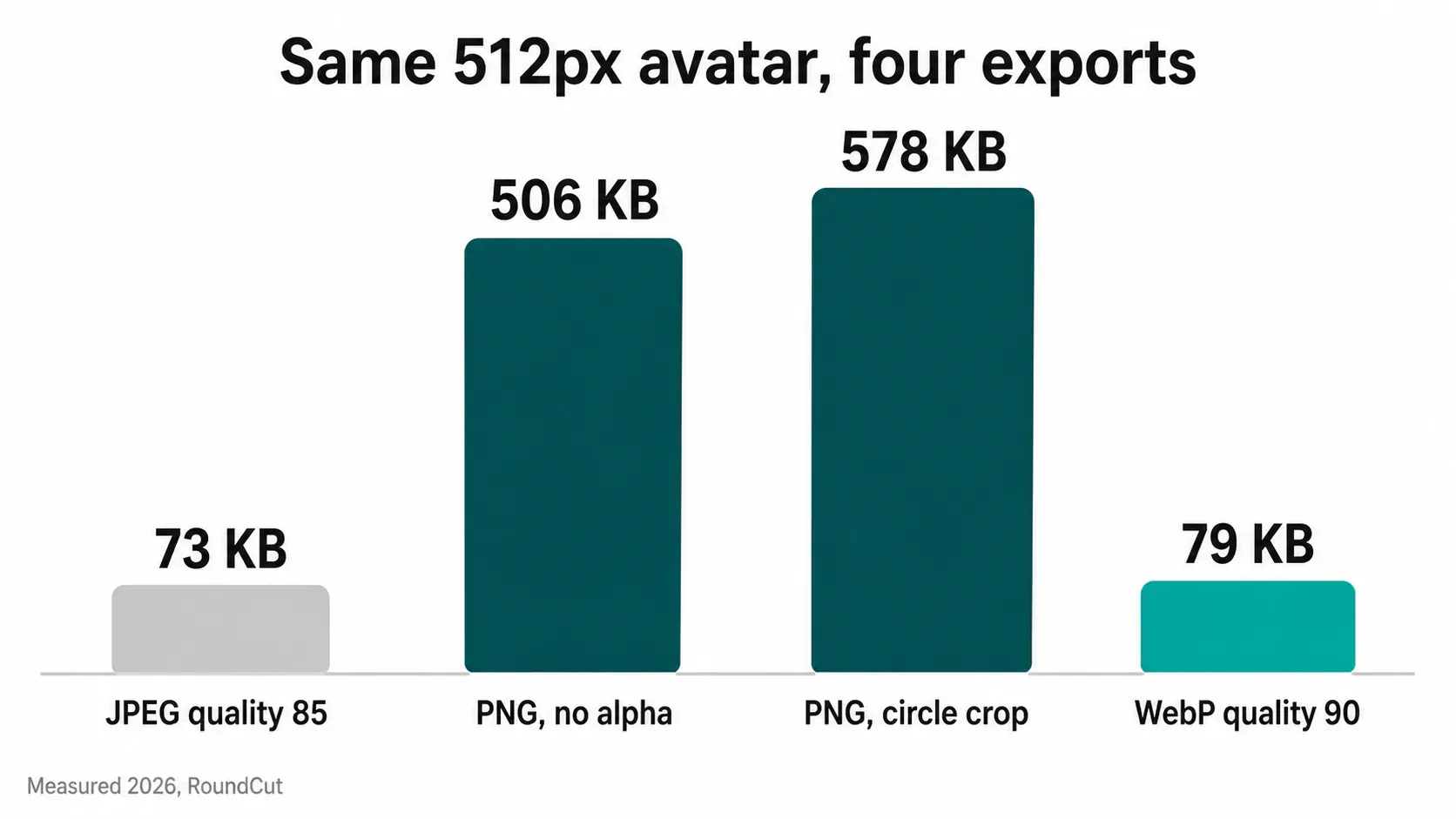
Two separate costs hide inside that jump. Leaving JPEG for PNG accounts for 433 KB of it, because a photograph is mostly fine noise and PNG stores noise faithfully. The alpha channel itself accounts for the remaining 72 KB, about 14% on top of the same PNG without it. Neither number reflects a visible change. The circle looks identical at 78.7 KB in a different container, which is the fix I get to at the end.
Cause 2: the export that dropped the palette
Flat art carries few colours, and a palette stores them once instead of per pixel. The 500-pixel logo I tested holds 11,611 colours as published, at 209.4 KB. Quantised to a 256-entry palette it falls to 48.5 KB.
Now re-export those exact palette colours as truecolour: 112.1 KB, up 131% for pixels that did not change at all. That ceiling is documented. Greg Roelofs writes in the PNG book on libpng.org that a palette with transparency “implies a potential factor-of-four savings in file size over a full 32-bit RGBA image”.
Quantising is not free, so here’s what it cost on that logo: measured over a white background, the 256-colour copy differs from the original by a mean of 2.36 out of 255, and 0.56% of its opaque pixels are off by more than 8. On a logo or an icon, invisible. On a photo with a wide gradient sky, that same operation is where banding comes from, which is why I only quantise flat art and leave photographs alone. The same instinct applies when you shrink transparent PNGs for the web.
Cause 3: one soft shadow
Drop shadows are where flat art stops being flat. I dropped a single Gaussian-blurred ellipse under the icon above, changing nothing else. Colour count went from 610 to 684. The file went from 20.9 KB to 29.2 KB, 40% heavier for a decoration most people would not even file under “edits”.
My rule after measuring it: a shadow whose job is to lift an element off a page belongs in the page, not baked into the pixels. Bake it in only when the image lands somewhere you don’t control the background, like a marketplace listing or an email signature.
Causes 4 and 5: the checkboxes nobody reads
Adam7 interlacing splits the image into seven passes so a browser can paint a rough version early. The spec calls the trade-off mild, saying interlacing “slightly expands the datastream size”. On my flat icon it expanded it by 26%, from 23.2 KB to 29.2 KB. On the circle avatar, 11%. Mild is doing some work in that sentence.
The compression level is the other one, and it is invisible in most export dialogs. Identical pixels, identical encoder, four settings: level 0 produced 1,027.5 KB, level 1 produced 592.6 KB, the default level 6 produced 577.6 KB, and level 9 produced 571.8 KB. A level-0 PNG is a perfectly legal PNG (which is why nothing warns you) that stores its data uncompressed. Squeezing all the way to level 9 bought about 1% over the default, so the interesting failure is a tool that ships at level 0, not one that skips level 9.
Metadata is the quiet third. Re-encoding the icon while keeping its chunks produced 23.2 KB, and stripping them produced 15.8 KB. That is 7,562 bytes of colour profiles and editor timestamps, 47% on top of the stripped file, for data no viewer ever shows the reader.
| What changed | Same pixels? | Measured cost |
|---|---|---|
| JPEG to PNG (photo) | yes | +433 KB on a 512px avatar |
| Alpha channel added | yes | +14% |
| Palette re-exported as truecolour | yes | +131% |
| One blurred drop shadow | no | +40% |
| Adam7 interlacing on | yes | +26% on a flat icon |
| Deflate level 0 instead of 6 | yes | +78% |
| Metadata chunks kept | yes | +47% |
The order I fix these in
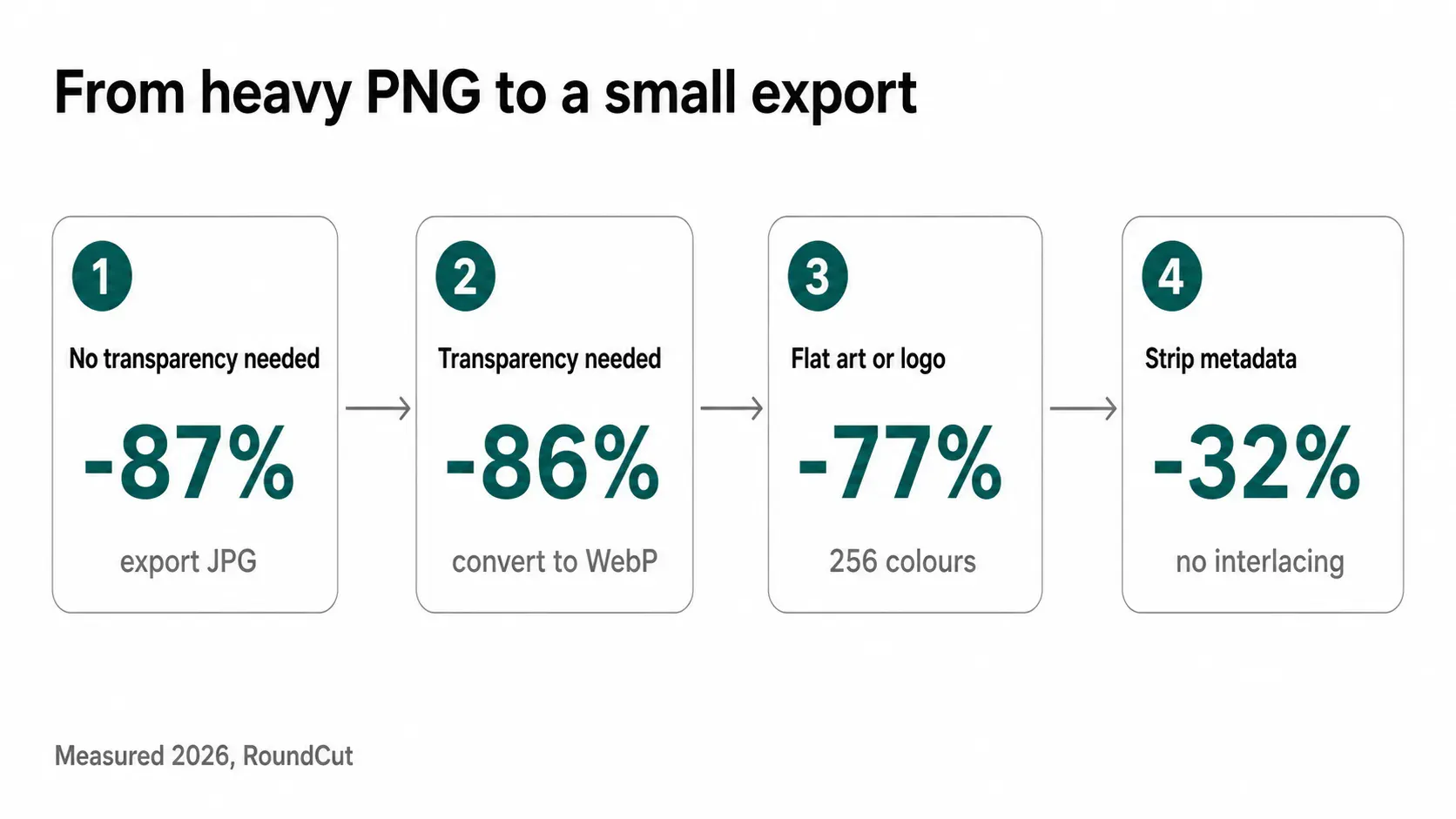
- Drop transparency you never needed. A circular avatar sitting on a platform that masks it into a circle anyway gains nothing from an alpha channel. A JPG export took the same file down 87%, as long as you set the fill colour deliberately and don’t inherit the black box behind a cutout.
- Keep the transparency, change the container. Converting PNG to WebP took my 577.6 KB circle to 78.7 KB at quality 90, 86% off, at a mean channel error of 3.85 out of 255. Google’s own study on WebP lossless and alpha found WebP “consistently achieves higher compression density than size-optimized PNGs for over 99% of tested web images”, across 12,000 PNGs crawled from the web.
- Quantise flat art, never photographs. 209.4 KB to 48.5 KB on the logo, with the colour error above as the receipt.
- Turn interlacing off and strip the chunks. Metadata was 32% of one test file and interlacing 26% of another, and neither one buys the reader anything.
- Compress last. RoundCut Compress runs the encode in the browser, so the file never leaves the device on its way to being smaller.
Two adjacent symptoms come from the same alpha channel, by the way. If your resized cutout grew a white fringe after resizing, that is the alpha edge resampling badly rather than a size problem, and choosing between transparent formats is a separate decision from choosing how hard to compress. Text is the one place I keep the heavy file on purpose: PNG is why screenshot text stays crisp where a JPEG smears it.
There is one case where 578 KB is the correct answer, and it’s the master copy you’ll open again next month. Keep that file in a folder you never publish from, export a right-sized copy per destination, and read the upload caps of the destination first. Most platforms reject the master long before your visitors ever have to download it.


