Notes from the team on craft, formats, and the small decisions behind a good result.
The exact-storage format, what PNG stores
PNG uses a no-loss compression algorithm. It stores every color value exactly as provided, applies a reversible filter to each scanline, and compresses the result. The key property is that the decompressed values are byte-identical to the originals. For the JPG-to-PNG case, the originals are the pixels produced when the browser decodes the JPEG. Those decoded pixels already reflect all the approximations JPEG made during its original encode, so PNG faithfully stores the approximated pixels, not the real-world scene. Measured, a small JPEG at medium resolution grows to several times its original file size as PNG, and a larger JPEG at high resolution grows even more. These multiples hold roughly across content types because the ratio tracks resolution, not JPEG quality level. The exact-storage format is valuable for what it prevents, further degradation, not for what it restores.
Why JPEG quality cannot be recovered
JPEG compression discards information permanently. The encoder breaks the image into small blocks and stores a simplified version of each, rounding fine detail down to a smaller set of values. That rounding is one-way: detail dropped during encoding cannot be recovered later, and no record of the original survives in the file. When the browser opens the JPEG, it rebuilds the picture from those rounded values, which are approximations of the original. Saving those approximated values as PNG produces an exact record of the approximation, so the PNG is a perfect copy of the already-degraded image. This is not a limit of PNG or of this tool. It is a basic property of compression that throws data away: what is dropped at save time is gone. To improve quality you have to start from an uncompressed or RAW original.
Measured file size growth
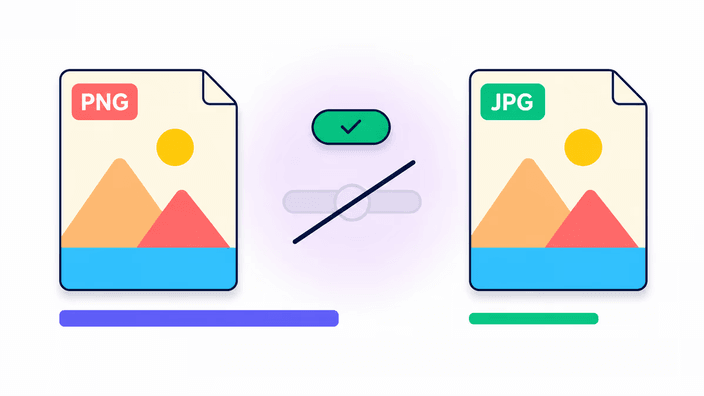
The size ratio from JPG to PNG varies by image content but follows a predictable pattern. Photographic images with complex tonal variation grow the most, because JPEG's transform is tuned for exactly that content and achieves high compression ratios, while PNG's exact-storage compression cannot match those ratios on noisy image data. Test measurements from this tool show a small JPEG photo at medium resolution growing roughly 6 times as PNG, and a larger JPEG at high resolution growing roughly 3.3 times. For flat-color images like screenshots and icons, JPEG is already poorly suited to the content and its files tend to be larger for equivalent quality, so the PNG of the same content grows less dramatically. The practical implication is direct, if output file size matters for your use case, converting a JPG to PNG makes the situation worse, not better.
Transparency, the capability versus the content
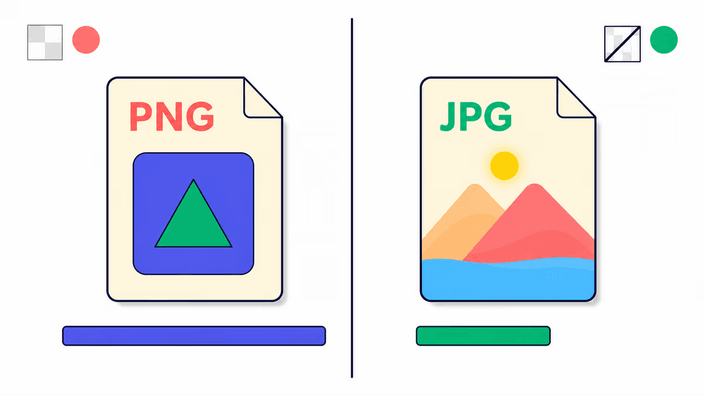
PNG supports full transparency as a built-in feature, where a file can include per-area opacity values ranging from fully transparent to fully opaque. When a JPG is converted to PNG, the resulting PNG is set to fully opaque, because the source JPG had no transparency information to begin with. The PNG format is ready to hold transparency data. The file just does not contain any, because none was present in your source. Adding transparency to the image requires separate processing, either masking the background in an editor or using an automated background-removal step. A background-remover tool trained to identify the subject can produce a PNG with real transparency by clearing the background areas after the conversion.
EXIF metadata handling
The re-encode pipeline strips EXIF, IPTC, and XMP metadata from the PNG output on every browser. This means GPS coordinates, camera model, capture date, copyright strings, and any custom XMP fields present in the source JPG are removed. ICC color profiles follow a slightly different path, where Chrome and Safari preserve the sRGB ICC profile tag in the output and Firefox strips it along with all other metadata. The practical result is sRGB-safe output across browsers, but wide-gamut profiles such as Display-P3 or Adobe RGB are lost in Firefox. For most web and sharing uses, metadata removal is helpful, since it reduces output size slightly and removes location data from photos. For professional photography or archival workflows where embedded metadata must be preserved, handle the metadata chain with a dedicated tool before or after the format conversion.
Privacy and where conversion happens
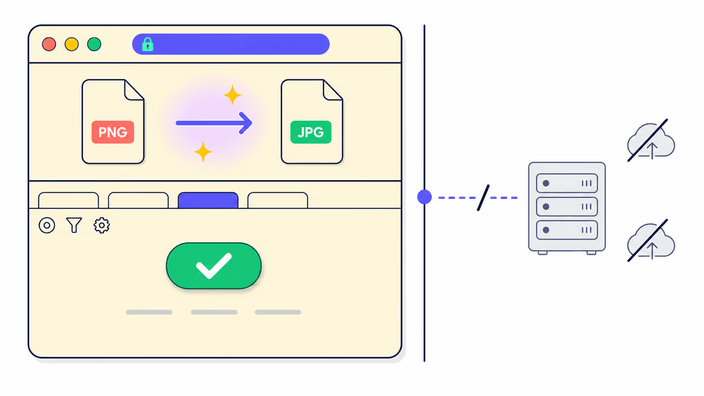
Where the work happens depends on the number of files. For a single image, no data leaves your device, and that is verifiable in real time. You can verify this by watching your browser network panel during a single conversion and confirming zero outbound requests carry image data. The JPEG decode and PNG encode both happen on your device, off the network. For two or more files, RoundCut sends them to our server, which converts them, zips the result, and returns a download link. That link and the converted files are deleted within about 2 hours. The single-image path keeps everything on your device, while the batch path trades that for converting many files in one step. When your image content is sensitive, converting one at a time leaves no upload at all.