Notes from the team on craft, formats, and the small decisions behind a good result.
Why WebP is not universally supported in desktop apps
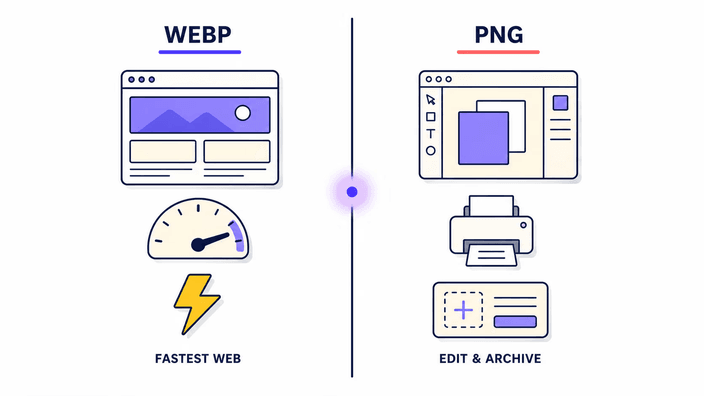
WebP was released by Google in 2010, but adoption by desktop software lagged far behind browser support. Browsers adopted WebP early because they control their own rendering engines and Google actively optimized Chrome's WebP support as a competitive advantage. Desktop applications take longer to adopt a new image format because each application maintains its own image decoding stack, and supporting a new format requires testing against a long tail of edge cases. Adobe Photoshop, used by the majority of professional photographers and designers, did not ship native WebP support until version 23.2 in late 2022. Microsoft Office applications still handle WebP inconsistently across platforms as of 2026. Print RIP software and most legacy archiving tools never adopted WebP at all. The practical consequence is that a file that displays perfectly in a browser may be refused entirely by the software the user needs, and converting to PNG is the reliable workaround.
How WebP achieves its compression advantage over PNG
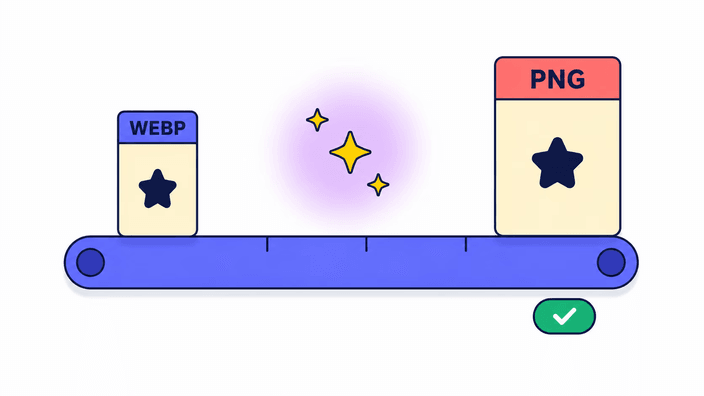
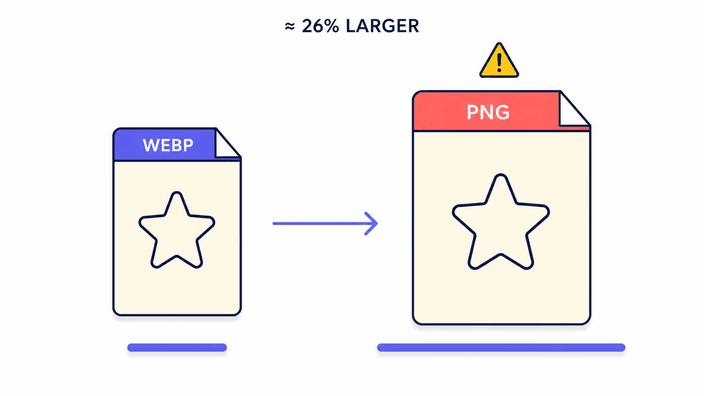
PNG uses a general-purpose exact compression method from 1996. It applies a set of reversible line filters before compression and encodes the result with a standard stream. This is effective but designed before video codec research produced better techniques. WebP lossy mode uses a block-based transform derived from VP8 video compression, applying intra-frame prediction and a frequency transform to large block units. WebP exact mode uses spatial prediction, colour transformation, and a coding stage that is structurally more efficient than PNG's approach for typical image content. Google's published benchmarks show exact WebP about 26 percent smaller than PNG on a standard set of test images, and compressed WebP with transparency about three times smaller than PNG at comparable visual quality. The PNG-to-WebP direction exploits these gains, the WebP-to-PNG direction reverses them, hence the larger output.
Measured file size growth examples
Measured on Chrome 148, Linux desktop, using the platform PNG encode path applied to decoded WebP inputs. A small vector-style graphic at a compact size, saved as WebP at quality 80, decodes and re-encodes as PNG in roughly 15 to 25 ms with a typical file size growth of 20 to 30 percent. A photographic WebP at a typical screen resolution decodes and re-encodes to PNG in under 100 ms with a typical growth of three to five times. A large photographic WebP at a high display resolution encodes to PNG in about 1.2 seconds with growth of five to ten times depending on scene complexity. These numbers reflect the difference in compression efficiency between the two formats and scale with overall image dimensions.
Alpha transparency in the round trip
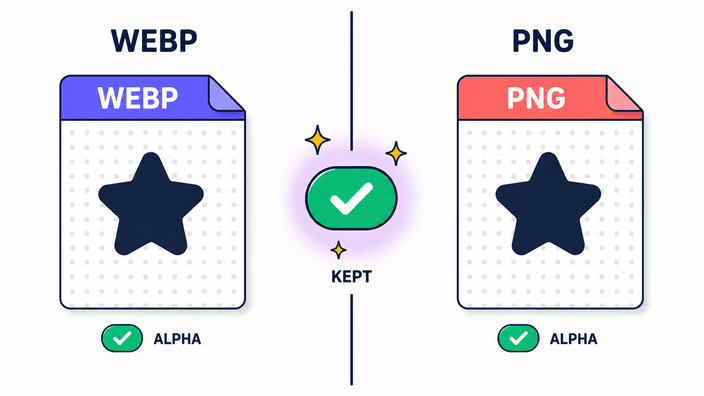
The transparency channel in WebP and PNG uses the same value range, where zero means fully clear and the maximum value means fully solid. When the browser decodes a WebP with transparency, it produces an image buffer where the transparency component reflects the original data. When that buffer is re-encoded as PNG, the PNG encoder writes the transparency values into the PNG's transparency channel directly. No compositing step occurs, no background colour is applied, and no pre-multiplication side effects change the values. The result is a faithful transfer of the transparency channel, where every area's opacity in the PNG matches what the WebP stored. For images with fine anti-aliasing at edges, each intermediate opacity value survives the round trip intact. This fidelity is what makes PNG the right choice over JPG when the destination application needs to display the image on multiple backgrounds.
EXIF and metadata behavior
The re-encode pipeline strips EXIF, IPTC, and XMP metadata from the PNG output. WebP files can carry EXIF data embedded in their metadata chunk, and that data is lost when the browser decodes and re-encodes the image. ICC color profiles follow a different path, where Chrome and Safari preserve the sRGB ICC profile tag in the PNG output after decoding WebP, and Firefox strips all metadata including the ICC profile. The practical consequence is sRGB-safe output across all browsers, but any wide-gamut profile embedded in the source WebP does not survive in Firefox. For professional photographic workflows that rely on ICC-tagged round trips, use a metadata-aware conversion tool. For standard web image handling, metadata removal is typically acceptable and has the small benefit of slightly reducing output file size.
Privacy verification in practice
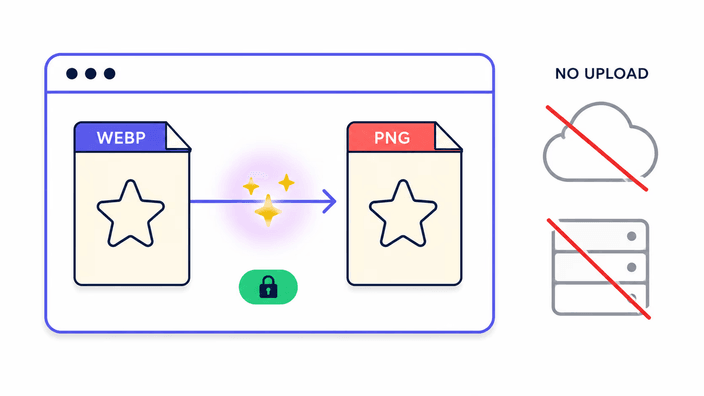
The claim that a single file is processed without uploading can be checked without any special tools. Open your browser, navigate to the webp-to-png page, then open the developer tools. Switch to the Network tab, clear any existing requests, and run a conversion by dropping a WebP file. Filter the request list by Fetch, XHR, or All. The list shows zero outbound requests containing image data during the encode. The only network requests present are the initial page load assets and standard analytics pings, which record page views and performance data only, with no image content. Every major remote WebP to PNG converter generates at minimum an upload POST and a download GET per conversion, both logged on the server. The local-first architecture means those log entries do not exist, which is the meaningful difference for users converting files that carry sensitive content.