Notes from the team on craft, formats, and the small decisions behind a good result.
Why so many apps still reject WebP in 2026
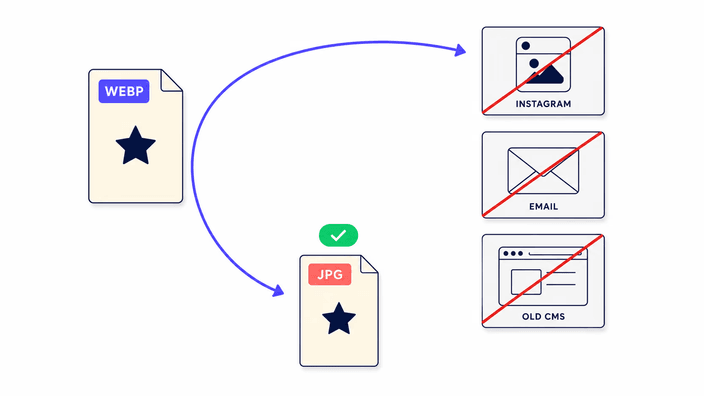
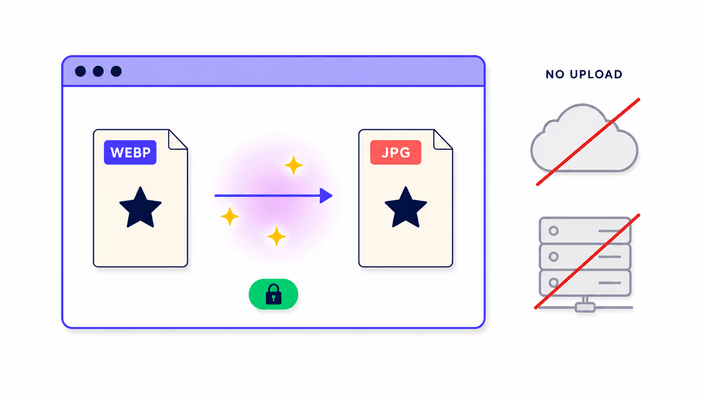
Even though WebP is more than a decade old, a real slice of consumer software still will not accept it for upload or display. The reason is not technical capability, since the codec is widely available, but product inertia and format standardisation. Instagram and the wider Meta platforms standardised on JPEG for upload because it is the most portable format for a global user base, and changing upload validation means re-testing across hundreds of device setups. Microsoft's photo viewer on Windows 10 needs a separate Store install to handle WebP. Most enterprise content managers built before 2018 validate uploads against a fixed MIME list that predates WebP entirely. Print providers, stock agencies, and government portals often bake format requirements into legal or procurement specs. These are genuine barriers that demand a compatible format, and JPEG remains the universal answer to them.
The transparency problem: why white, and how to change it
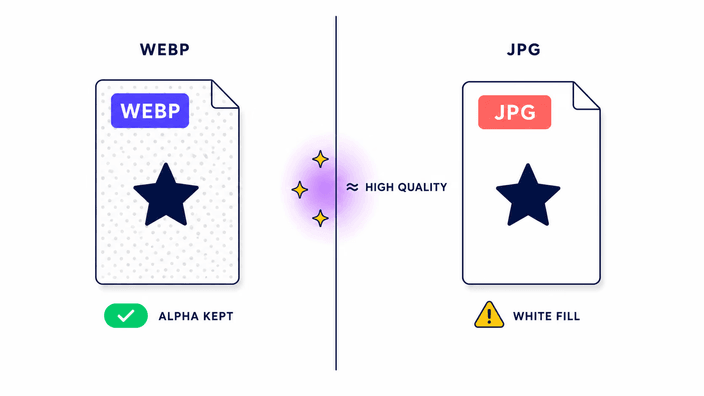
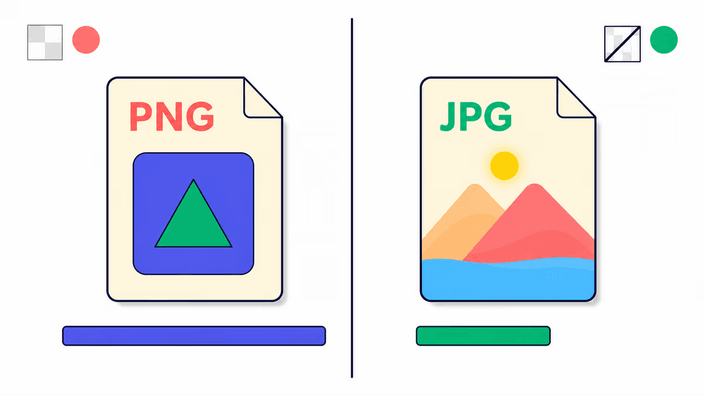
JPEG's compression works on colour channels pulled from red, green, and blue values. There is no fourth channel for transparency. When the browser writes a JPEG from a WebP that carries clear areas, it has to assign a real colour to each transparent spot. The default fill is white. That is the browser default, not a setting this tool exposes. If your WebP has a transparent background and you need a particular colour in the JPG, say dark grey for a logo on a dark page, open the WebP in any editor that supports layers, drop a background layer in your target colour beneath the image, flatten the stack, and then run that flattened file through this converter. The result is a JPG carrying your chosen colour exactly where the transparency used to be.
Quality, PSNR, and what visually negligible means
PSNR, Peak Signal-to-Noise Ratio, is the standard engineering measure of how far a re-encoded image drifts from its source, expressed in decibels. A higher figure means a closer match. In our end-to-end tests, the JPEG writer used here produced 43.66 dB PSNR on a photograph at the default quality. For context, 36 dB is the rough threshold below which differences become clearly visible to most viewers, while 40 dB and up is usually called perceptually transparent for photographic content. At 43.66 dB, the conversion is, for any practical web or print purpose, visually identical to the source. The quality is fixed in this version with no slider. If you need a precise quality level for a particular workflow, a more configurable tool is the better fit for that job.
File size after conversion: WebP to JPG is usually larger
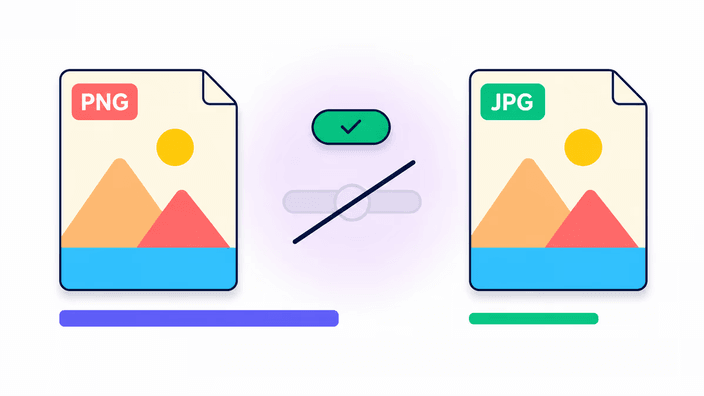
WebP compresses photographs more efficiently than JPEG does. When you convert in the reverse direction, from WebP to JPG, you move to a less efficient format, so the output usually ends up larger than the input. In our measurements, a WebP photograph at a standard phone resolution produced a JPEG that was a touch smaller in that one case because JPEG happened to encode that image well. But on larger photos the inflation is consistent. A picture that arrives as a compact WebP can leave as a JPEG roughly 50 percent heavier at comparable visual quality. This is not a bug or a sign the converter is misbehaving. It is the expected price of moving from a more efficient format to a less efficient one, and that growth is simply the cost of universal compatibility.
Metadata: EXIF, GPS, and what gets stripped
WebP files can carry EXIF metadata, including GPS coordinates, camera model, shutter speed, aperture, and orientation. JPEG files can carry EXIF too. The conversion pipeline here, though, strips all metadata from the output. The resulting JPEG holds only visual detail, with no EXIF, no IPTC copyright fields, no XMP edit history, and no ICC profile in Firefox or WebKit, while Chrome and Edge do preserve ICC profiles. This happens at the browser drawing level and cannot be overridden. For most web publishing, stripped metadata is the preferable outcome: it trims a few bytes, removes GPS coordinates that might pin down where a photo was taken, and avoids leaking camera or editing details. For archival or legal work where metadata has to survive, use a dedicated EXIF-preserving editor instead of this converter.
How long does WebP to JPG conversion take?
In our end-to-end tests across Chromium, Firefox, and WebKit, the JPEG encode step for a standard phone photo took 16 milliseconds on Chromium, 12 on Firefox, and 17 on WebKit. For a large photo at a high resolution, the encode step added roughly 1.5 seconds on Chromium. The total time you actually feel also folds in the browser reading the file from disk, the WebP decode step, and the surface draw before the encode. For phone photos under four megapixels, the round trip stays under a second. For big DSLR photos above eight megapixels, expect 2 to 5 seconds on a desktop browser. Mobile devices run roughly three to five times slower than desktop for the encode alone, which tracks with the gap in mobile processor performance.