Notes from the team on craft, formats, and the small decisions behind a good result.
Why photographic PNGs are so large
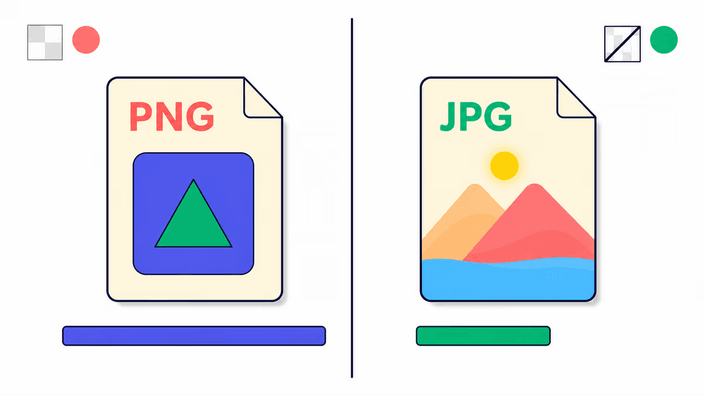
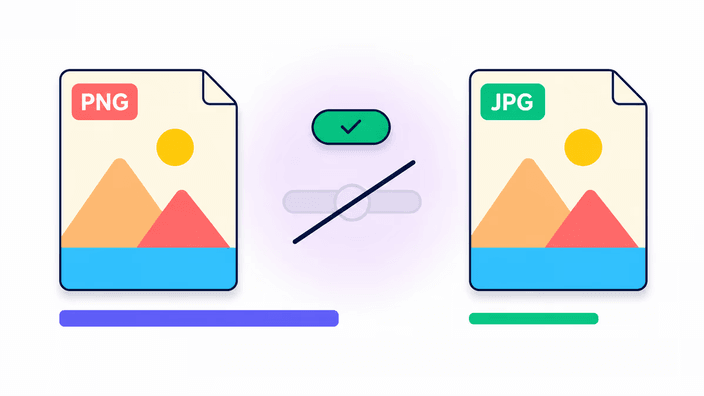
PNG compression stores every dot of color exactly as it appears. For a photographic image with millions of subtly varying tones, that produces very large files because there is almost nothing to deduplicate or predict between neighboring areas. A typical 1600x1200 photo saves as a large PNG. The same image as a JPEG at quality 85 is much smaller in file size. That gap comes from the transform at the heart of JPEG, which divides the image into small blocks, discards detail the human visual system is least sensitive to, and stores the remaining data compactly. The result is a much smaller file for any image with continuous-tone variation, which is essentially every photo. PNG's exact-storage approach is valuable for graphics and working files, but it is the wrong format for photographs headed out for sharing.
Transparency and the white background
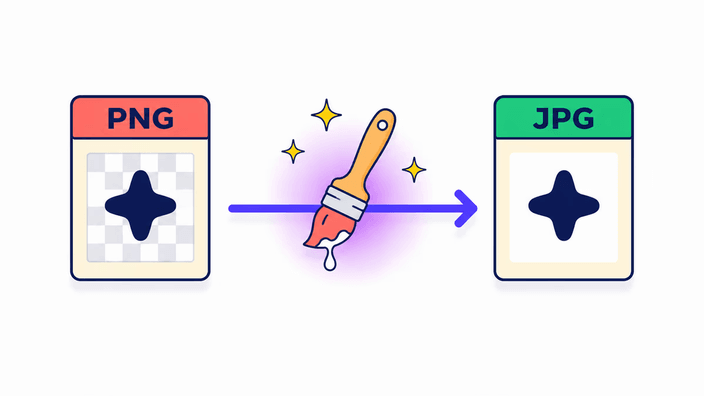
PNG lets each area of an image be fully see-through, partially see-through, or fully solid. JPG has no place to store that see-through quality at all. When the browser re-encodes a PNG to JPEG, it has to fill every transparent area with a solid color before writing the file. The default fill is white, which is why transparent areas in your PNG appear white in the resulting JPG. The key point is that no tool can produce a transparent JPG, because the format was never designed for it. If preserving the cut-out matters, the answer is WebP or keeping the PNG. RoundCut chooses white as the fill color since it matches the background of most documents and product listings.
Measured encode performance
Measured on Chrome 148, Linux desktop, using the platform JPEG encode path. A small photo (around 0.12 megapixels) encodes in roughly 10 to 15 ms. A medium photo (around 0.78 megapixels) encodes in about 13 to 20 ms. A large photo (around 8 megapixels) encodes in roughly 1.4 seconds. A very large photo (around 48 megapixels) encodes in about 1.5 seconds. JPEG encoding in the browser is substantially faster than PNG encoding for the same image, and far faster than AVIF, which needs a separate module and can take 25 seconds at maximum resolution even on desktop Chrome. This speed advantage makes PNG to JPG one of the fastest conversion paths in this family, with no extra loading cost because JPEG encoding is built into every browser.
EXIF and metadata handling
The re-encode pipeline strips EXIF, IPTC, and XMP metadata from the output JPG on every browser. That means location coordinates, camera model, capture date, copyright notice, and any custom fields present in your source PNG are removed. ICC color profiles follow a different path, where Chrome and Safari preserve the sRGB ICC profile in the output while Firefox strips it entirely. The practical result is that the converted JPG is sRGB-safe across all browsers, but if your PNG was tagged with a wide-gamut profile such as Display-P3 or Adobe RGB, that tag does not survive in Firefox. If preserving complete metadata is a workflow requirement, edit it with a dedicated tool after conversion. For typical web and sharing use, metadata removal is helpful because it trims the file slightly and drops GPS data from photos.
When JPG artifacts are visible
JPEG compression works on small square blocks across the image. When your source image contains a hard transition between two very different colors within a single block, the JPEG step approximates that transition imperfectly. The result is ringing, a halo of lighter or darker tones around the edge. In photographs this is invisible, because edges are never perfectly sharp and real-world photos carry micro-variation that the approximation matches well. In screenshots, logos, UI elements with hard borders, text, or adjacent flat color areas, the ringing shows clearly at any quality setting, because those elements are exactly the kind of signal the algorithm handles poorly. The advice is straightforward: do not convert screenshots, logos, or text-heavy images to JPG. Keep them as PNG, or use WebP for a smaller file that avoids the problem entirely.
How conversion paths affect your file
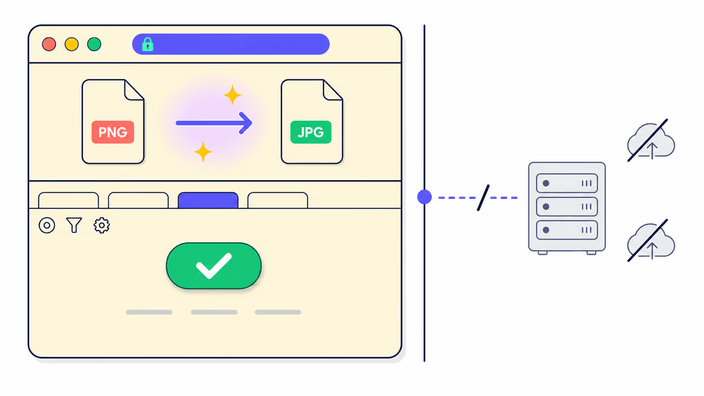
Where the conversion happens depends on the number of files. For a single image, your file is converted locally on your device, and no image data travels over the network. You can verify this by watching your browser's network activity during a single conversion and seeing no outbound request carrying your image. For two or more files, RoundCut sends them to our server, which converts them, packages the result, and returns a download link. That link and the converted files are deleted within about 2 hours. The single-image path runs entirely on your device, while the batch path trades that for the convenience of converting many files in one step. For images with sensitive content, such as a personal document or a photo with location data, converting one at a time keeps everything local.