How do I combine JPG images into one PDF?
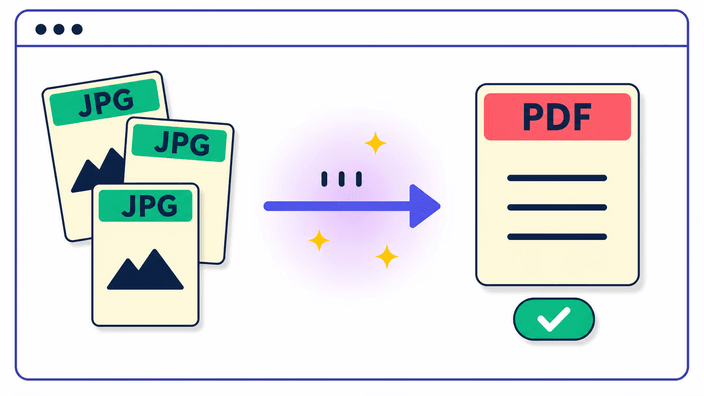
Drop your photos onto the page, drag the thumbnails into the order you want, and pick a page size. Then build the document and download it. One image is turned into a PDF on your device, while several are sent to a server that assembles them and keeps nothing. The result comes back as a single file either way, ready to share or print.
Is the JPG to PDF tool free?
Yes. You can build a document without signing up or installing anything, and there is no per-day cap on how often you use it. Drop in your photos, set the order and page size, and download the finished PDF. The file you get is yours to send, print, or upload wherever you need it.
How many images can I put in one PDF?
You can place up to thirty photos in a single document. Drag them into the order you want and each one becomes a page. If you have more than that, build a second PDF and combine the two in a dedicated PDF tool, since this one works from photos rather than merging existing documents.
Which image formats can I turn into a PDF?
JPG, PNG, and WebP all work, and you can mix them in the same document. A transparent PNG lands on a white page, because a PDF page has no see-through layer. Formats that are not photos, such as HEIC or TIFF, are not read here, so convert one of those to a common type first and then add it to the set.
Can I reorder and rotate the pages?
Yes. Each photo is a card you can drag into any position, so the pages end up in the sequence you choose. If a shot is sideways, rotate that page a quarter turn to stand it upright. You can also sort the whole set by filename in one step, which lines up pages that were already numbered by a camera or scanner.
What page sizes and margins are available?
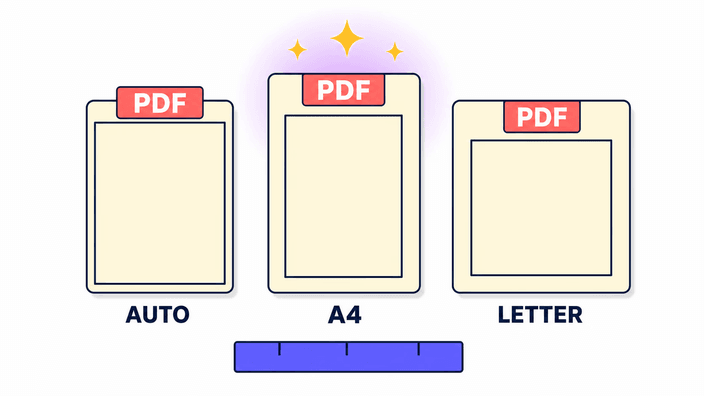
You can set the document to A4, to Letter, or to an auto size where each page matches its image. Alongside that you choose the margin, from none for an edge-to-edge page, to a small frame, to a wide one. The setting applies across the whole PDF, so every page comes out consistent for printing or sending.
Are my images uploaded to a server?
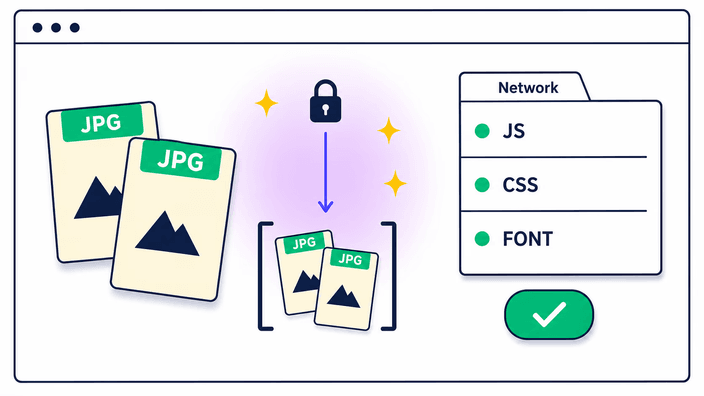
It depends on the count. One image is built into a PDF on your own device, with nothing sent out. When you add two or more, they go to a server that puts the document together and removes them right after, so they are not stored once your file is back. You are never asked to sign in, and nothing is linked to you. The privacy page covers the specifics.
Will the PDF keep the full quality of my photos?
Each page is saved as a photo at a high quality setting, which looks the same as the original for sharing, printing, and sending. It is not a byte-for-byte copy, so this is not the tool for archiving a master image. Transparent parts of a PNG are filled with white, and the camera metadata is left out of the finished document.